TMS System Guide
A plain-English tour of the whole TMS transport management system: what each area does, who uses it, the everyday use cases, how the money flows, and what to check when someone calls for help. Written for the support manager.
Based on release 3.0.0. Every screenshot comes from a demo site with dummy data (the company is "TMS Demo Transport Co."). Real clients see their own name, logo and colours, but the screens and rules are the same. When a new release changes the product, this guide is updated and the release log at the end says what changed.
Tip: press Ctrl K (or /) to search every section, and click any screenshot to enlarge it.
How to read this guide
- Orange numbered circles on a screenshot point to something on the screen. The list under the picture explains each number.
- Flow diagrams show who does what, in order, from left to right. Each row is a person or the system itself.
- Click any screenshot to open it full size.
- Words in
this styleare the exact names you see on screen or in documents.
1. What TMS is
TMS is a web program for a Saudi freight (trucking) company. A company that moves goods for other companies uses it to:
- Record every shipment it carries: who sends, who receives, which driver and truck, what is carried and what it costs.
- Work out the money of each shipment: the price for the customer, what the driver gets, VAT and the company's profit.
- Invoice customers with proper tax invoices (with the ZATCA QR code) and record the payments they make.
- Pay and track drivers: what each driver has earned, what was paid and what is still owed.
- Print the paperwork in Arabic and English: transport manifest, tax invoice, receipt vouchers, payment vouchers and account statements.
- Control who can do what, per person and per branch.
Each client company has its own copy of TMS with its own database, name, logo and colours. The code is the same for everyone. The version this guide describes is 3.0.0.
Who uses it
Operator / Branch User
Enters shipments, one-off jobs and phone-call jobs, prints the transport manifest, issues receipt vouchers. Sees only their own work in their own branch.
Accountant / Branch Administrator
Creates invoices, records customer payments, pays drivers, reads statements and the financial summary. Manages users and roles of the branch.
Administrator
Everything, in every branch. Also branches, company information and branding.
Support (you)
Explains the screens and rules, finds out why something is refused, helps with passwords, roles and the licence.
Words you will hear
| Word | What it means |
|---|---|
| Shipment | One transport job. Also called a transport manifest in documents (TR-0000001). The same record, two names. |
| Contract shipment | A shipment for a contracted company. It is invoiced later, in a batch, and paid later. |
| One-off shipment | A shipment for a customer without a contract. Paid in cash on the day. The company earns a commission. |
| Phone-call job | A job arranged by phone and entered once the money is settled. No invoice, no VAT. Only the profit is recorded. |
| Contracted company | A customer with a contract period (for example 2 years). Shows in the shipment form. |
| Consignee | The receiver of the goods. Not a customer and not a payer. |
| Sales invoice / tax invoice | The VAT invoice sent to a company (SO-0000001). It lists the shipments it covers. |
| Customer payment | Money a company pays towards its invoices. TMS spreads it over the invoices, oldest first. |
| Driver payment | Money the company pays a driver. Two meanings in the screens: the driver amount typed on a shipment (what the driver earns for the trip) and the payment made later (PV-0000001). |
| Receipt voucher | A loose paper for money received (RPA-0000001). Not linked to an invoice. |
| Account statement | A running list of what was invoiced and paid for one company, or earned and paid for one driver. |
| Branch | A division of the company. Every user works in one branch at a time and sees only that branch's data. |
| Role | A named set of permissions given to users. |
| VAT | Value added tax: 15 % (or 0 %) added to the price. It belongs to the tax authority, it is not profit. |
| ZATCA | The Saudi tax authority. Tax invoices carry a QR code it can scan. |
| Licence | A signed file from the vendor that lets the site run. When it ends, the site locks. |
2. The big picture
Most of what TMS does is one story: carry the load, bill the customer, pay the driver, keep what is left. The picture below is the whole product on one line. The detailed flows come later in each area.
The five areas of the menu
Operations
Contract Shipments, One-off Shipments, Phone-call Jobs: where work is entered.
Customers
Contracted Companies, One-off Customers, Customer Classification (a cleanup tool, only when switched on).
Finance
Sales Invoices, Receipt Vouchers, Accounts (customer statements, driver statements, financial summary).
Administration
Users, Roles & Permissions.
Configuration
Vehicle Types, Branches, Company Information, Branding.
Each person sees only the parts their role allows. Section names can be opened or closed; the section you are working in stays open.
3. Getting started
Signing in
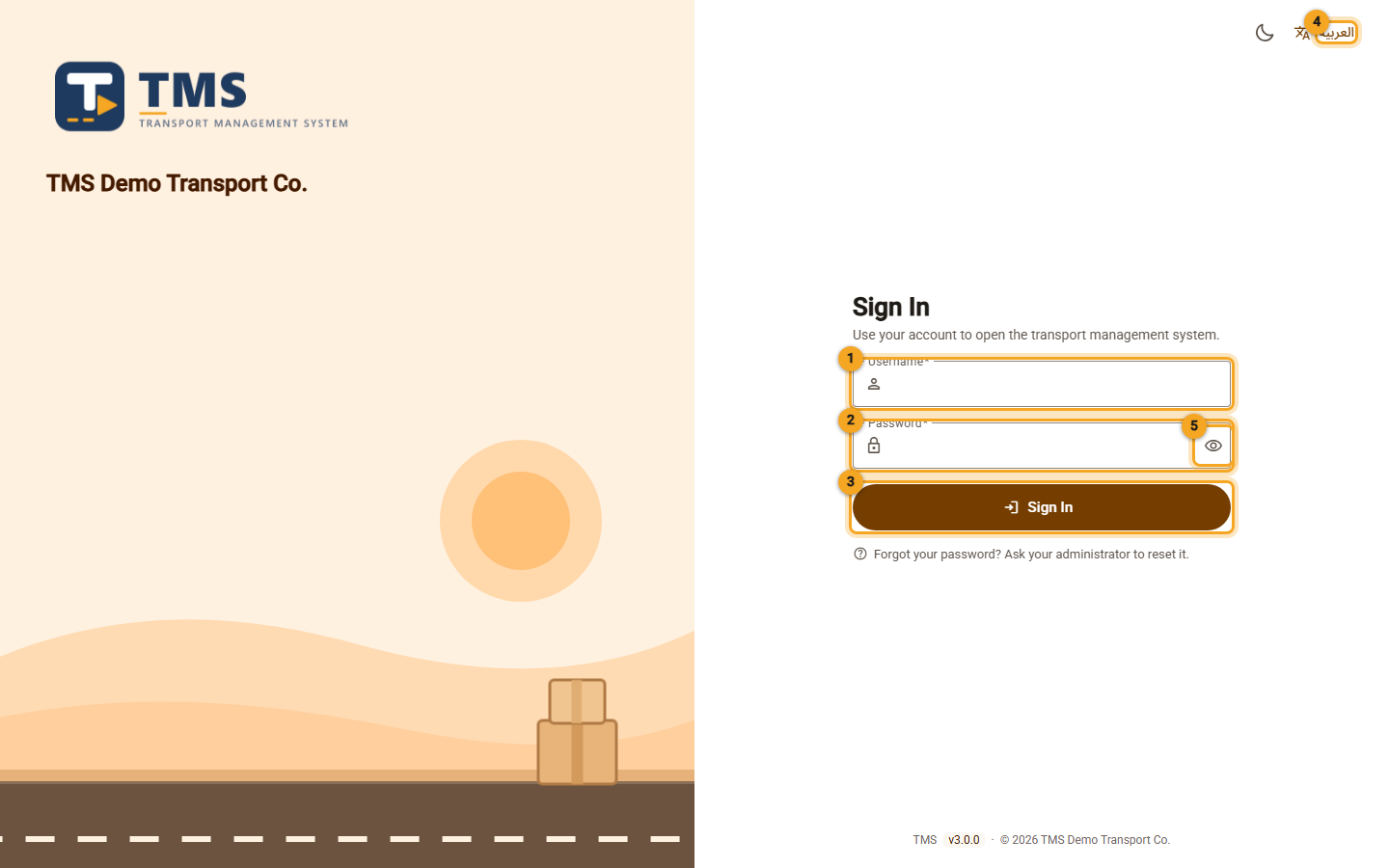
- 1Username: the account name the administrator created for you.
- 2Password: at least 8 characters. Use the eye to check what you typed.
- 3Sign In: opens the dashboard.
- 4Language: switches the whole app between English and Arabic (the layout flips right to left).
- 5Theme: light or dark, remembered on this computer.
- Open the site address the company gave you and enter your username and password.
- If you forget the password there is no "reset" link: the page says Ask your administrator to reset it. An administrator opens
Administration > Usersand uses reset password, which gives a temporary password to hand over. - The first sign-in lands on the dashboard.
Automatic sign-out. After a period without use (30 minutes by default) a box says Are you still there? with a countdown. Press Stay Signed In to continue. Unsaved changes are lost when the session ends. A session also ends after a fixed number of hours, whatever you do.
Finding your way around
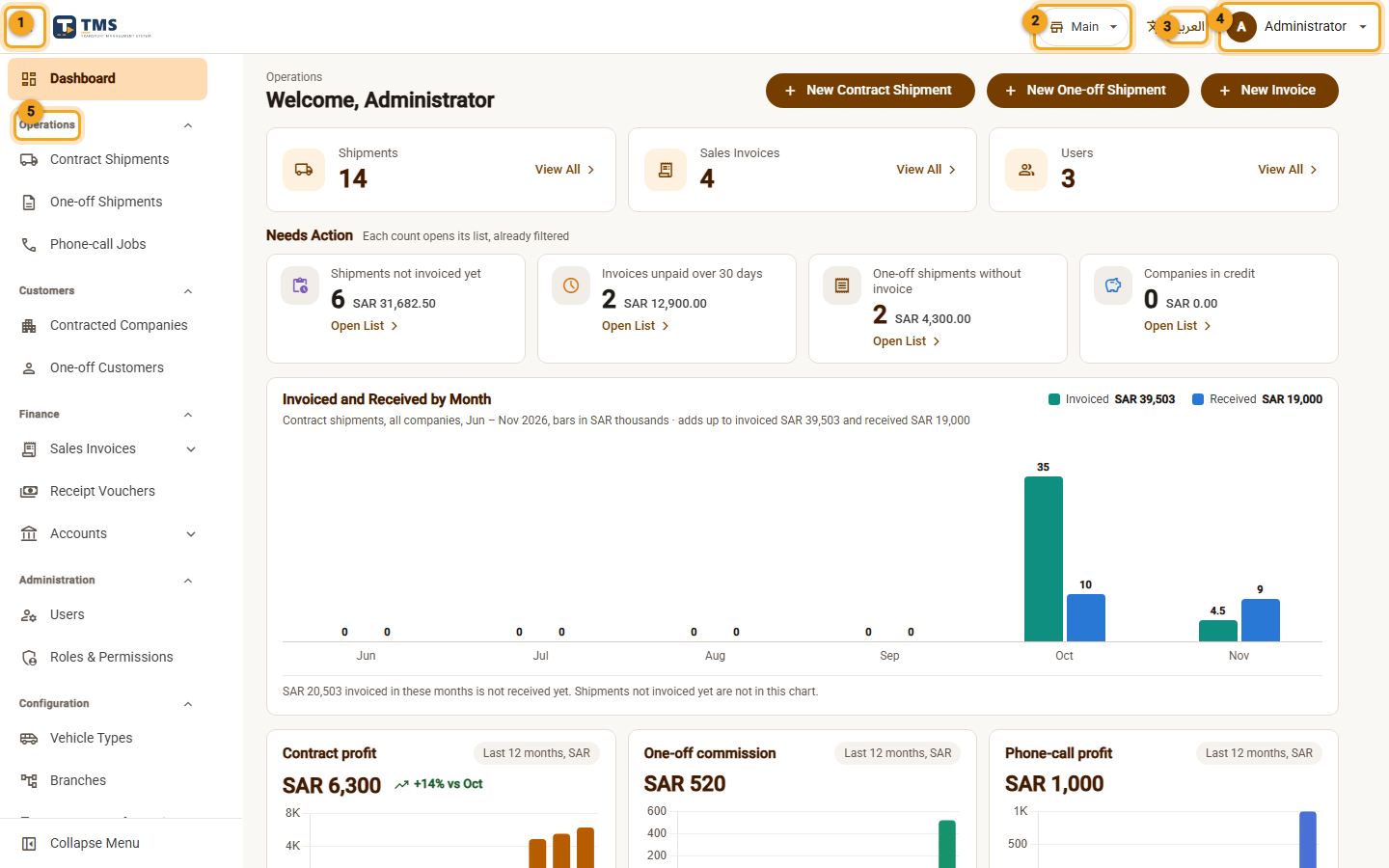
- 1Menu button: shows or hides the side menu (on a narrow window it opens as a drawer).
- 2Branch switcher: the branch whose data you see. Only administrators can change it.
- 3Language switch: English or Arabic.
- 4Your account menu: change your password or sign out.
- 5Side menu: grouped in sections. Click a section name to open or close it. You only see what your role allows.
- 6Collapse Menu: shrinks the menu to icons only.
The header is the same on every page. The side menu is grouped into sections: click the section name to open or close it. The section that holds the page you are on is always open.
Branch, language and theme
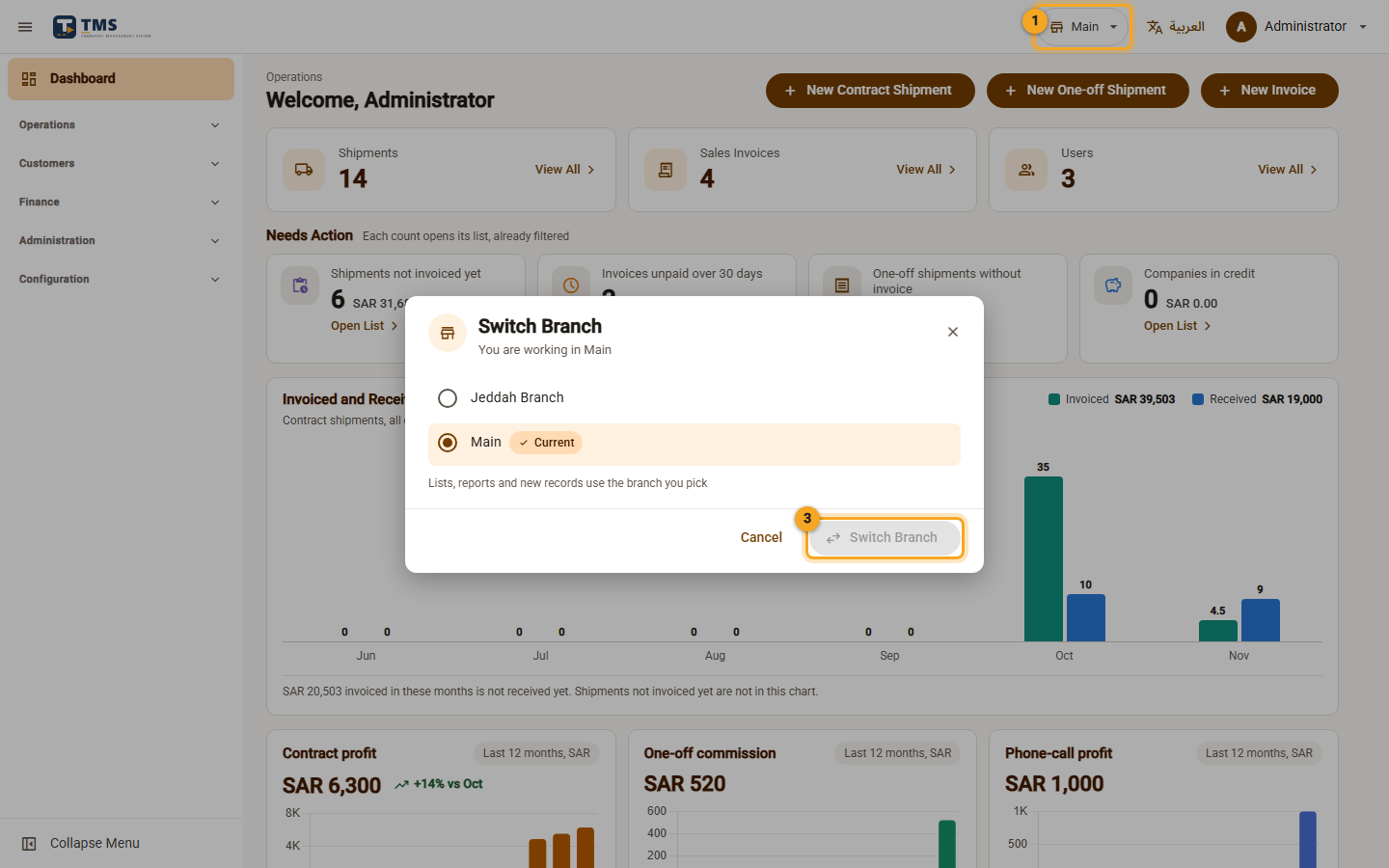
- 1Branch switcher: click it to change the branch you work in.
- 2Current: the branch you are in now. Pick another one from the list.
- 3Switch Branch: everything on screen then shows the other branch only. Only administrators see this switcher.
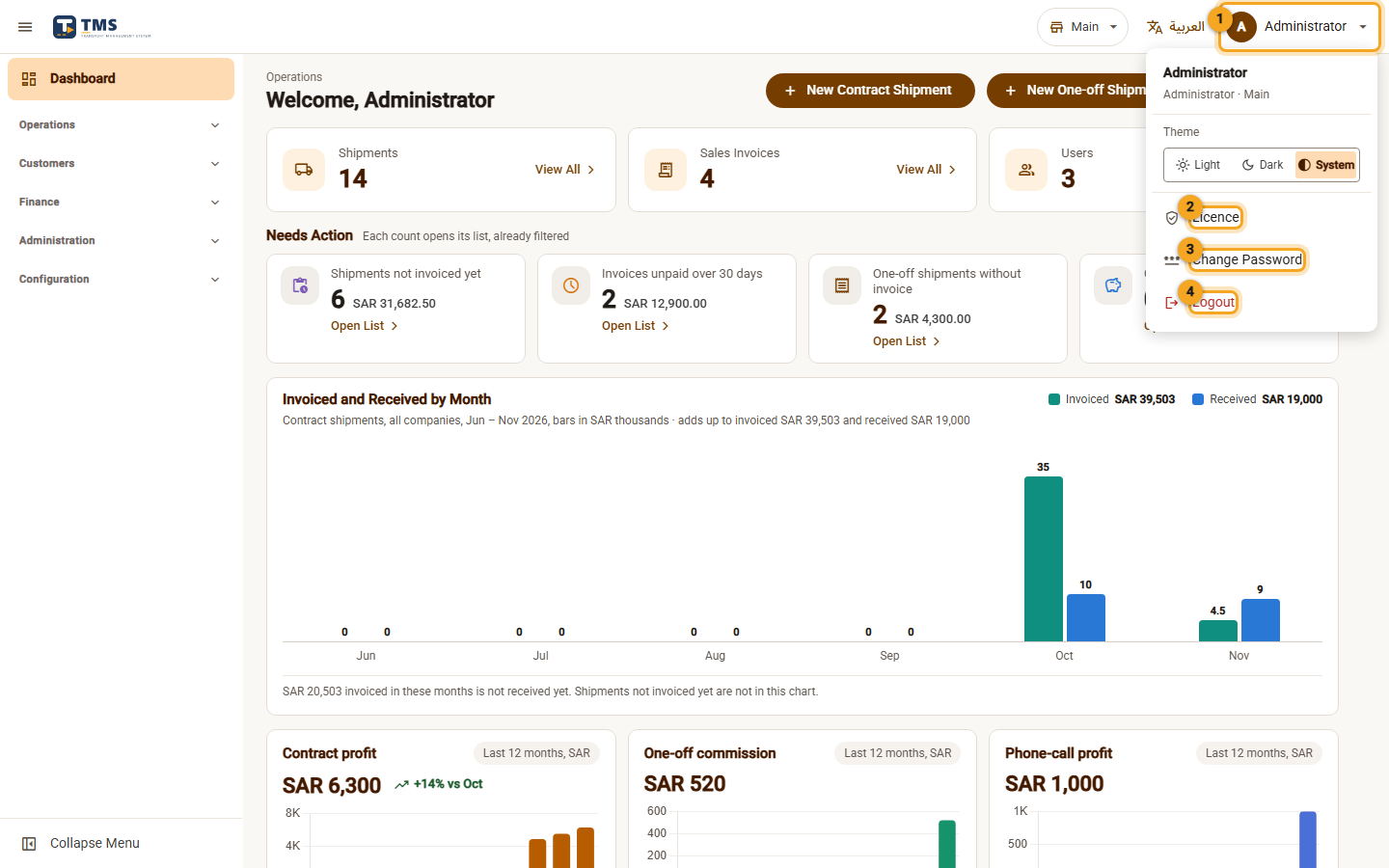
- 1Your account menu.
- 2Licence: shows whether the TMS licence is active and when it renews.
- 3Change Password: any user can change their own password.
- 4Logout: ends the session. The session also ends by itself after a period without use.
- Branch. Everything you see belongs to your current branch. Only an Administrator can switch to another branch.
- Language. The whole screen switches between English and Arabic, and the layout flips right to left in Arabic. Printed documents are always bilingual.
- Theme. Light, Dark or System, set from the account menu. The choice is remembered on that computer.
- Change Password. Any user can change their own password. New passwords need at least 8 characters.
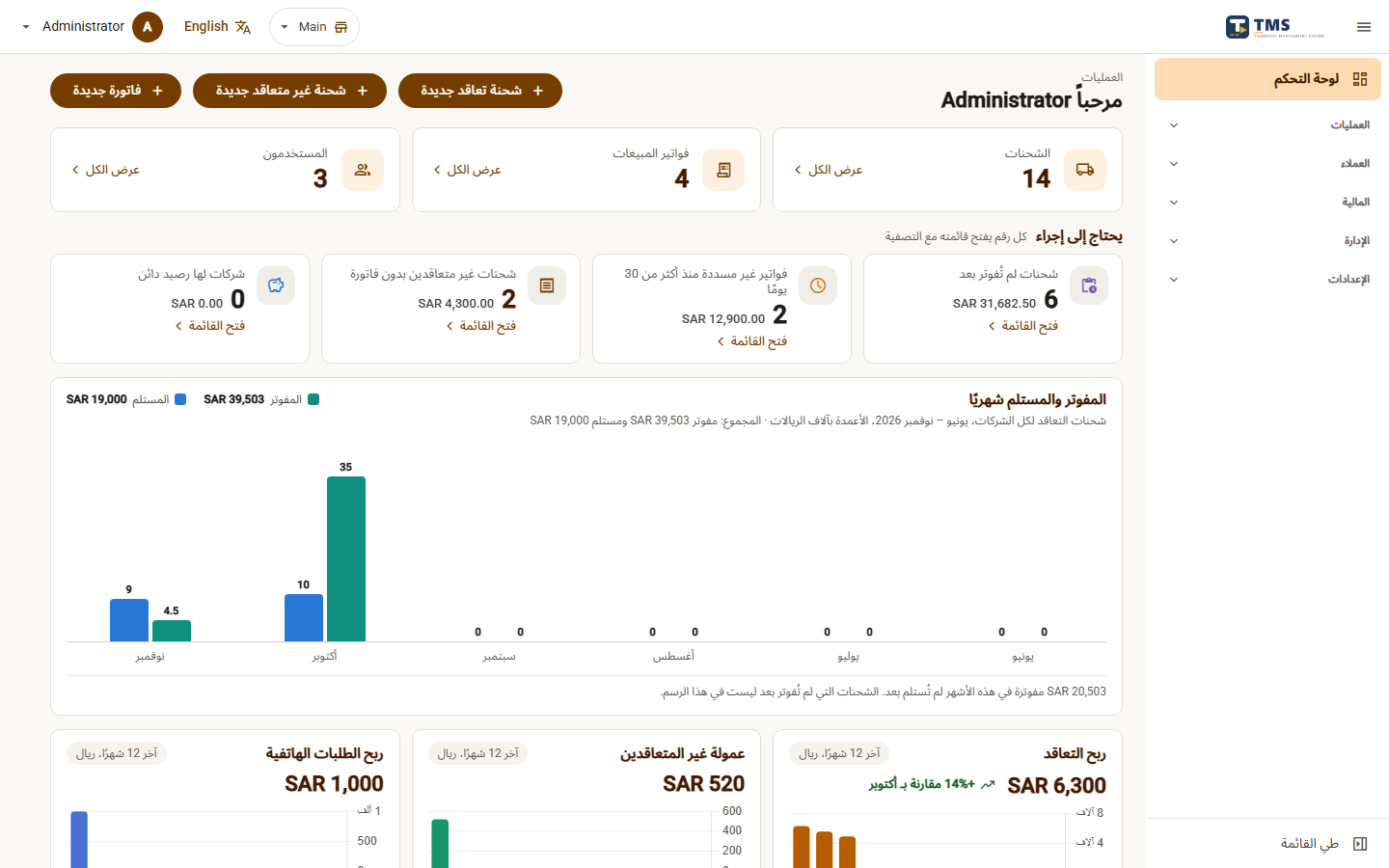
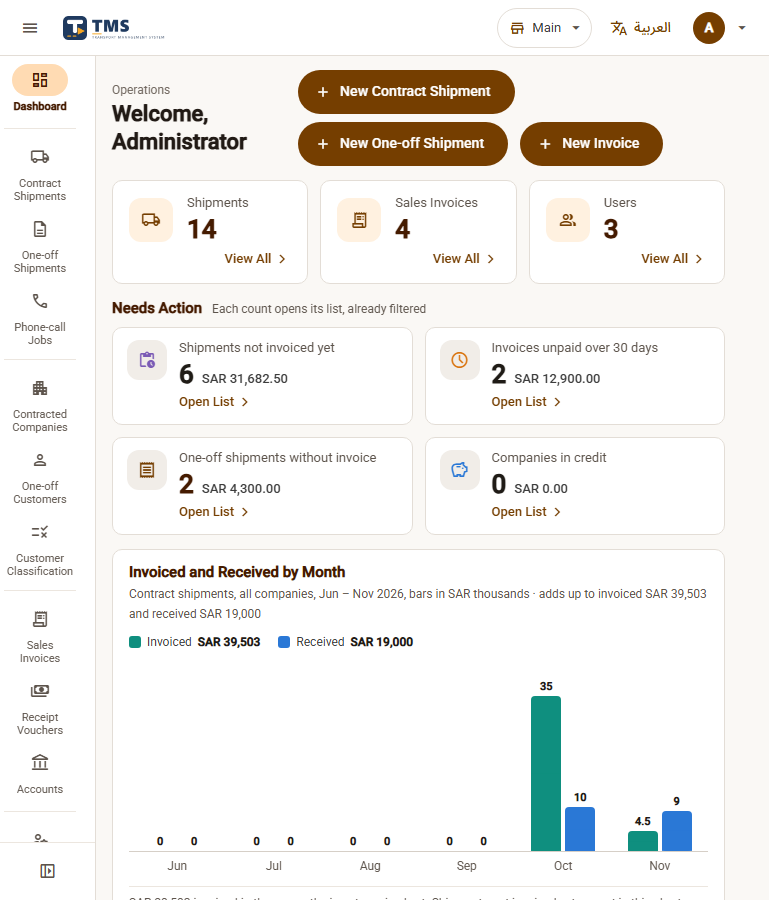
Supported screens. TMS is built for computers and tablets. The smallest supported window width is 769 px; phones are not supported. Below about 1024 px the screens simplify (shorter tab names, fewer table columns, one-column dialogs).
The dashboard
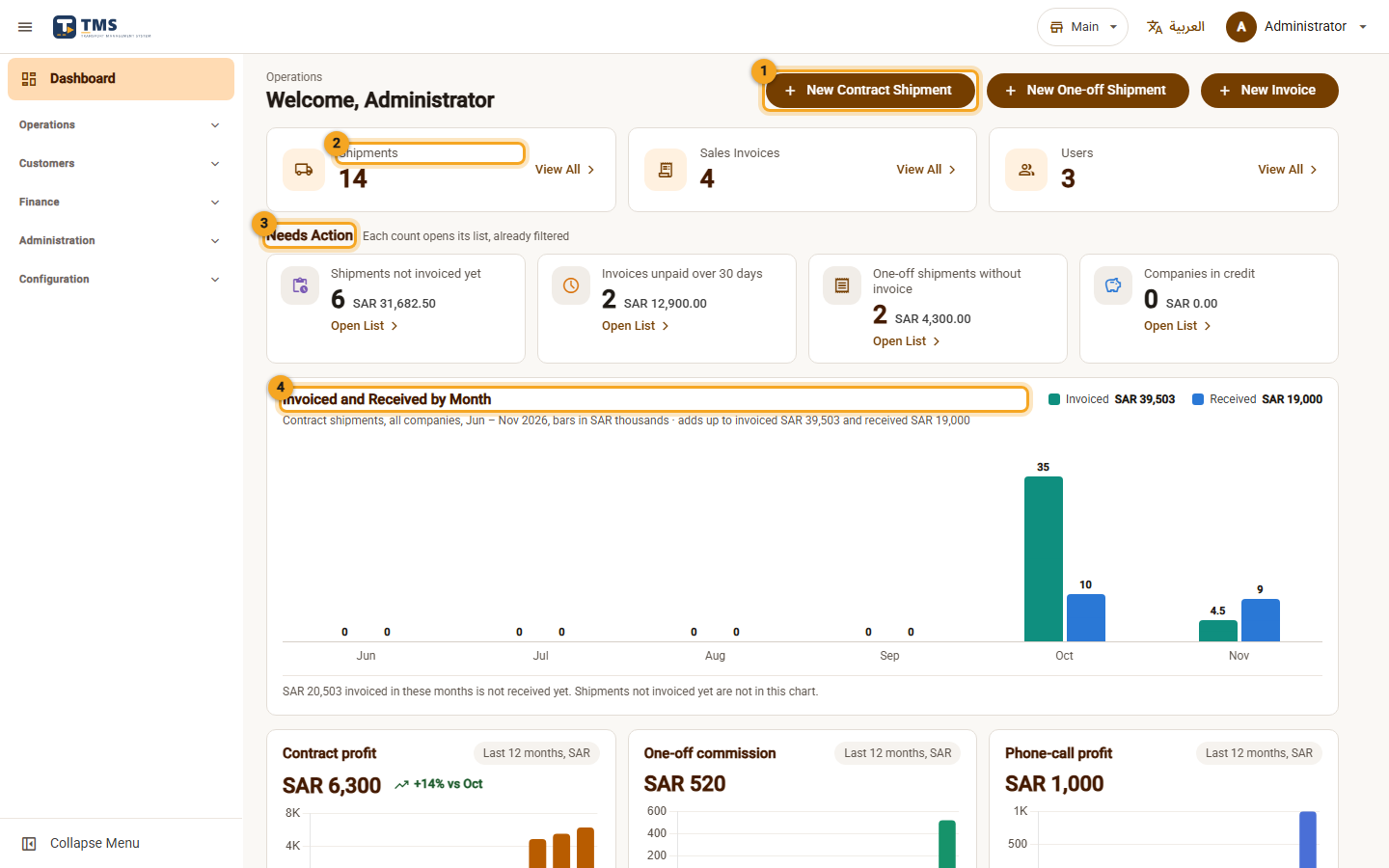
- 1Quick buttons: start a contract shipment, a one-off shipment or a sales invoice.
- 2Totals: how many shipments, sales invoices and users the branch has. View All opens the list.
- 3Needs Action: work waiting for someone. Every count opens its list already filtered.
- 4Chart: money invoiced and money received, month by month.
The dashboard is a quick look at the branch: how many shipments, invoices and users, what needs action, the money invoiced and received by month, and profit by type of work. The Needs Action boxes each open a list that is already filtered:
- Shipments not invoiced yet: contract shipments nobody has put on an invoice.
- Invoices unpaid over 30 days: money the company should chase.
- One-off shipments without invoice: one-off jobs whose customer may still want a VAT invoice.
- Companies in credit: companies that paid more than they were invoiced.
What you see depends on your role: a box for something you may not open is hidden.
4. Operations: entering the work
Operations is where the daily work starts. There are three kinds of jobs, and they differ in who pays and when.
| Contract shipment | One-off shipment | Phone-call job | |
|---|---|---|---|
| Customer | A contracted company | Anyone without a contract | Anyone, by phone |
| When it is paid | Later, against an invoice | In cash at hand-over | Already settled when entered |
| Invoice | Batch invoice for many shipments | One invoice per shipment, if the customer asks | None |
| VAT | Yes (15 % or 0 %) | On the invoice, collected with the commission | None |
| Driver account | The trip is added to the driver's earnings | Not counted in the driver account | Driver amount is recorded on the job |
| Profit | Customer price minus driver payment | The commission typed on the shipment | Customer amount minus driver amount |
| Number | TR-0000001 | TR-0000015 (same series) | PJ-0001 |
4.1 Contract shipments
Menu Operations > Contract Shipments
The list shows every contract shipment of the branch. The Sales Invoice column tells the story of each one: Enabled means it is free to be invoiced, Invoiced SO-… means it is already on an invoice.
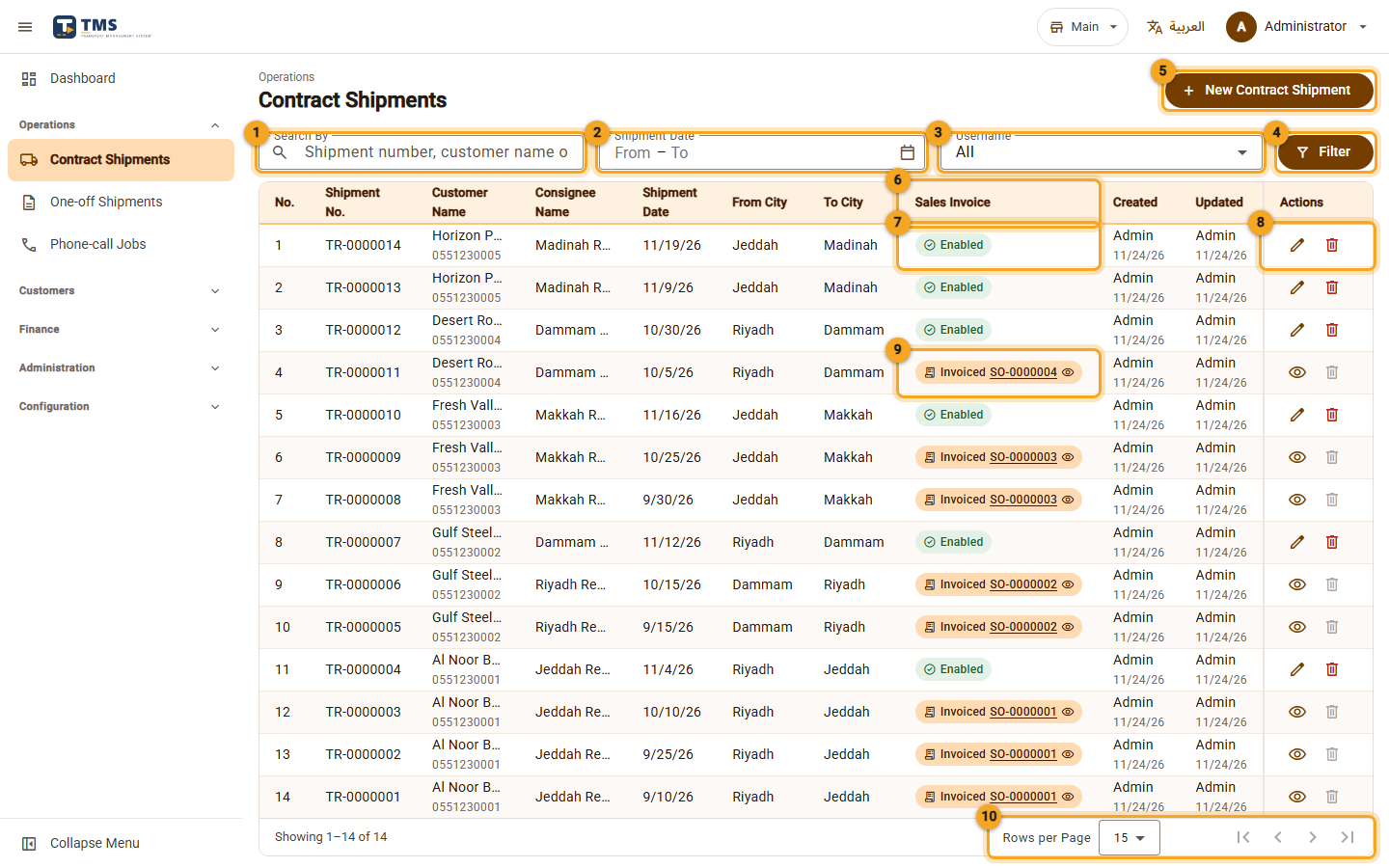
- 1Search: type a shipment number, customer or consignee name.
- 2Date range and Username filters narrow the list. The Filter button applies them.
- 3Username: who entered the shipment. Branch users only ever see their own.
- 4Filter: applies the search and filters.
- 5New Contract Shipment: opens the shipment form.
- 6Sales Invoice column: Enabled means not invoiced yet (you can still edit or delete it).
- 7Enabled shipment: ready to be put on an invoice.
- 8Actions: edit (pencil) or delete (bin).
- 9Invoiced: shown with the invoice number. The shipment is locked now; only view is possible.
- 10Paging: how many rows and which page.
Entering a shipment
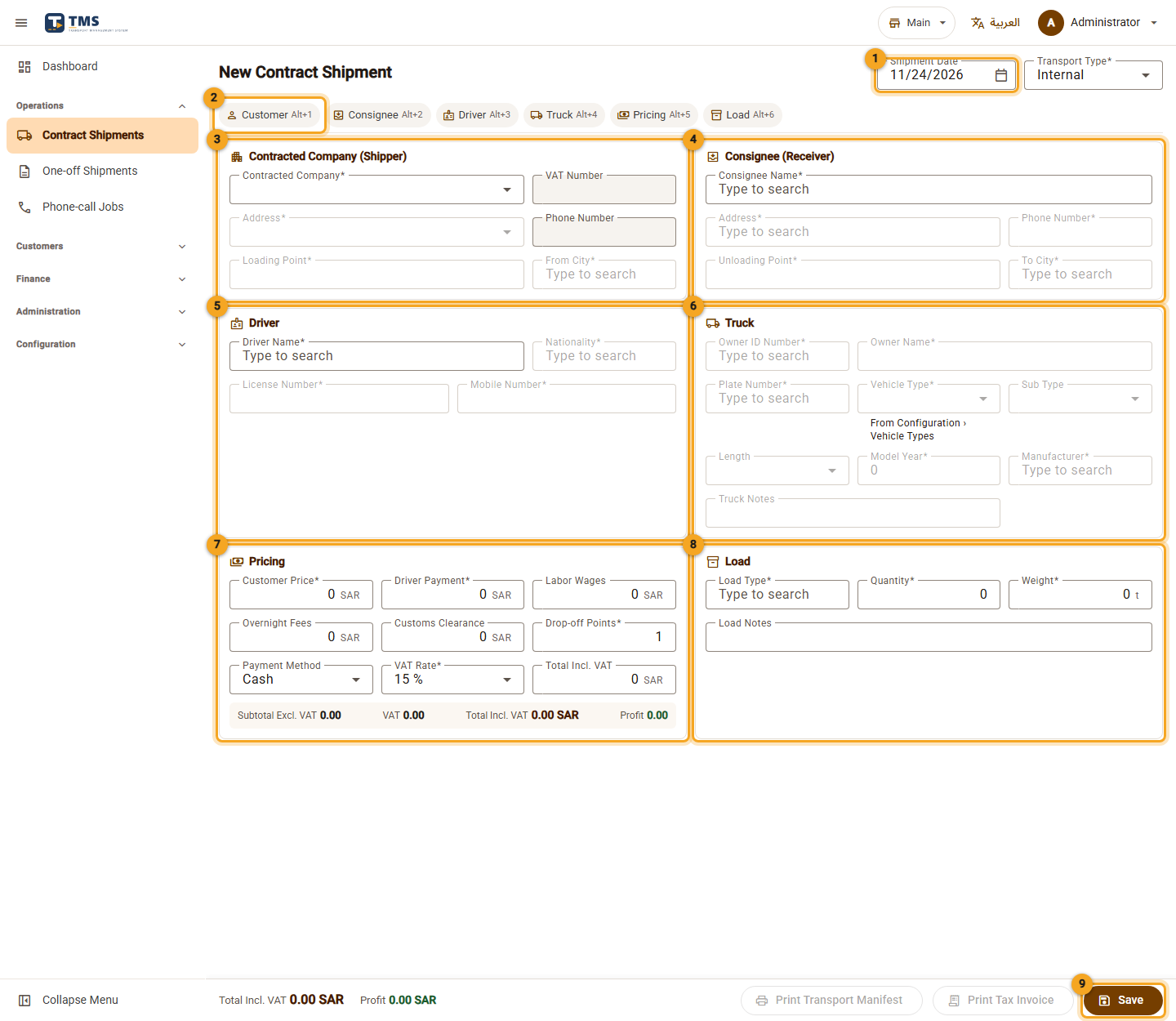
- 1Shipment date and transport type: Internal (inside the country) or External.
- 2Quick tabs (Alt+1 to Alt+6): jump to a section of the form.
- 3Contracted company: the customer who pays. Pick one from the list; its VAT number and addresses fill in.
- 4Consignee: who receives the goods. Type to search an earlier one or enter a new one.
- 5Driver: pick an earlier driver or type a new one (name, nationality, licence and mobile).
- 6Truck: owner, plate, vehicle type, sub type, length, model year and maker.
- 7Pricing: what the customer pays and what the driver gets. VAT and profit are worked out for you.
- 8Load: what is carried, how many pieces and the weight in tons.
- 9Save: stores the shipment and gives it a number such as TR-0000001.
- Contracted Company. Pick the company. Its VAT number, contract end date and saved addresses fill in. If the contract has ended you can still pick the company, with a warning.
- Consignee. Type the receiver. If you have sent to them before, pick them from the list and the address and phone fill in; otherwise just type a new one.
- Driver and Truck. Same idea: pick an earlier driver or owner (their licence, nationality and plate fill in) or type a new one. The vehicle type, sub type and length come from
Configuration > Vehicle Typesand cannot be typed, so the data stays clean. - Pricing. Enter the Customer Price (what the company pays) and the Driver Payment (what the driver earns). Add labour, overnight and customs fees if they apply. VAT, the total and the profit appear at the bottom.
- Load. What is carried, how many pieces and the weight in tons. Under the weight the form shows the maximum load of the chosen truck type.
- Save. The shipment gets its number, for example
TR-0000015.
Shortcuts. The round buttons under the title (Customer Alt+1 ... Load Alt+6) jump to a section of the form. The footer always shows the live total and profit.
How the money is worked out
- Subtotal = customer price + labour wages + overnight fees + customs clearance.
- VAT = subtotal × the VAT rate. The rate can only be 15 % or 0 %.
- Total including VAT = subtotal + VAT.
- Profit = customer price − driver payment. (VAT and the pass-through fees are not profit.)
- Every amount is rounded to two decimals, and the server recalculates everything when you save, so the saved figures are always the official ones.
Changing or deleting a shipment
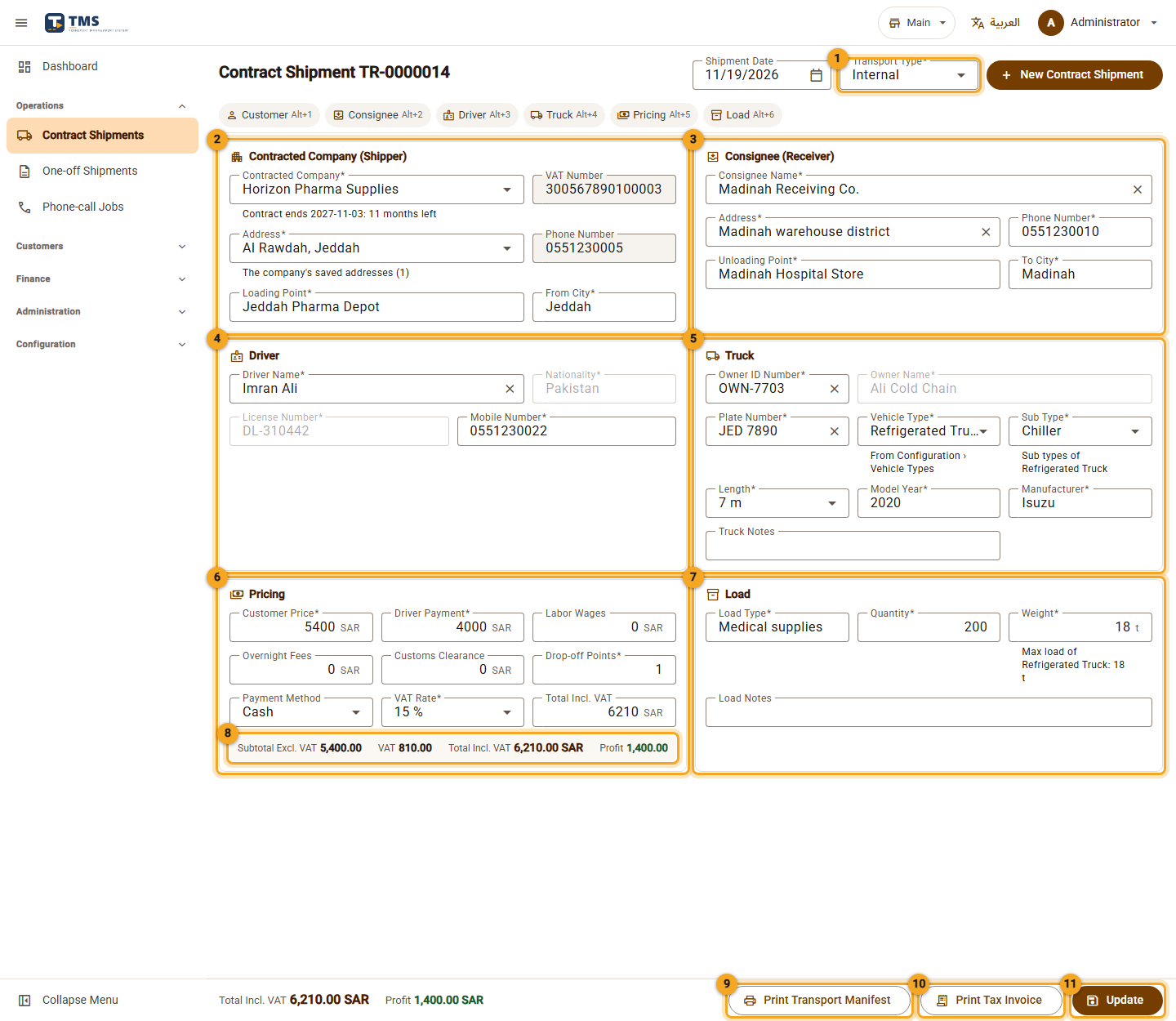
- 1Shipment date and transport type: Internal (inside the country) or External.
- 2Contracted company: the customer who pays. Pick one from the list: its VAT number, contract end date and saved addresses fill in. The loading point and city are typed per shipment.
- 3Consignee: who receives the goods. Type a name to find an earlier one; its address and phone fill in.
- 4Driver: pick an earlier driver and the licence and nationality fill in. A new driver is created from this form: name, nationality, licence and mobile.
- 5Truck: owner, plate number, vehicle type, sub type, length, model year and maker. The type lists come from Configuration > Vehicle Types.
- 6Pricing: customer price (what the company pays) and driver payment (what the driver gets), plus labour, overnight and customs fees. VAT, total and profit are worked out for you.
- 7Load: what is carried, how many pieces and the weight. The form warns when the weight is over the truck type's maximum.
- 8The live totals: subtotal, VAT, total including VAT and the profit of this shipment.
- 9Print Transport Manifest: the paper that travels with the driver.
- 10Print Tax Invoice: the invoice paper for this shipment.
- 11Update: saves your change. A shipment that is invoiced or has a payment cannot be edited any more.
Locking rules (a very common support question).
- A shipment can be edited only while it is not on an invoice and has no payment. After that the page says View only: invoiced.
- A shipment can be deleted only under the same conditions. The number is never reused.
- A shipment stays in the list it was entered in. To move it between Contract and One-off, delete it and enter it again.
- To change a locked shipment: return the payment (if any), cancel the invoice (with a reason), then edit. See correcting a mistake.
Printing. The footer has Print Transport Manifest (the paper that travels with the driver) and Print Tax Invoice (the invoice paper for this shipment). Examples are in Printed documents.
4.2 One-off shipments
Menu Operations > One-off Shipments
Use this for a customer who has no contract and pays at once. The company does not keep the invoice amount (it passes through): only the commission is profit.
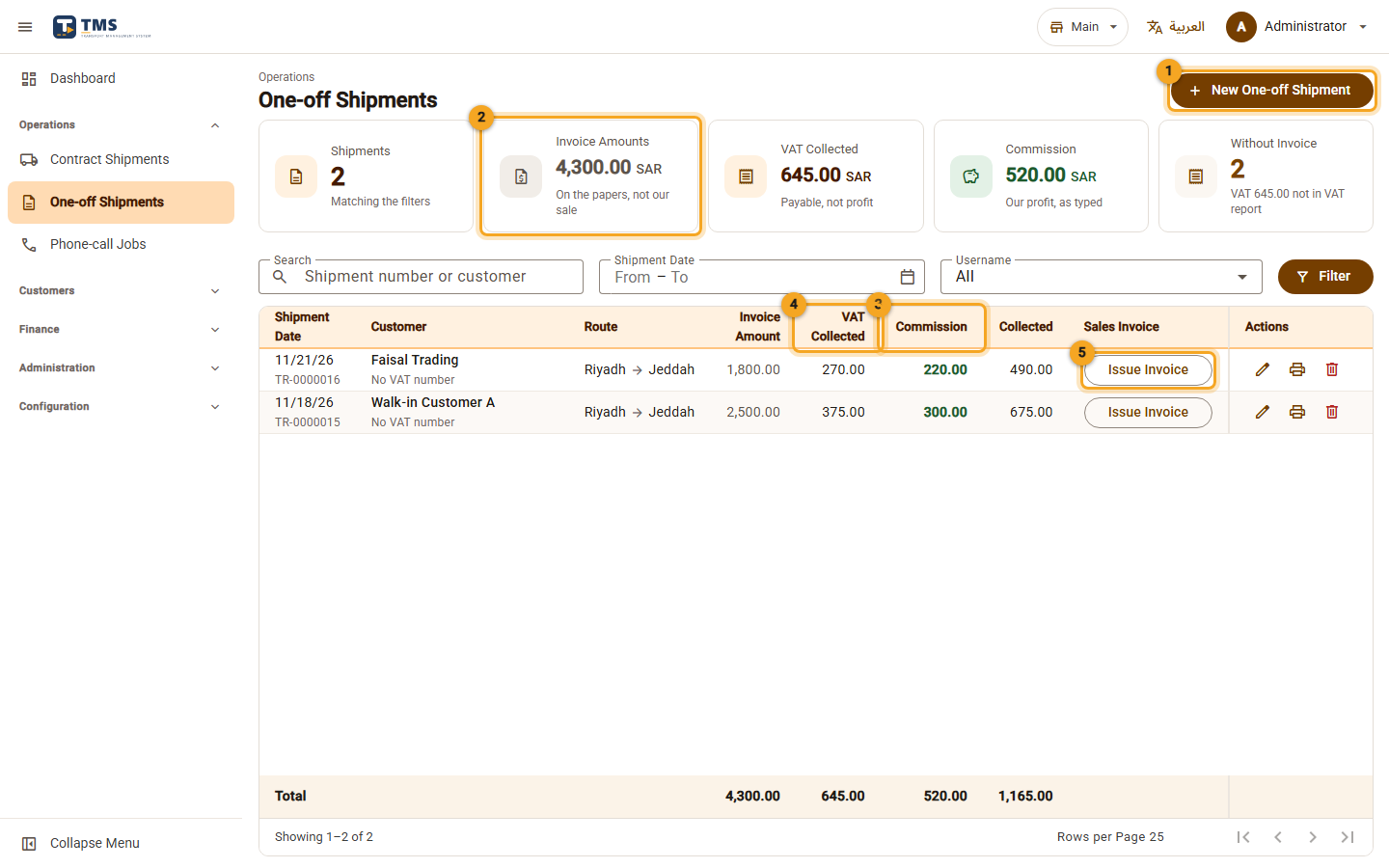
- 1New One-off Shipment: for a customer who has no contract and pays at once.
- 2Summary tiles: totals for the filtered list.
- 3Commission: what the company earns on the job (typed by the user).
- 4Collected: what the customer paid in total including VAT. One-off jobs are paid in cash on the day.
- 5Issue Invoice: creates the VAT sales invoice for this one shipment.
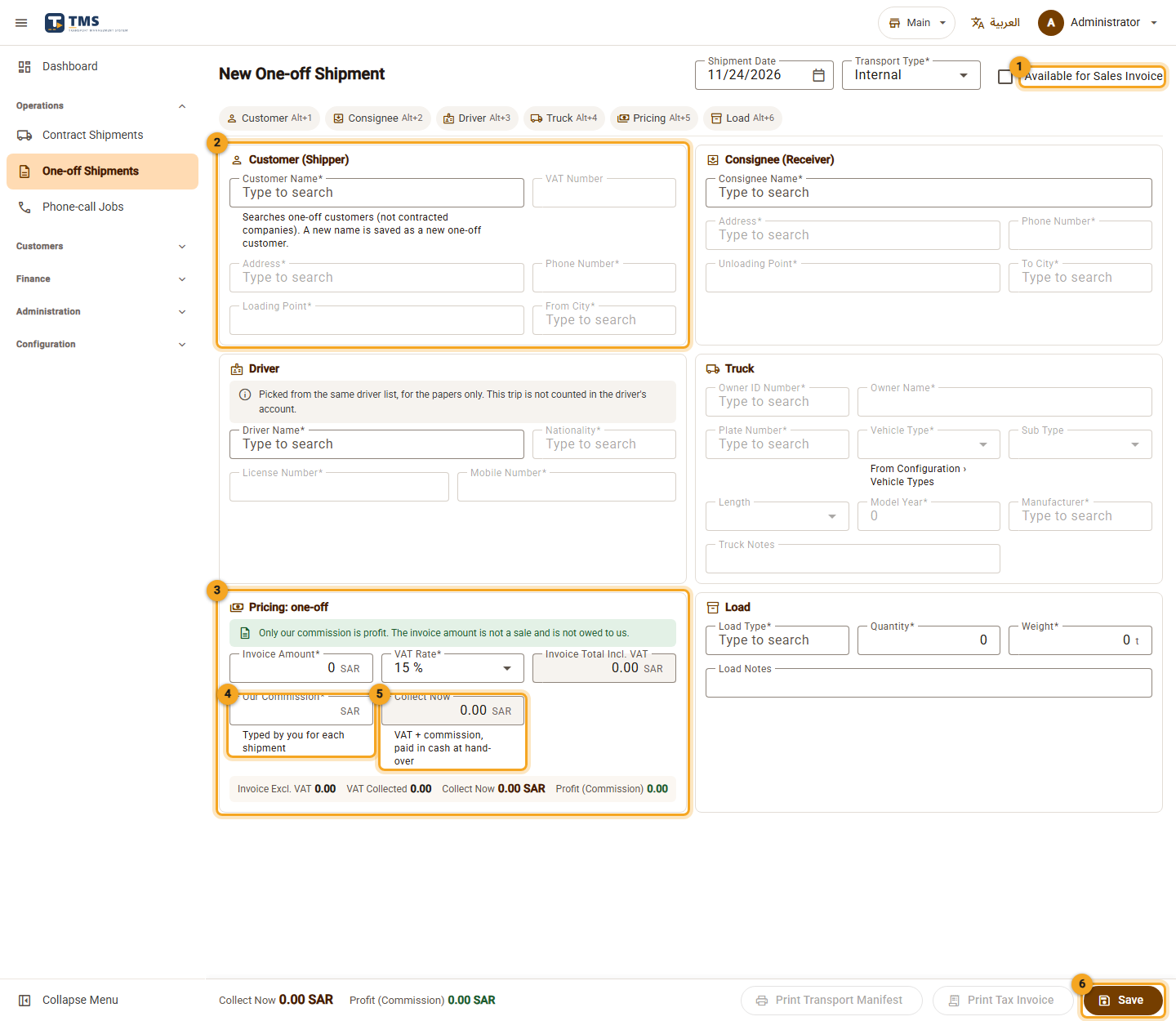
- 1Available for Sales Invoice: tick it if the customer needs a VAT invoice. The invoice is issued later from the One-off Shipments list.
- 2Customer: a one-off customer is typed here, not chosen from the contracted companies. A new name is saved as a new one-off customer.
- 3Pricing box for one-off jobs: only the commission is profit. The invoice amount is not a sale of the company and is not owed to the company.
- 4Our Commission: what the company keeps. You type it for each shipment.
- 5Collect Now: VAT plus the commission. This is the cash taken from the customer at hand-over.
- 6Save: the shipment is stored as paid in cash on the shipment date.
- You type the invoice amount, the VAT rate and our commission. The form shows Collect Now = VAT + commission, the cash to take from the customer.
- The shipment is saved as paid in cash on the shipment date.
- The customer is typed, not picked from the contracted companies. If the name or VAT number belongs to a contracted company, the system refuses and says to use Contract Shipments.
- If the customer needs a VAT invoice, press Issue Invoice on the list. It makes one invoice for that one shipment, dated today.
- The dashboard box One-off shipments without invoice counts the ones where nobody has issued an invoice yet.
4.3 Phone-call jobs
Menu Operations > Phone-call Jobs
For jobs agreed by phone and entered once the money is settled. No invoice and no VAT: it is a record of the job and its profit.
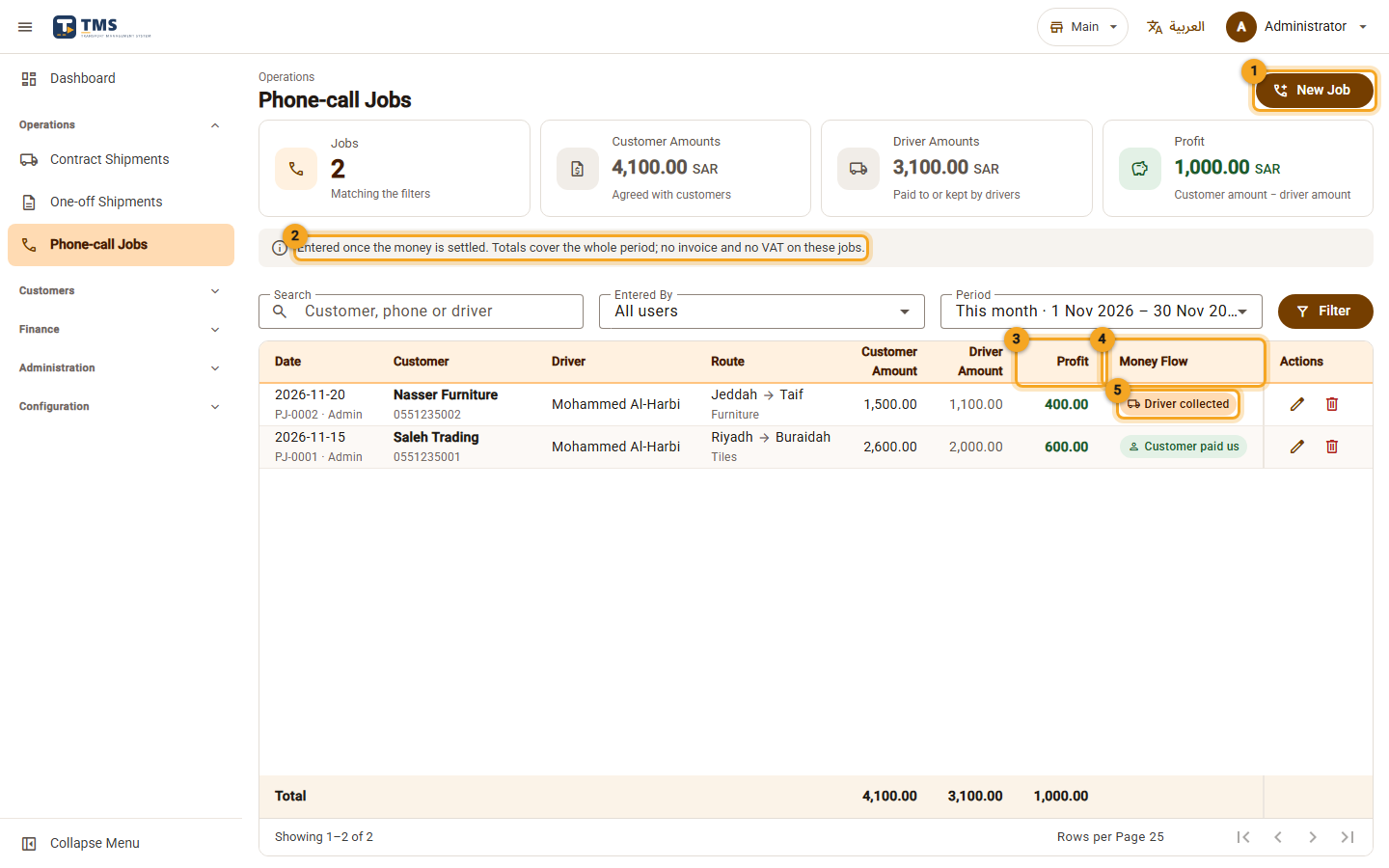
- 1New Job: record a job that was arranged by phone.
- 2These jobs are entered after the money is settled. There is no invoice and no VAT.
- 3Profit = customer amount minus driver amount.
- 4Money flow: who holds the money: the driver collected it, or the customer paid us.
- 5Driver collected: the driver must hand over the customer amount to the company, less their share.
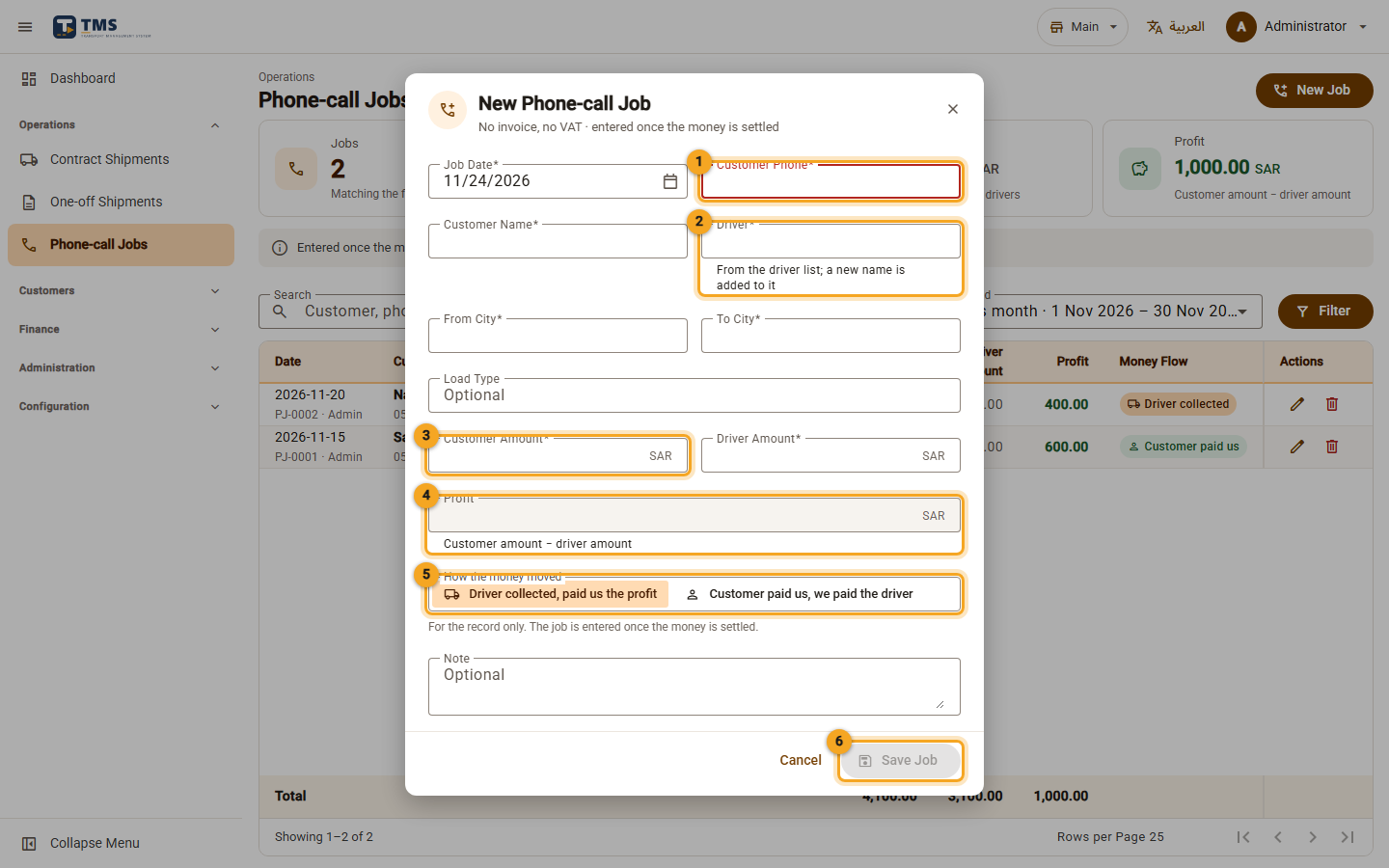
- 1Customer phone: if the caller is known, the name fills in.
- 2Driver: pick from the driver list; a new name is added to it.
- 3Customer amount and driver amount: what was agreed with each side.
- 4Profit: worked out as customer amount minus driver amount.
- 5How the money moved: either the driver collected from the customer and pays the company its profit, or the customer paid the company and the company pays the driver.
- 6Save Job: the job gets a number like PJ-0001.
The money flow decides who owes whom: if the driver collected the money from the customer, the driver pays the company its profit; if the customer paid the company, the company pays the driver. The profit of both kinds shows in the Financial Summary.
5. Customers
5.1 Contracted companies
Menu Customers > Contracted Companies
The companies that have a contract with us. Only these can be chosen on a contract shipment and invoiced in batches.
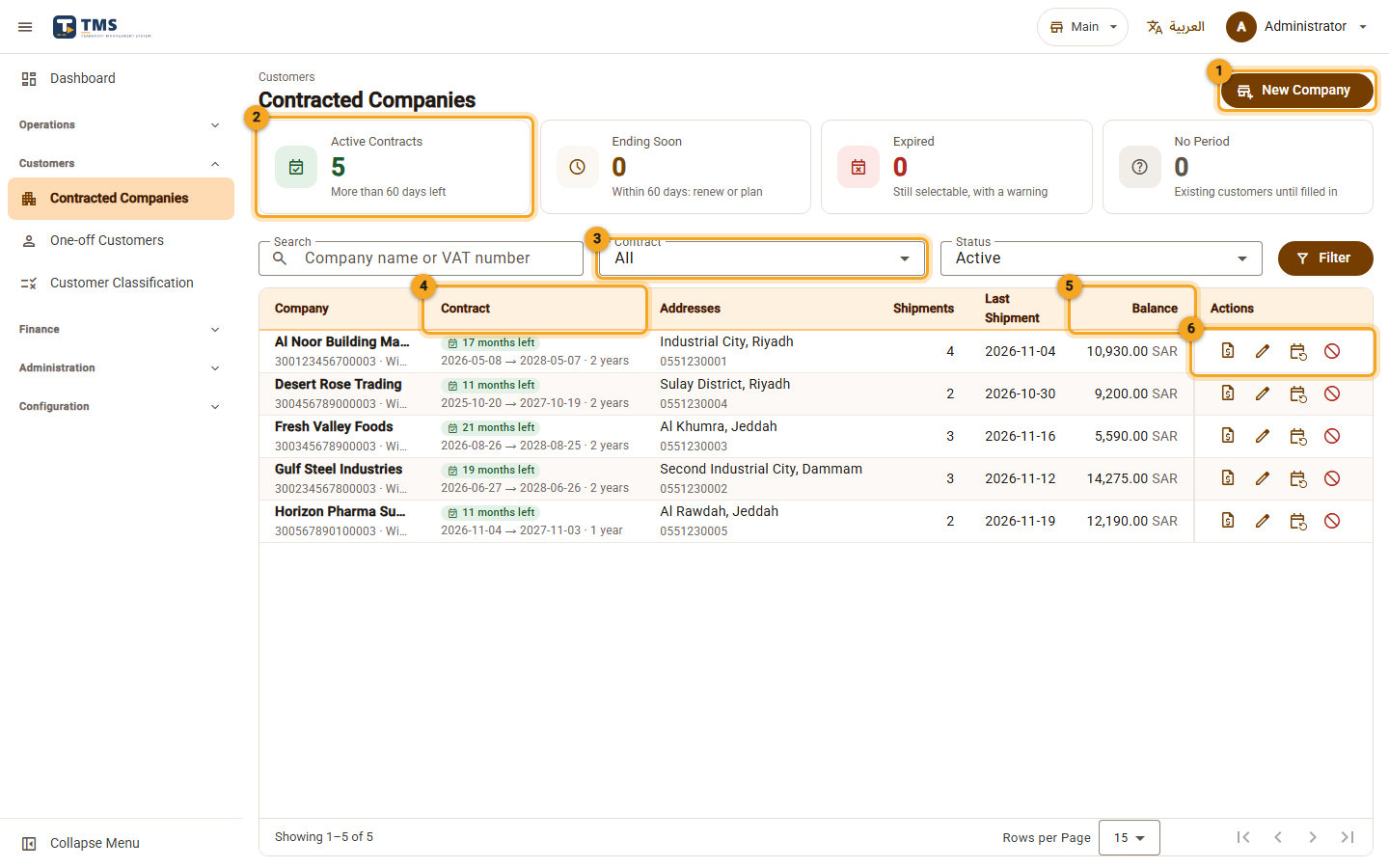
- 1New Company: add a contracted company with its contract period and addresses.
- 2Contract tiles: how many contracts are active, ending within 60 days, expired, or have no period.
- 3Contract filter: show only one state.
- 4Contract column: the period with months left. Expired contracts can still be chosen on a shipment, with a warning.
- 5Balance: what the company still owes.
- 6Actions: statement, edit, renew the contract period, deactivate.
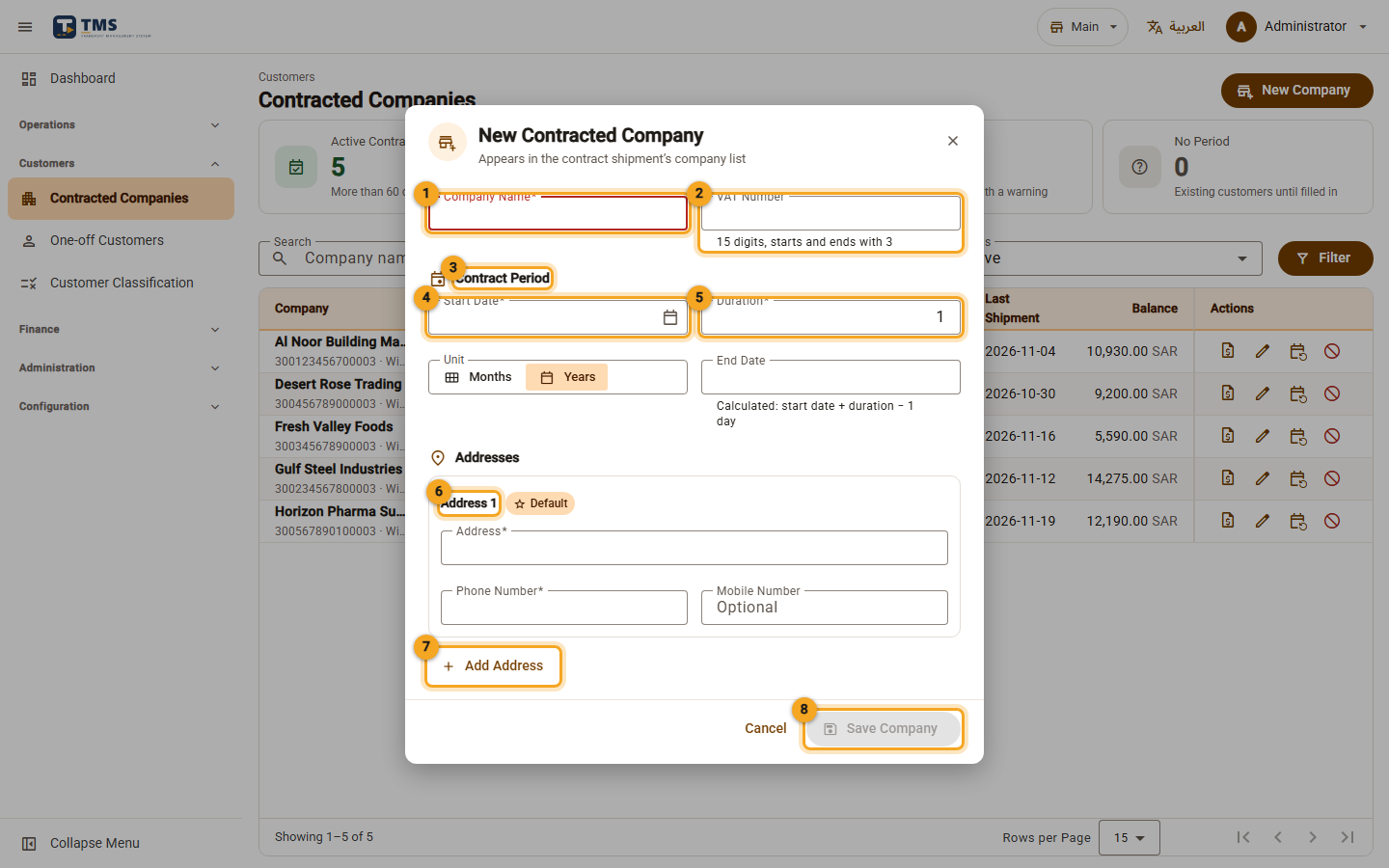
- 1Company name: the name that appears on invoices and on the shipment form.
- 2VAT number: 15 digits, starting and ending with 3. Leave it empty if the company has none.
- 3Contract period: the dates the contract covers.
- 4Start date: the first day of the contract.
- 5Duration and unit: months or years. The end date is worked out for you.
- 6Address: at least one address with a phone number. A shipment points to one of these addresses.
- 7Add Address: for companies with more than one site.
- 8Save Company.
Rules
- A company needs a name, a contract period and at least one address with a phone number. The VAT number is optional but, when given, must be 15 digits starting and ending with 3.
- A name or VAT number cannot be used twice in the same branch.
- An address that shipments use cannot be removed. A company with shipments or payments cannot be deleted; deactivate it instead (it disappears from the shipment form but keeps all its history, and can be activated again).
- Phone numbers are Saudi mobiles like
0501234567or international numbers starting with+.
The contract period
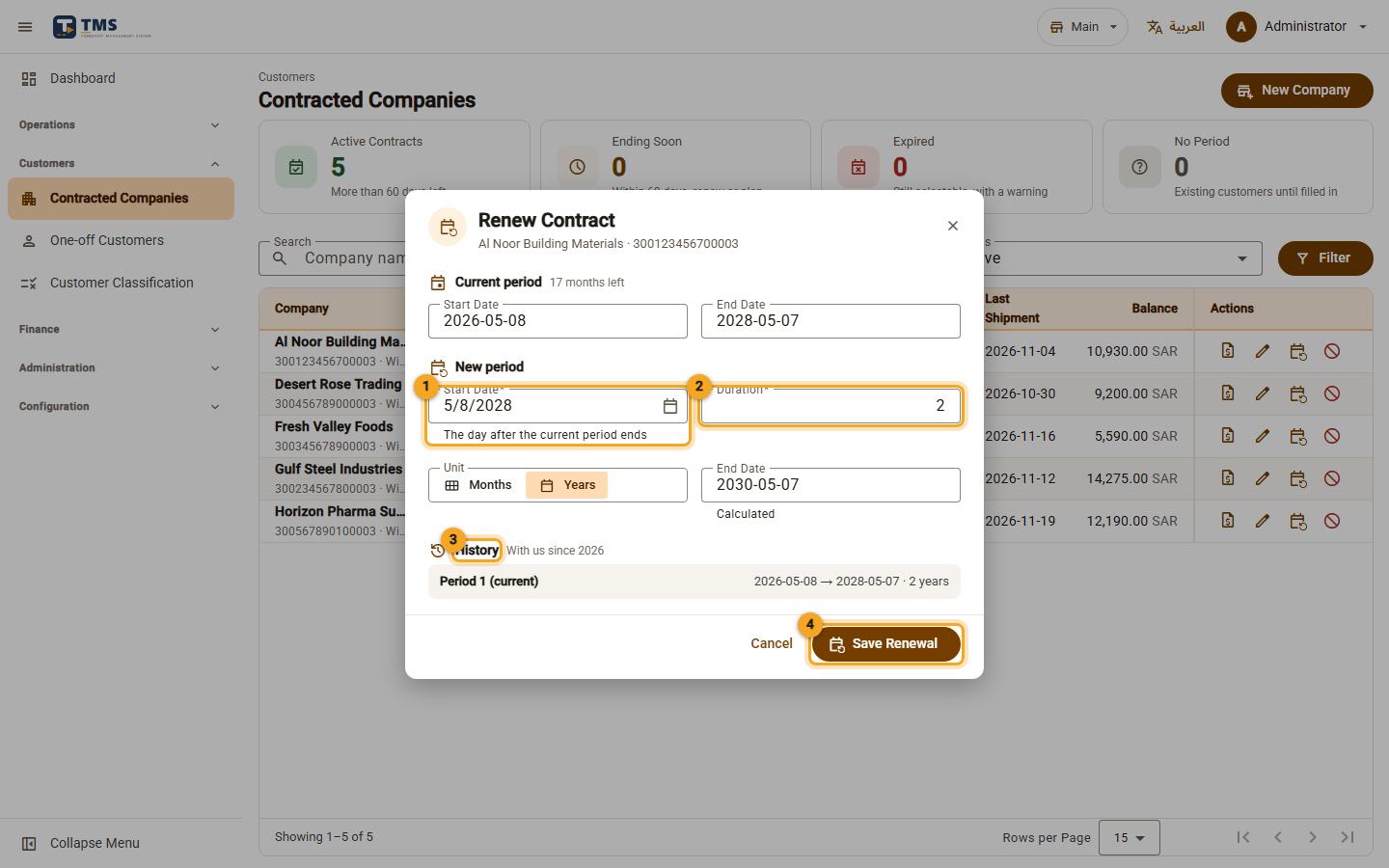
- 1New start date: filled in as the day after the current period ends.
- 2Duration of the new period, in months or years. The end date is worked out.
- 3History: every earlier period stays on record.
- 4Save Renewal.
The tiles at the top of the list count Active, Ending soon (60 days or less left), Expired and No period (old customers that never had one). An expired company can still be picked on a shipment but with a warning, so work is never blocked by paperwork.
5.2 One-off customers
Menu Customers > One-off Customers
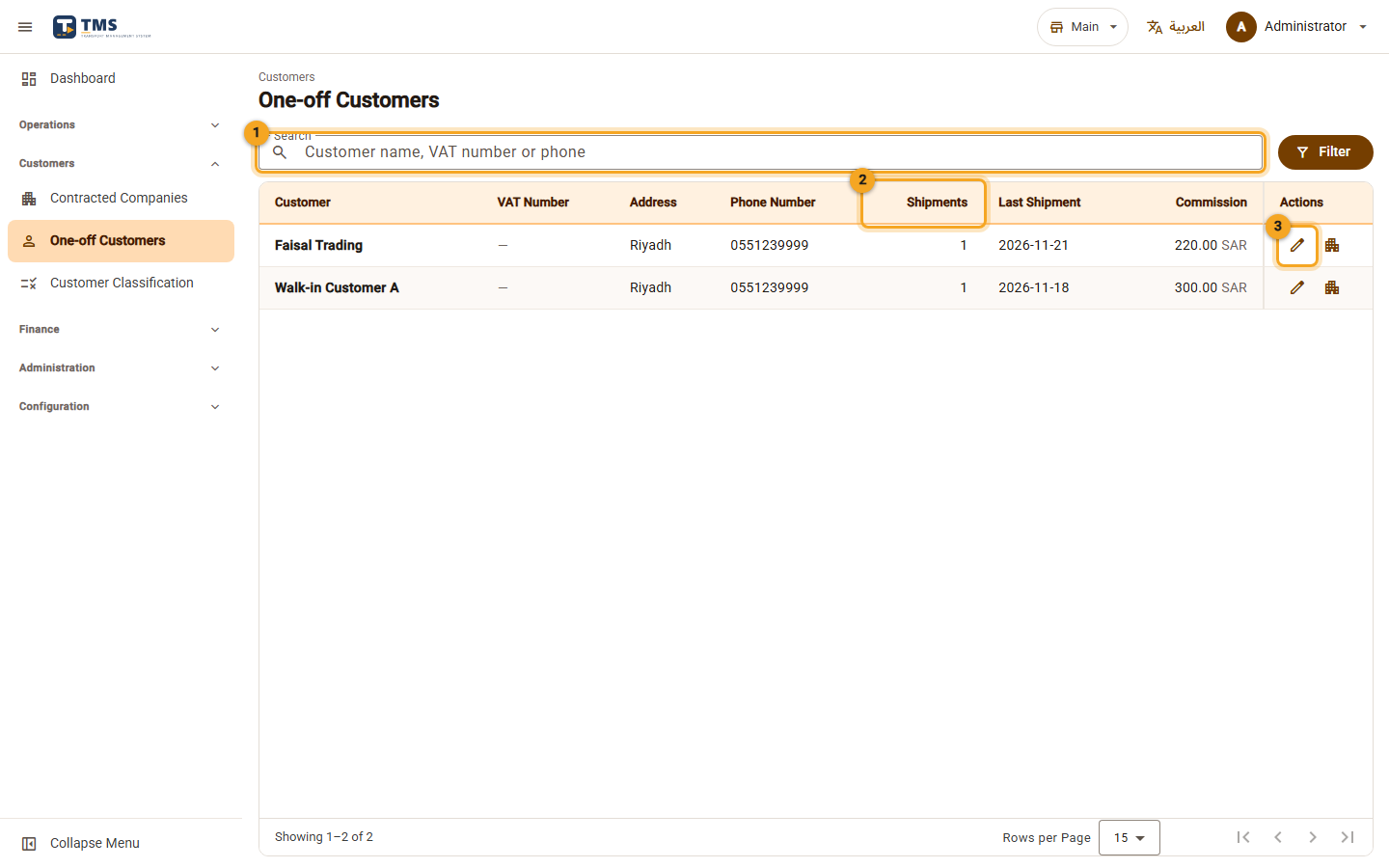
- 1Search by name, VAT number or phone.
- 2How many shipments the customer had.
- 3Actions: edit the details, or mark the customer as a contracted company (the building icon). One-off customers are created from the one-off shipment form, not here.
These customers are not created here: they appear when someone types a new customer name on a one-off shipment. This list lets you fix their details or, when a one-off customer signs a contract, mark them as a contracted company.
5.3 Customer Classification only when switched on
A temporary cleanup tool for clients upgrading from the old version, where every old customer became a contracted company. Only an Administrator sees it, and only when the site setting is on. It suggests which customers are really one-off (by how often they ship) and lets the administrator convert them or merge duplicates. A conversion can be undone for 10 minutes. After the cleanup the setting is switched off and the menu item disappears.
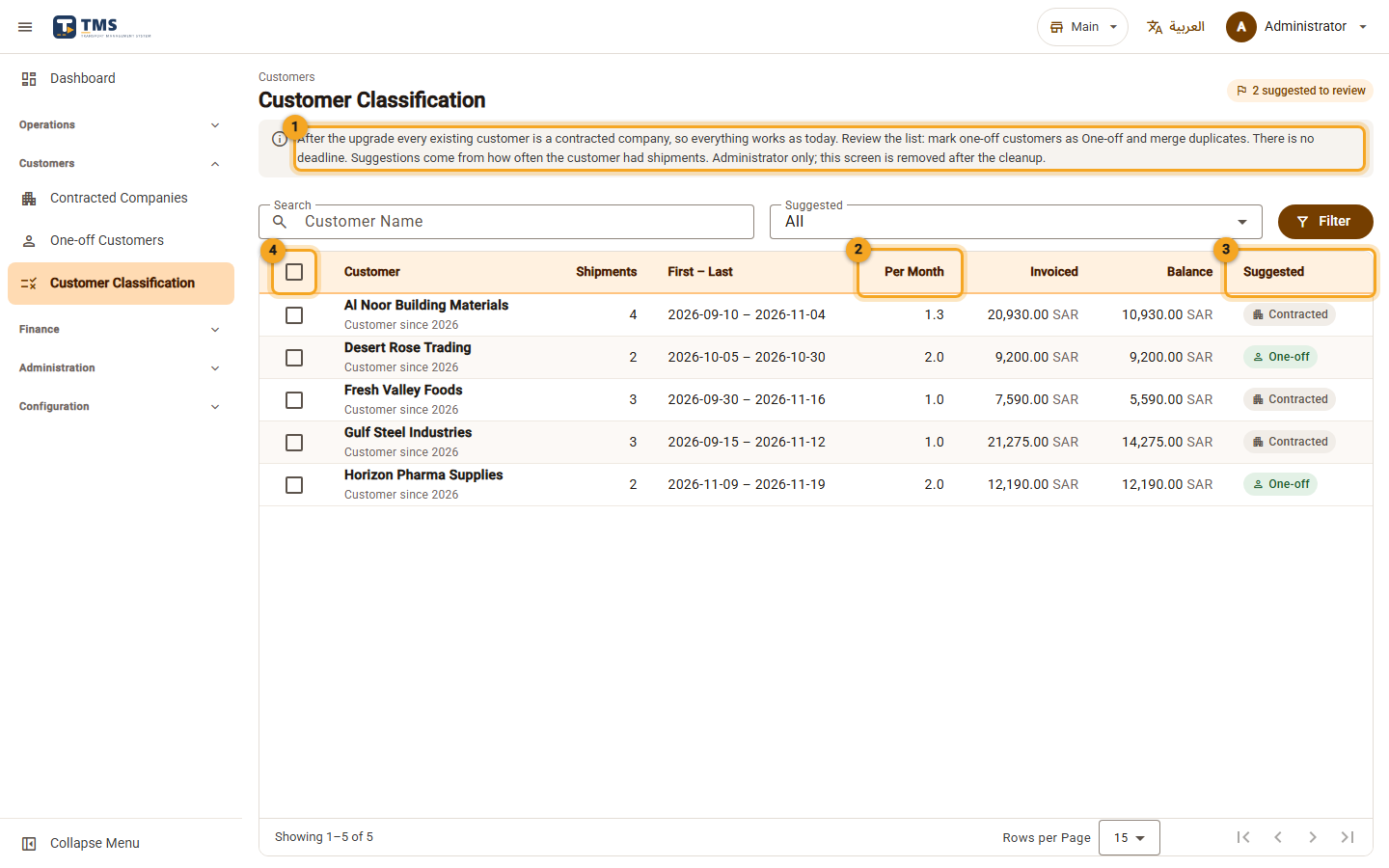
- 1What this screen is for: after an upgrade every old customer is a contracted company. An administrator reviews and marks the real one-off customers.
- 2Per Month: how often the customer sends shipments.
- 3Suggested: what the system thinks the customer is. You decide.
- 4Tick customers to merge duplicates or convert them.
6. Finance
6.1 Sales invoices
Menu Finance > Sales Invoices > New Invoice / All Invoices
Making an invoice
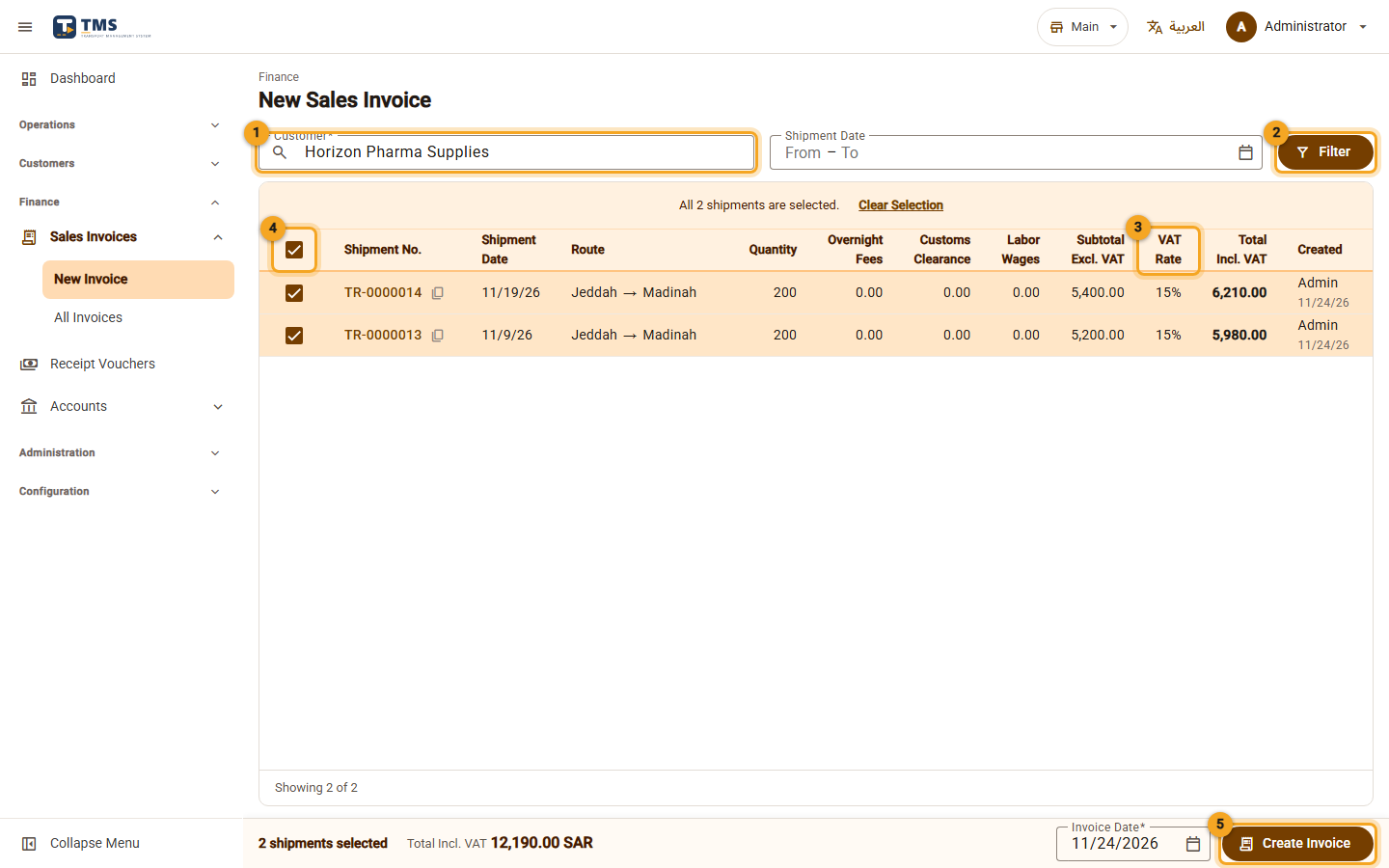
- 1Customer: pick the company. The number in brackets is how many of its shipments are free to invoice.
- 2Filter: lists those shipments.
- 3Every shipment shows its totals and VAT rate, so you can check the invoice before it exists.
- 4Tick the shipments to include (the box in the header ticks all).
- 5Create Invoice: gives the invoice the next number (SO-0000005) and locks the shipments. A shipment can be on one invoice only.
- Choose the company. The number in brackets is how many of its shipments are free to invoice.
- Optionally set a shipment date range, then press Filter.
- Tick the shipments for this invoice and check the totals at the bottom.
- Set the Invoice Date and press Create Invoice. The invoice gets the next number (
SO-0000005) and every ticked shipment is locked.
- A shipment can be on one invoice only. If someone else invoiced it a moment ago the system says so and you reload.
- A one-off shipment is invoiced on its own (use Issue Invoice on the One-off list).
Finding, viewing and cancelling
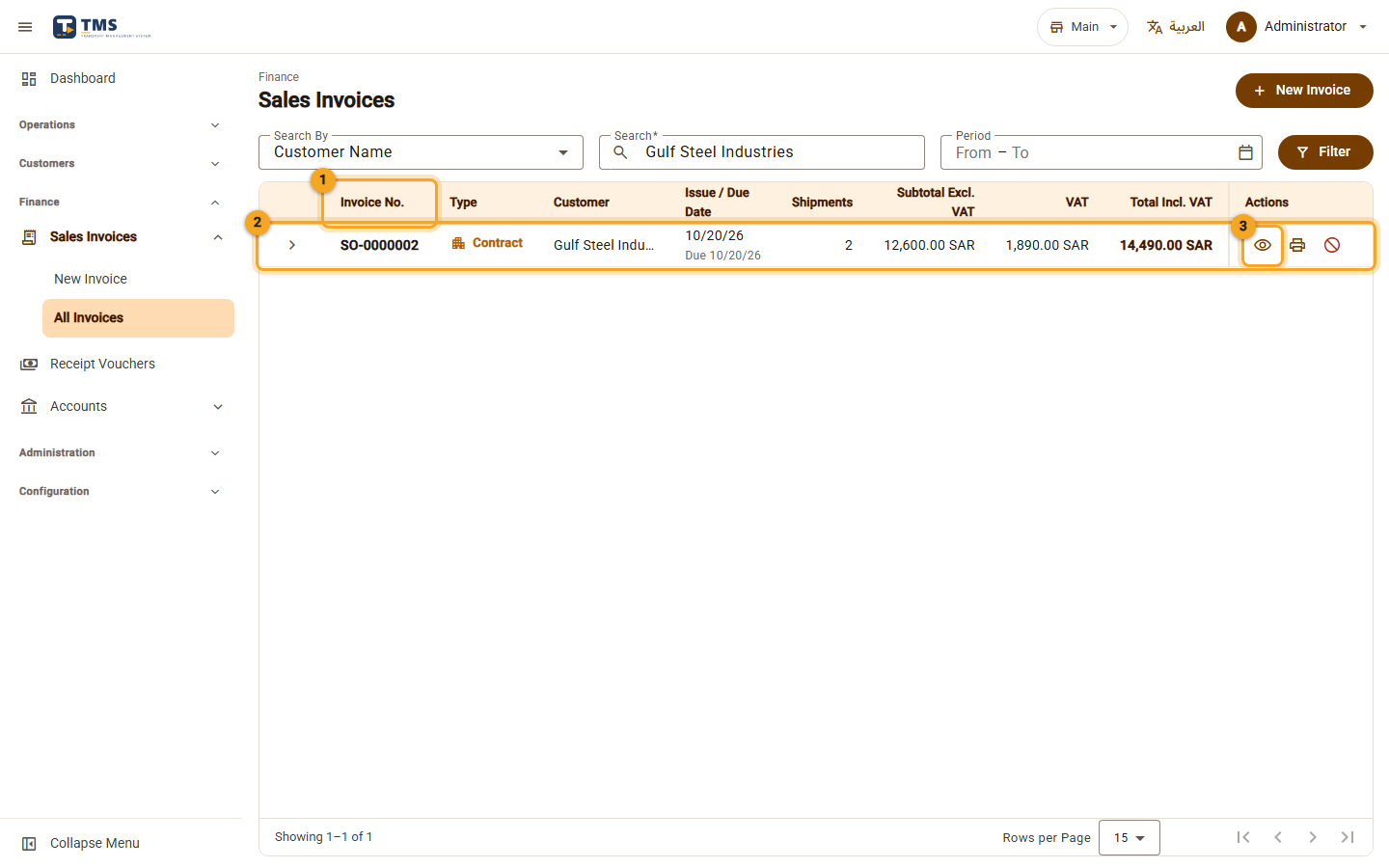
- 1Invoice number.
- 2One row per invoice: customer, dates, amounts and status.
- 3Actions on an invoice: view it, print it, or cancel it (a reason is required).
- Search by customer name, invoice number or period, then press Filter.
- Cancel an invoice from its action icon. You must give a reason (up to 200 characters). The invoice stays in the list as cancelled with its number and reason, and its shipments become free again.
- If a payment was recorded against the invoice, the system refuses: Return the payments first. See Correcting a mistake.
- A cancelled invoice cannot be printed.
6.2 Receipt vouchers
Menu Finance > Receipt Vouchers
A simple paper for money received that is not part of an invoice: an advance, a detention charge, a service paid in cash. Each voucher has a number (RPA-0000001), who paid, how much and for what.
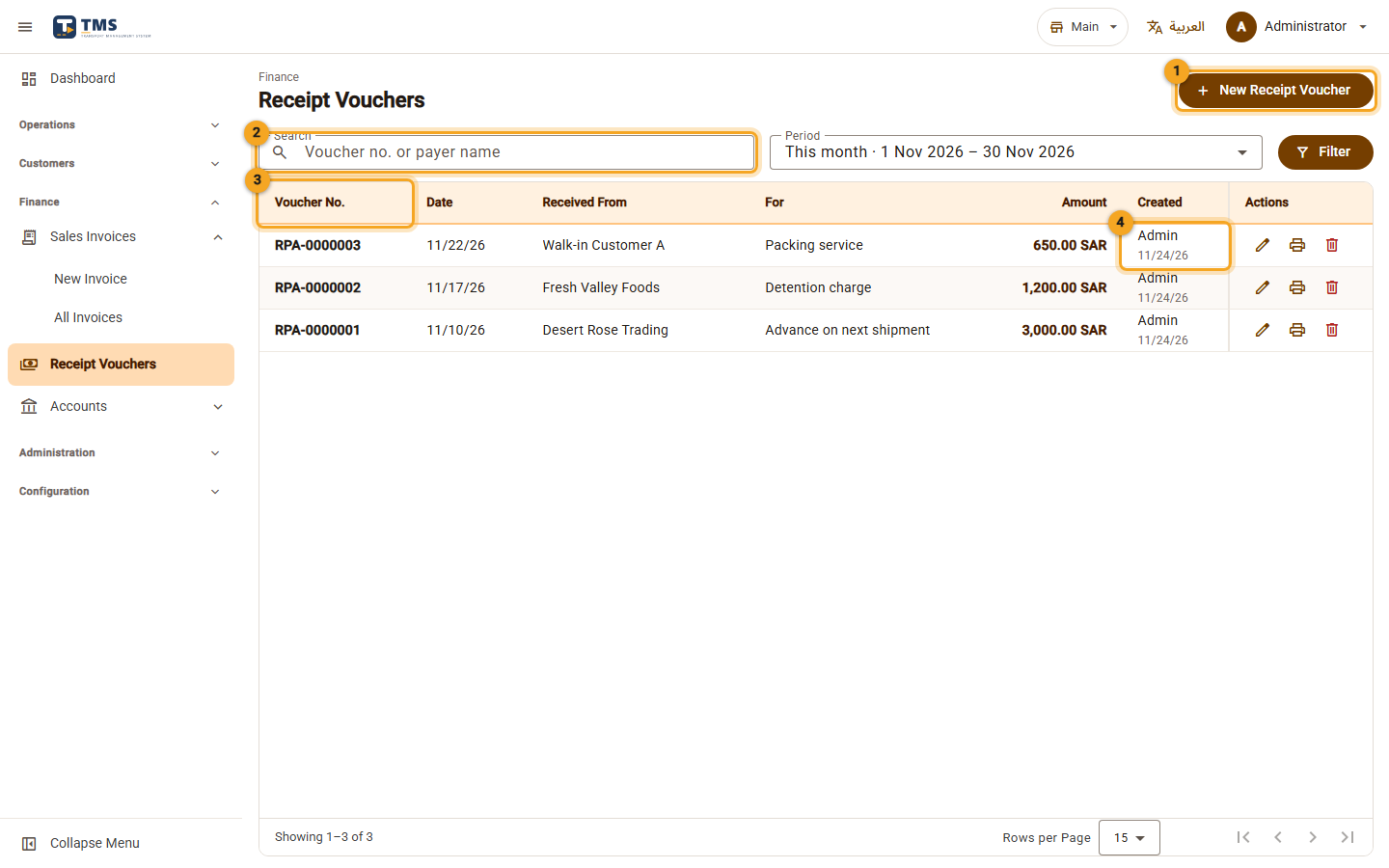
- 1New Receipt Voucher: record money received (a loose receipt, not tied to an invoice).
- 2Search by voucher number or payer.
- 3Voucher numbers run RPA-0000001, RPA-0000002 and so on.
- 4Actions: edit, print the voucher, delete.
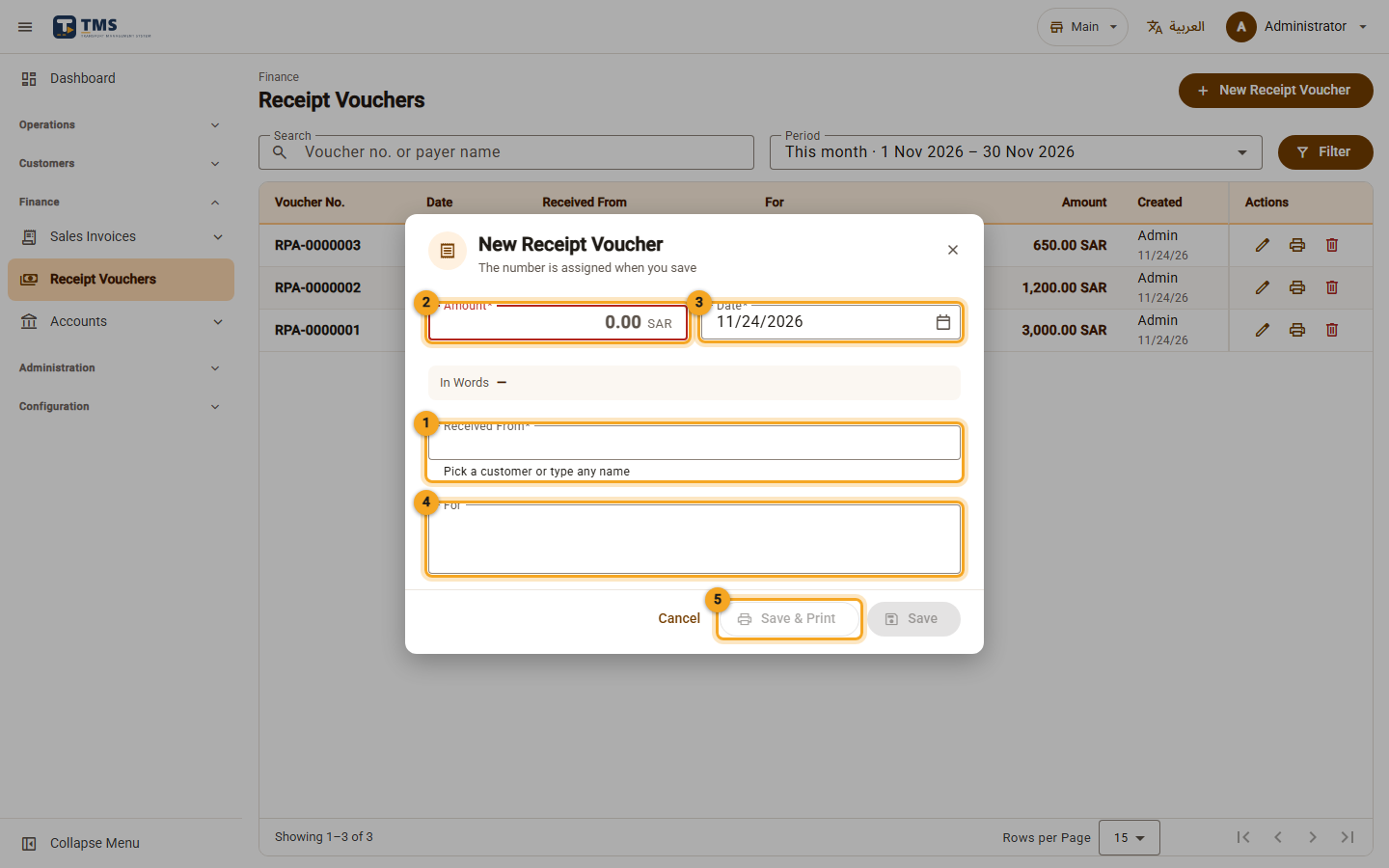
- 1Received from: who gave the money.
- 2Amount received.
- 3Date of the receipt.
- 4What the money is for.
- 5Save: the voucher gets the next number (RPA-0000004). Save & Print saves it and opens it for printing at once.
Do not confuse these two. A receipt voucher (this screen) is a standalone paper. It does not reduce any invoice. A customer payment (Accounts) does reduce the company's invoices. If a company pays an invoice, record a payment, not a receipt voucher.
6.3 Accounts
Customer statements
Menu Finance > Accounts > Customer Statements
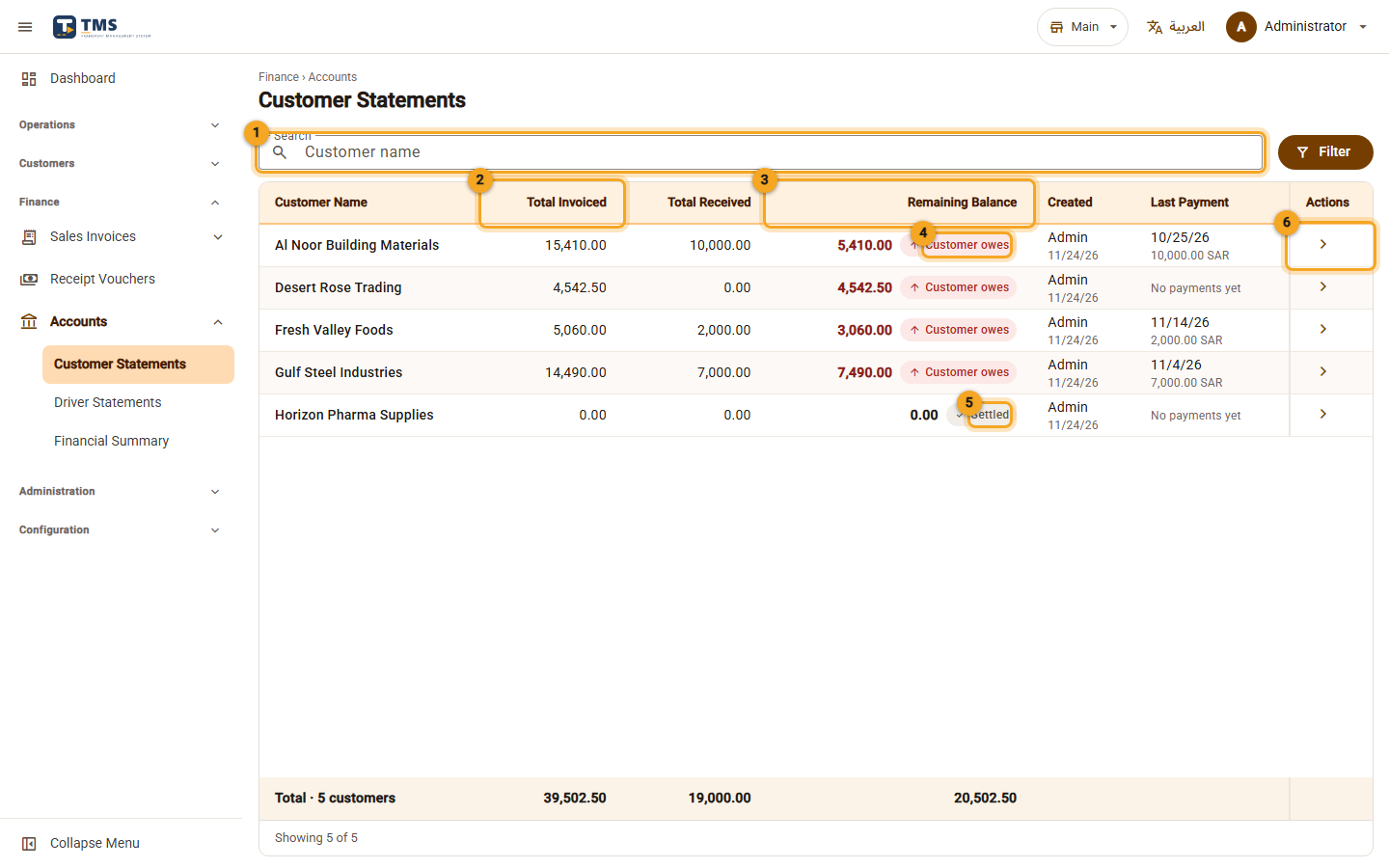
- 1Search by customer name.
- 2Total Invoiced: all invoices issued to the company.
- 3Remaining Balance: invoiced minus received.
- 4Customer owes: the company still has to pay.
- 5Settled: nothing left to pay.
- 6Open the company account.
One line per company: how much was invoiced, how much received, what is still owed, and when the last payment came. Click a line to open the company account.
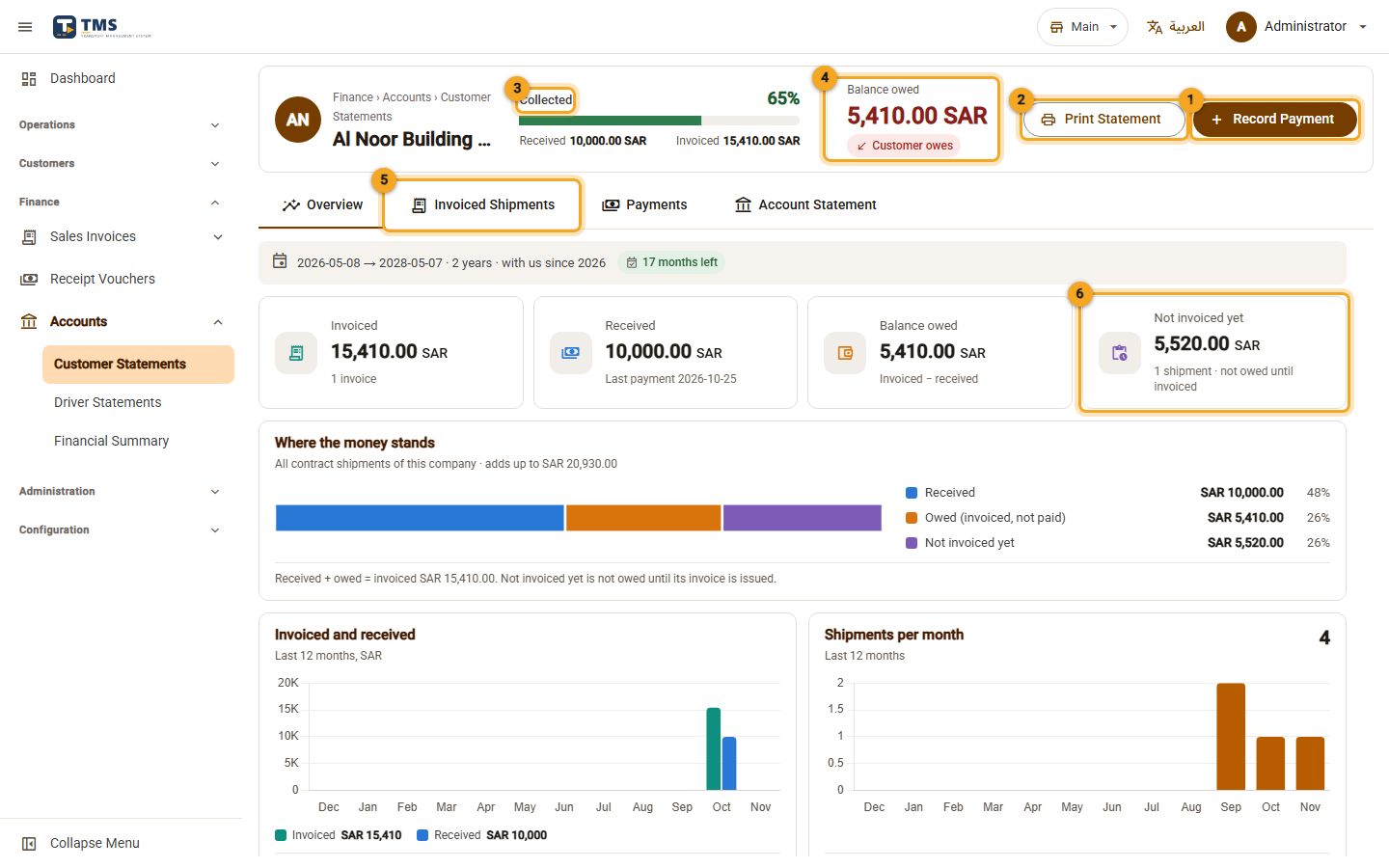
- 1Record Payment: enter money received from this company.
- 2Print Statement: the account statement, ready to print or send.
- 3Collected: how much of the invoiced amount has been received.
- 4Balance owed: invoiced minus received.
- 5Tabs: Overview, Invoiced Shipments, Payments and the Account Statement.
- 6Not invoiced yet: shipments carried but not on an invoice. The company does not owe these until they are invoiced.
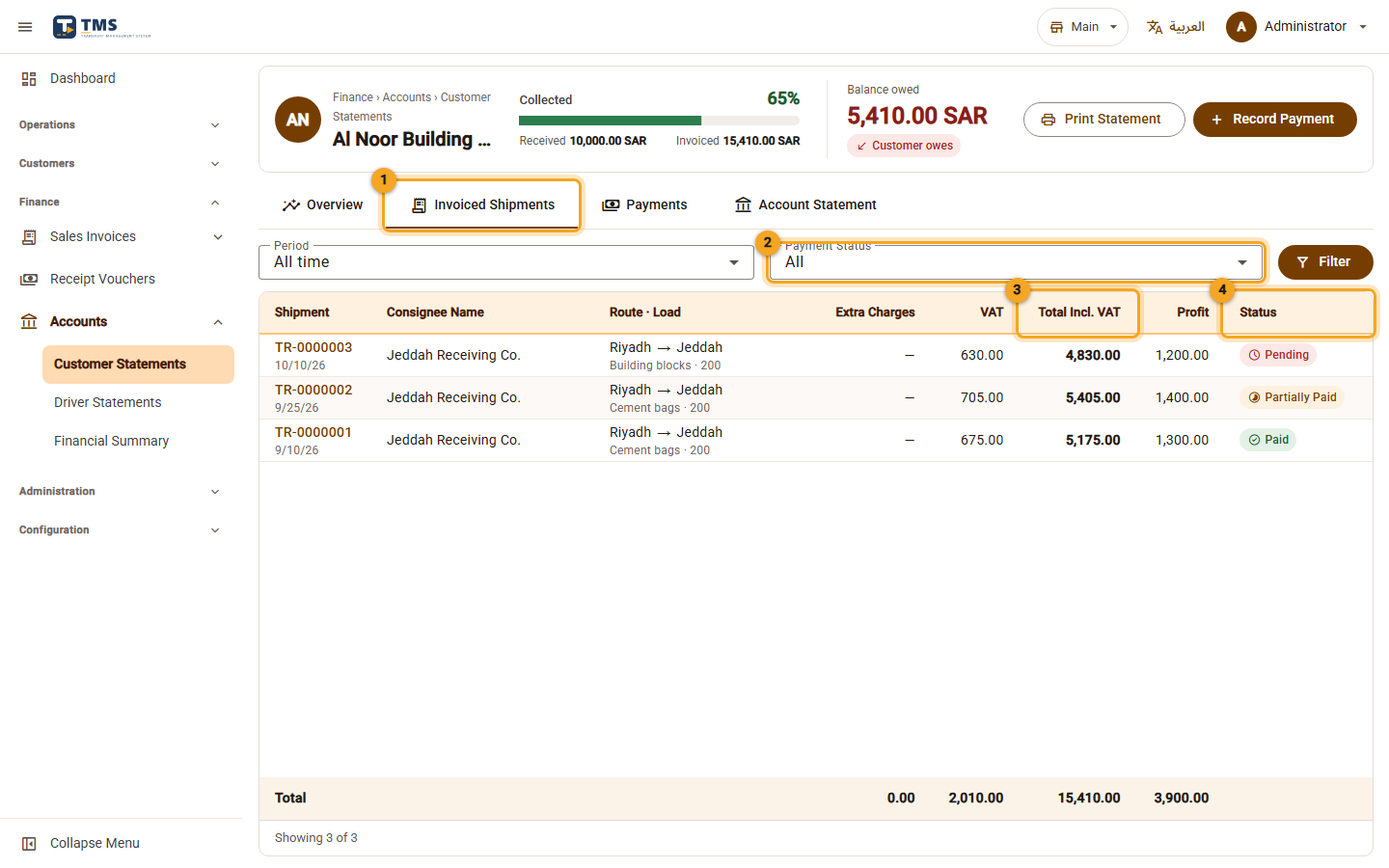
- 1The Invoiced Shipments tab: every shipment of this company that is on an invoice.
- 2Payment status filter: Pending, Partially paid or Paid.
- 3Each shipment with its VAT and total.
- 4Status: Pending (nothing paid), Partially paid or Paid.
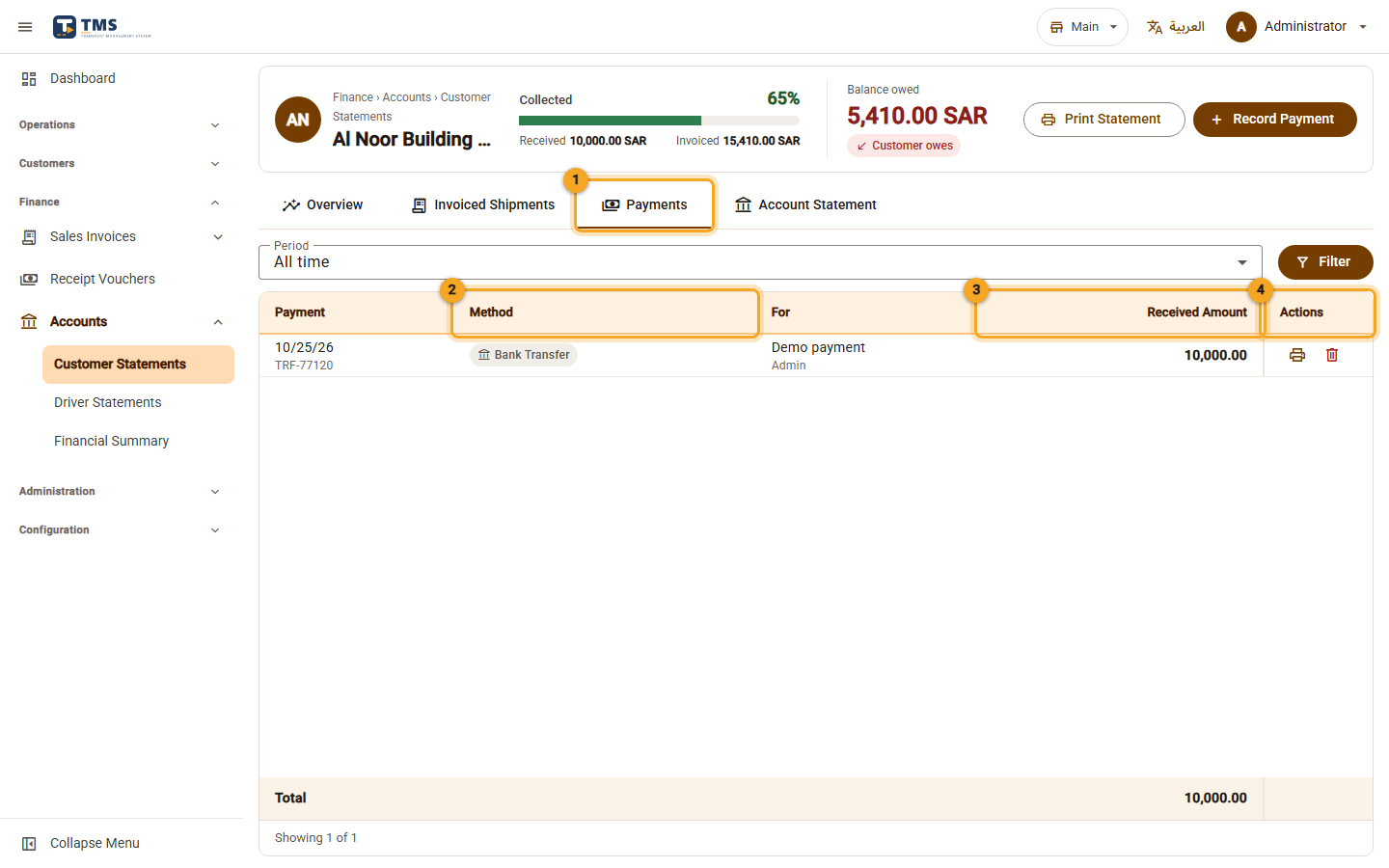
- 1The Payments tab: every payment received from this company.
- 2How it was paid, with the transfer or cheque number under the date. Use it to match the bank statement.
- 3Amount received.
- 4Print the receipt voucher, or return the payment. Returning it puts the money back on the invoices.
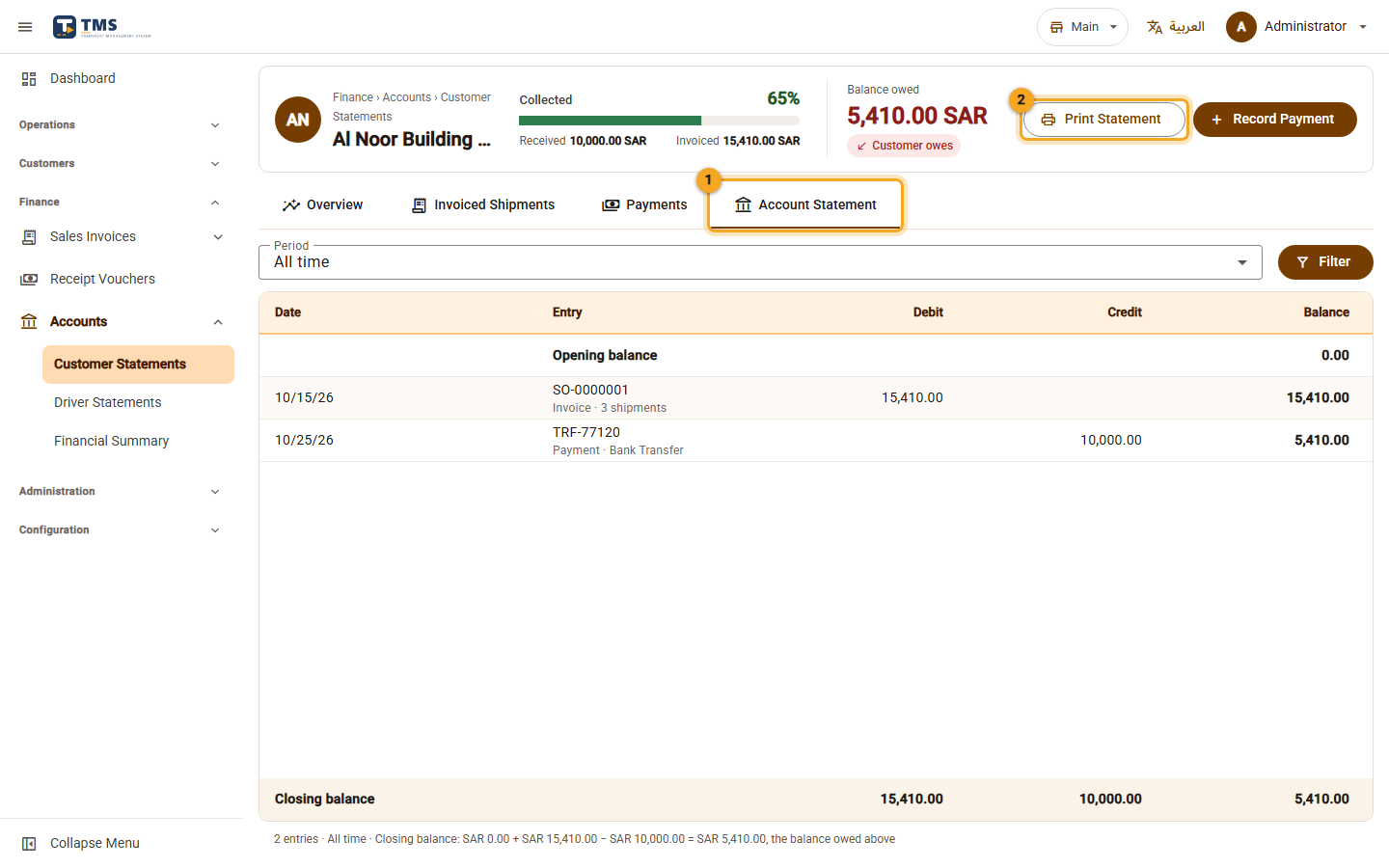
- 1The Account Statement tab: a running list of invoices (debit) and payments (credit) for any date range.
- 2Print: the printed statement.
Recording a payment from a company
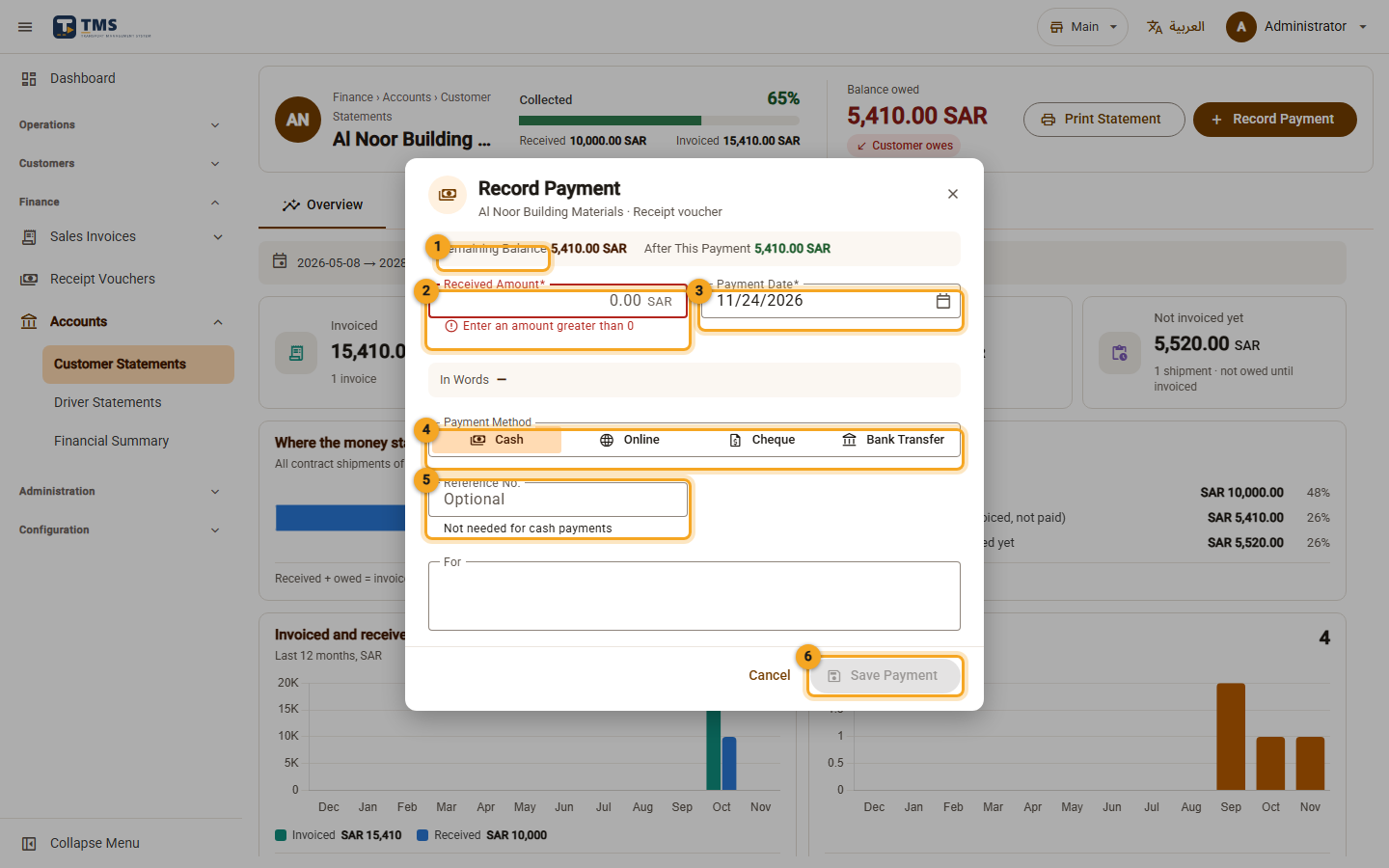
- 1Remaining balance before and after this payment.
- 2Received amount.
- 3Payment date (not in the future).
- 4Payment method: Cash, Online, Cheque or Bank Transfer.
- 5Reference number: the transfer or cheque number. Not needed for cash.
- 6Save Payment: the money is spread over the invoiced shipments, oldest invoice first. Anything left over stays as credit on the account.
- Open the company and press Record Payment.
- Enter the amount (more than 0, at most two decimals) and the date (not in the future). The box shows the balance before and after.
- Choose the method: Cash, Online, Cheque or Bank Transfer. For a transfer or cheque, type the reference number.
- Save. TMS spreads the money over the invoiced shipments, oldest invoice first. A shipment becomes Partially paid or Paid. Anything left over stays as credit on the account.
The Payments tab lets you print the receipt for any payment, or return it (see the correction flow below).
Driver statements
Menu Finance > Accounts > Driver Statements
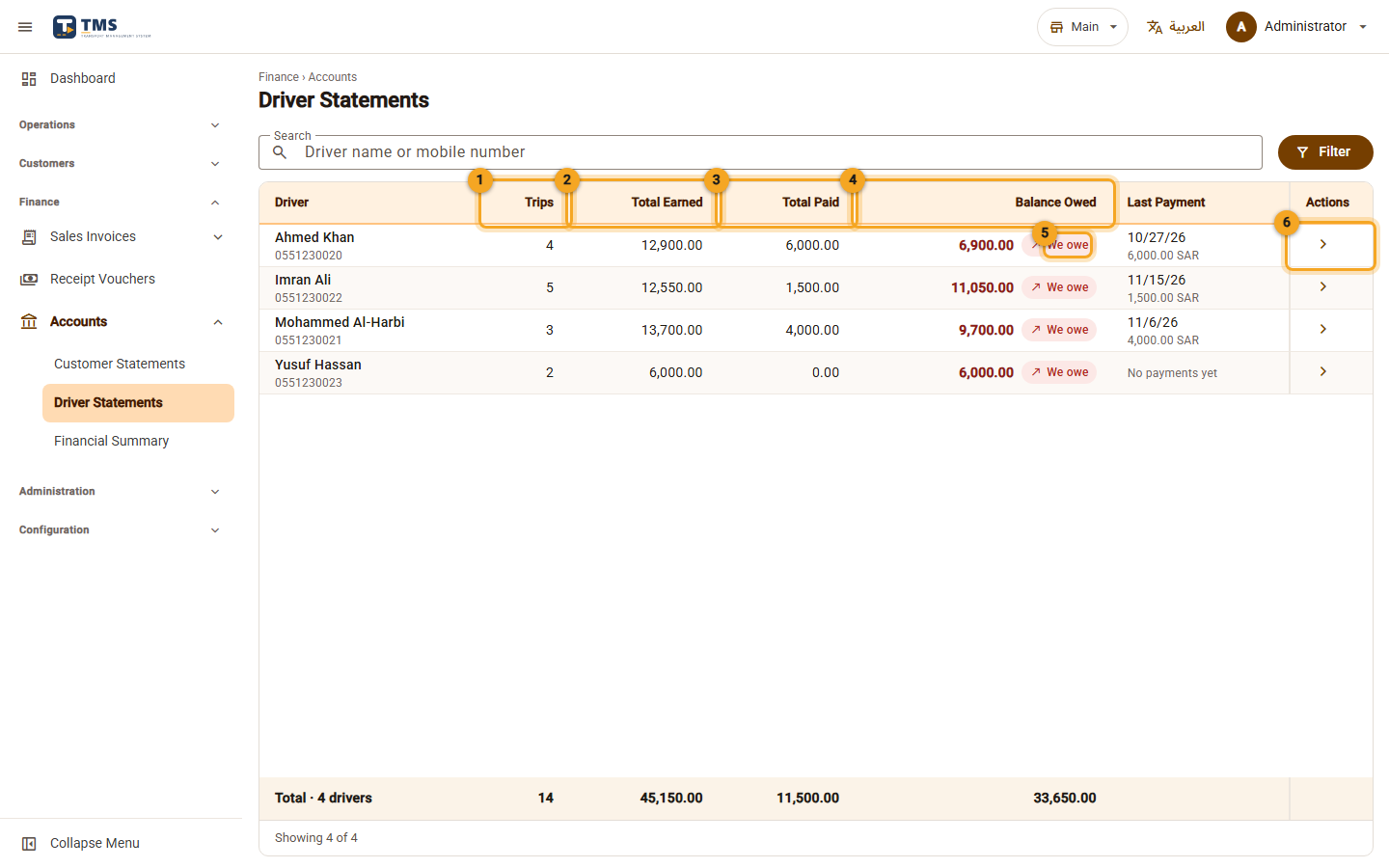
- 1Trips: number of contract shipments the driver carried.
- 2Total Earned: the driver amounts of those shipments, plus labour and overnight fees.
- 3Total Paid: what the company already paid the driver.
- 4Balance Owed: what the company still owes the driver.
- 5We owe: the direction of the balance.
- 6Open the driver account.
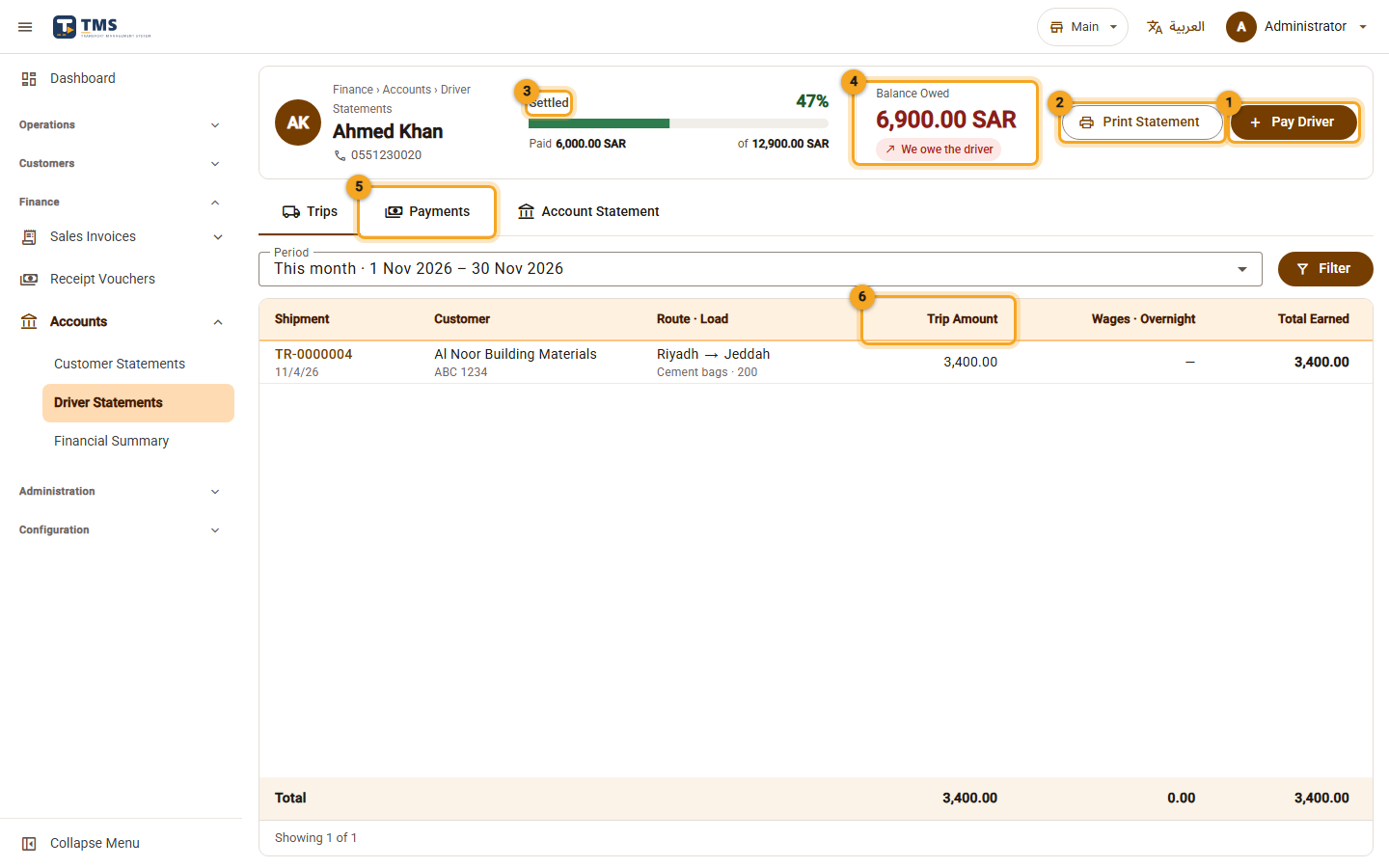
- 1Pay Driver: record money paid to this driver.
- 2Print Statement: the driver statement.
- 3Settled: how much of what the driver earned is already paid.
- 4Balance owed: what the company still owes the driver.
- 5Payments tab: every payment made.
- 6Trip amount: the driver amount of each shipment.
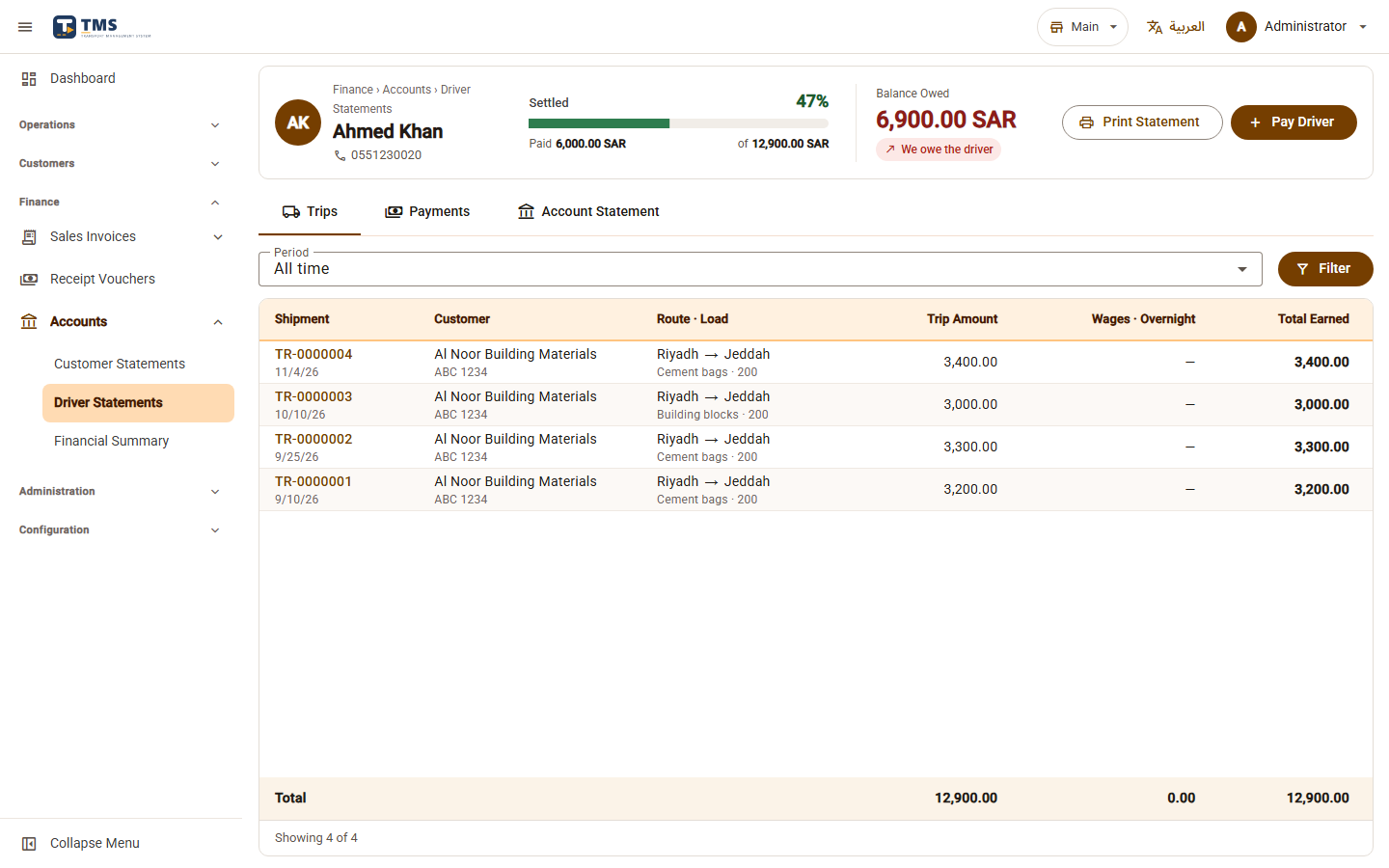
For each driver: how many trips, what was earned (the driver amount of each contract shipment, plus labour and overnight fees), what was paid, and the balance owed to the driver.
Paying a driver
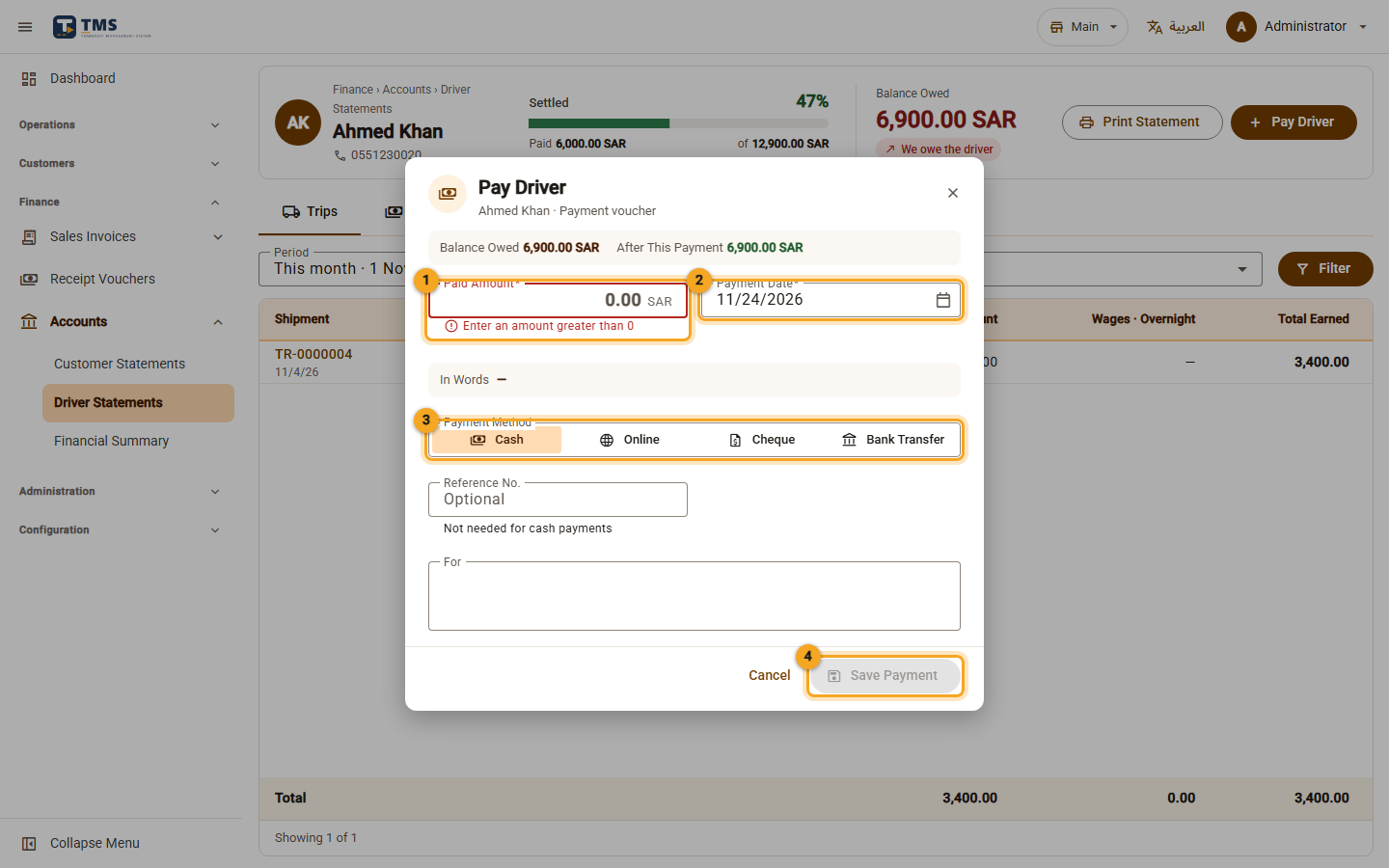
- 1Amount paid to the driver.
- 2Date of the payment.
- 3How the driver was paid.
- 4Save: creates a payment voucher (PV-0000001, ...) that can be printed.
Press Pay Driver, enter the amount, date and method, and save. TMS creates a payment voucher (PV-0000001) that prints as an original and a copy, and the balance owed goes down.
Financial summary
Menu Finance > Accounts > Financial Summary
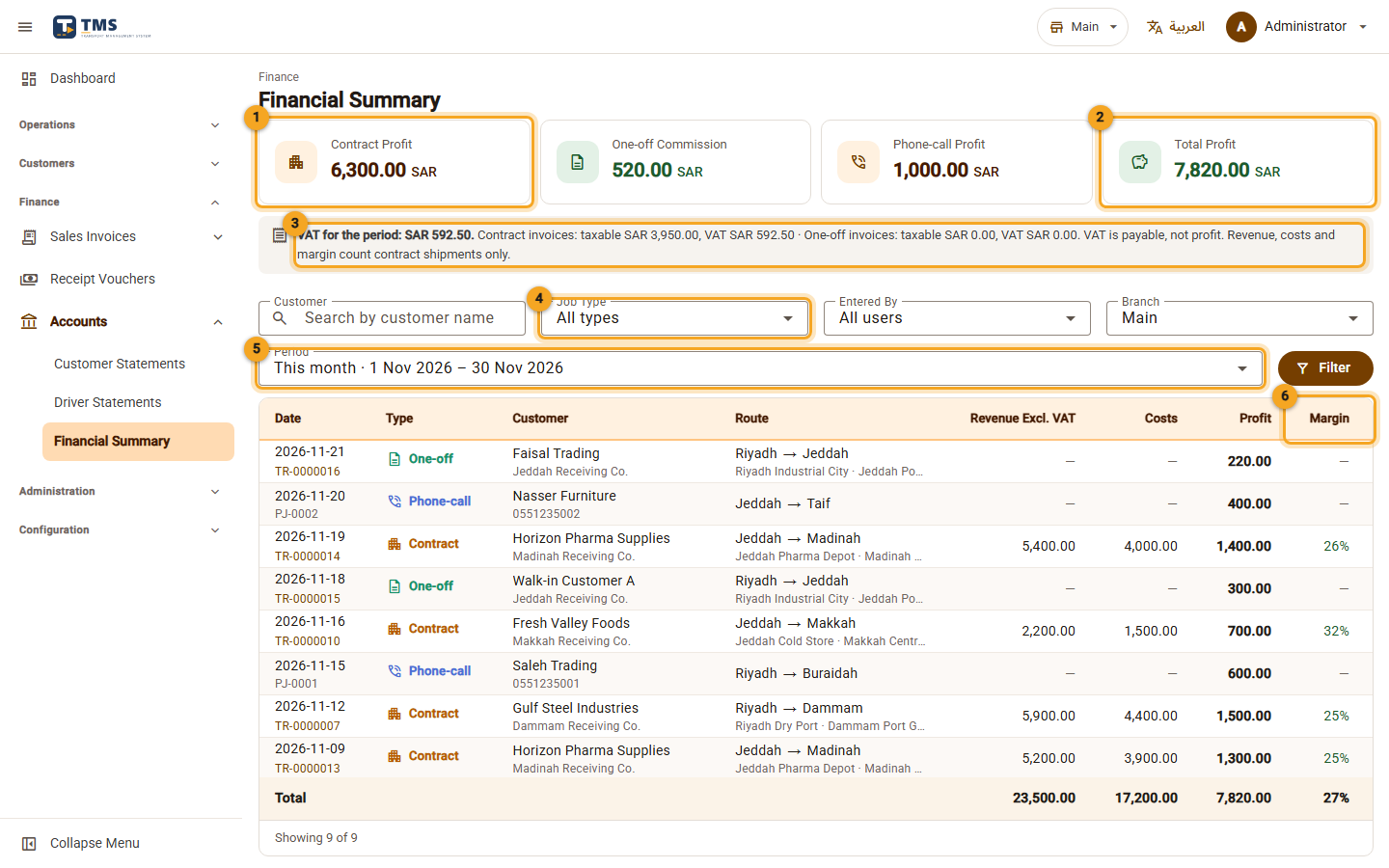
- 1Contract profit: customer price minus driver payment on contract shipments.
- 2Total profit: contract profit + one-off commission + phone-call profit.
- 3VAT is shown separately: VAT is payable to the tax authority, it is not profit.
- 4Job type filter: contract, one-off or phone-call.
- 5Period: this month, last month, a year or your own dates.
- 6Margin: profit as a share of revenue.
The profit of the company for a period, split by job type. VAT is shown separately because it is payable to the tax authority, not profit. Revenue, cost and margin count contract shipments only; one-off jobs add their commission and phone-call jobs add their profit.
6.4 The money flows, step by step
Company shipment to invoice to payment
Paying the driver
Correcting a mistake after the invoice is out
Order matters when fixing. Return the payment, then cancel the invoice, then edit the shipment. TMS refuses to cancel an invoice that still has payments, and refuses to edit a shipment that is still on an invoice. Nothing is ever really erased: cancelled invoices and returned payments leave a record.
7. Administration: people and permissions
7.1 Users
Menu Administration > Users
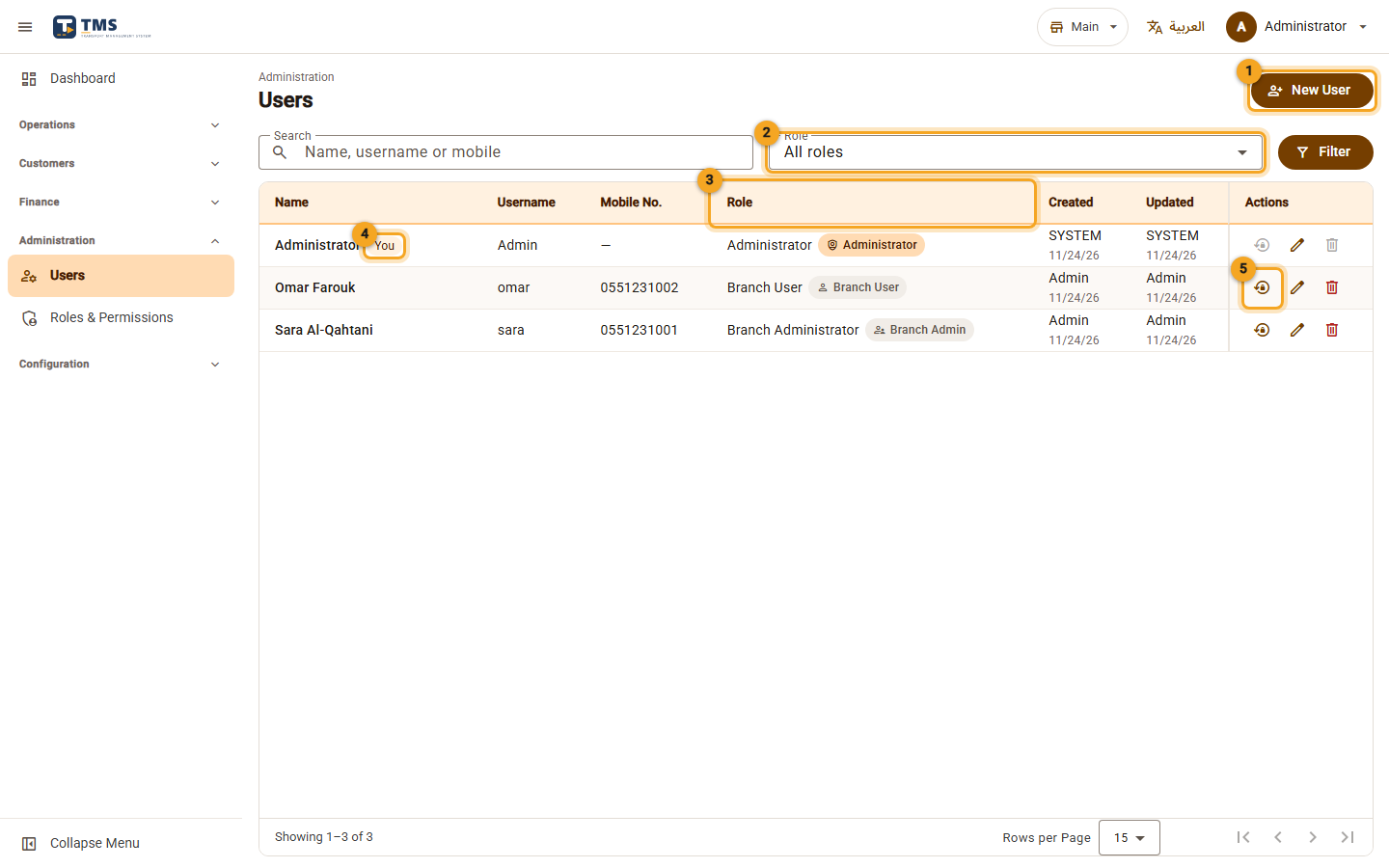
- 1New User: create a person who can sign in.
- 2Role filter.
- 3Role: decides what the person may open and do.
- 4You: the account you are signed in with. You cannot delete yourself.
- 5Reset password (gives a temporary password to hand over), edit, delete (the user is only switched off).
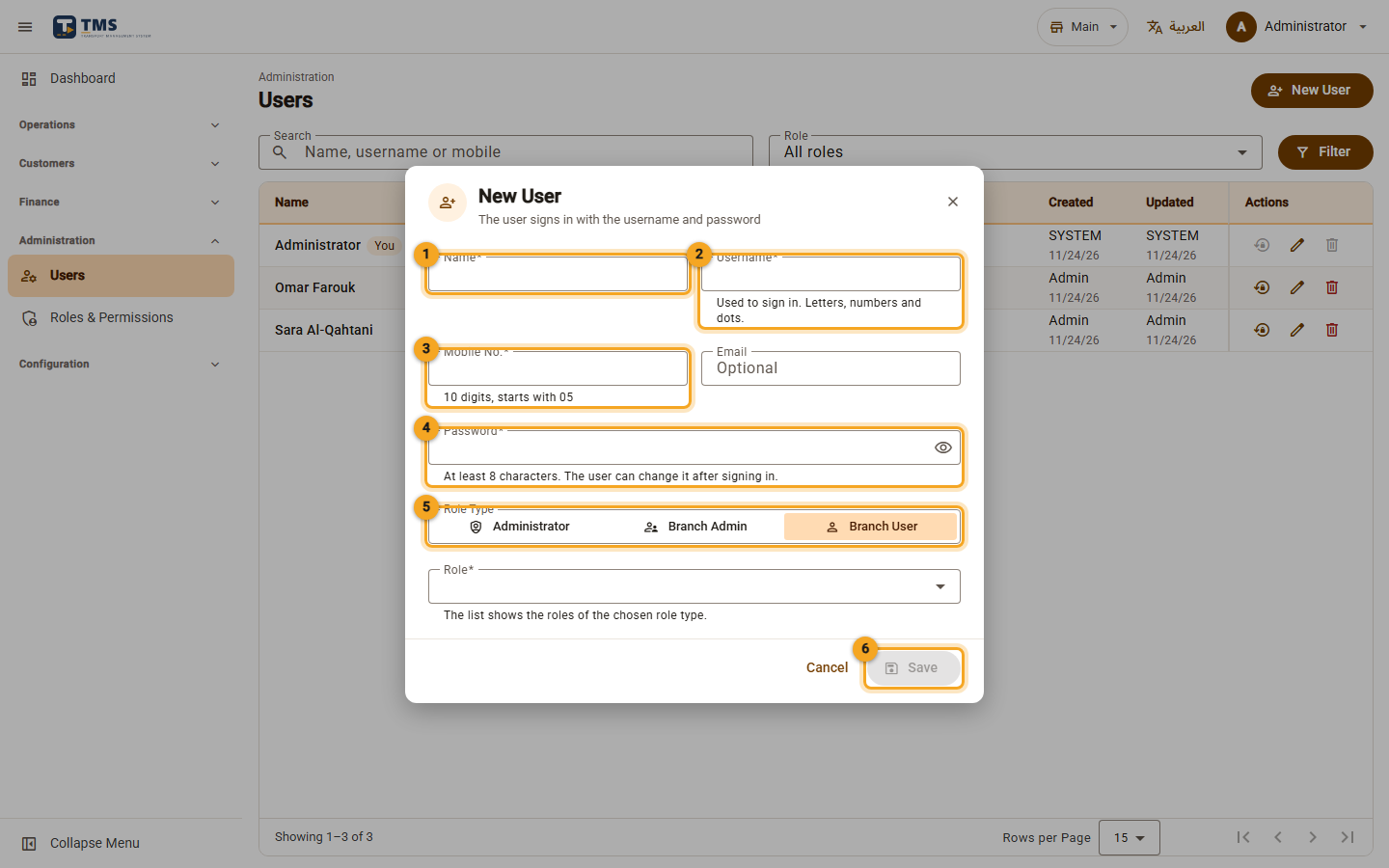
- 1Full name.
- 2Username: used to sign in. It must be unique.
- 3Mobile number: starts with 05 and has 10 digits.
- 4Password: at least 8 characters. The person can change it later from the account menu.
- 5Role type, then the role: what the person is allowed to do. The role list shows only roles of the chosen type.
- 6Save.
- Every person who signs in has their own user. Never share one login: the system records who entered each shipment, invoice and payment, and Branch Users see only what they entered.
- The username must be unique (letters, numbers and dots). The mobile is a Saudi mobile with 10 digits starting with 05. The password needs at least 8 characters.
- Pick a role type and then a role of that type.
- Reset password gives a temporary password the administrator hands to the person.
- Delete only switches the user off: their history stays. You cannot delete yourself.
7.2 Roles and permissions
Menu Administration > Roles & Permissions
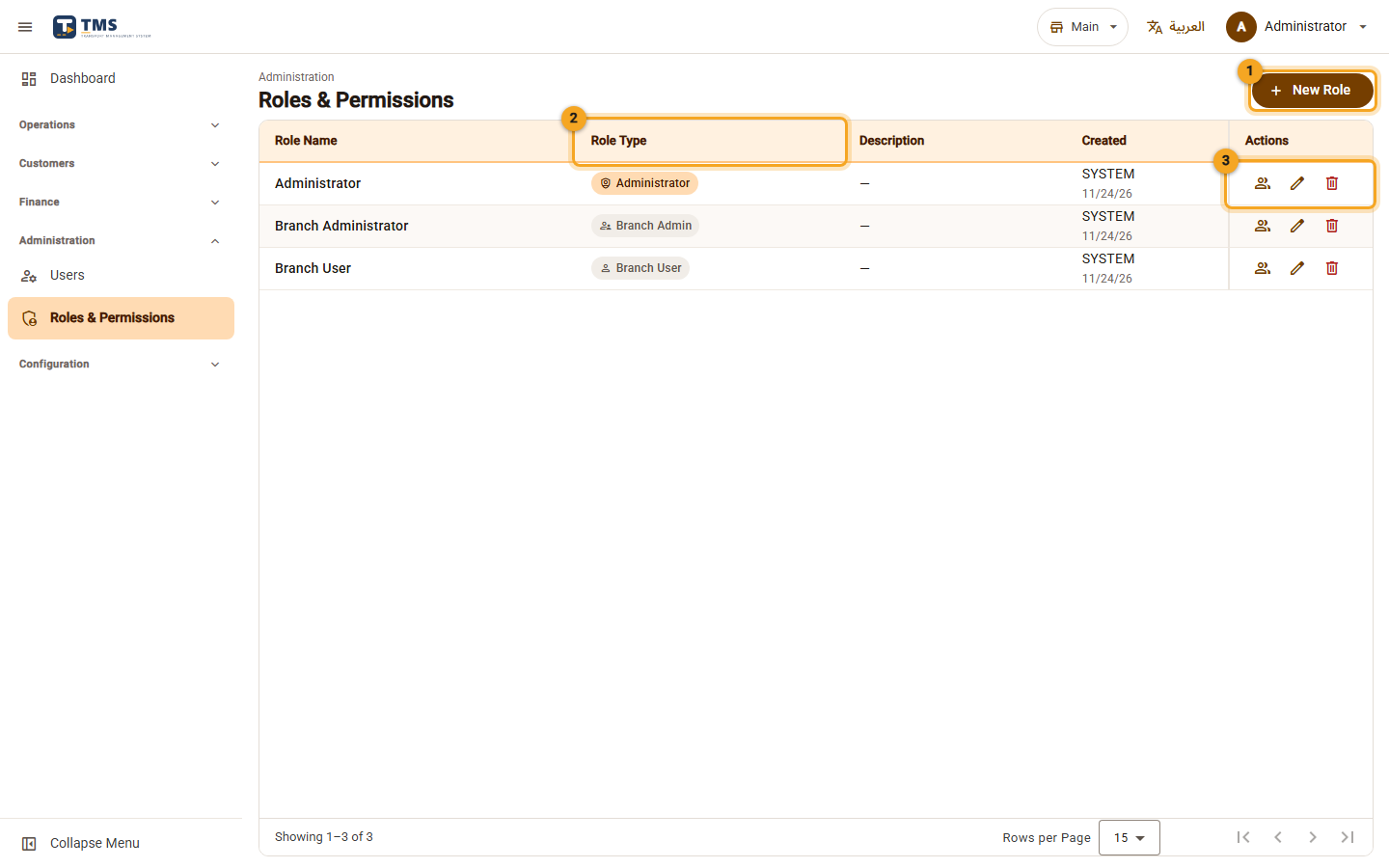
- 1New Role: make a role with its own permissions.
- 2Role type: Administrator, Branch Administrator or Branch User.
- 3Actions: see users of the role, edit permissions, delete (not possible while users have it).
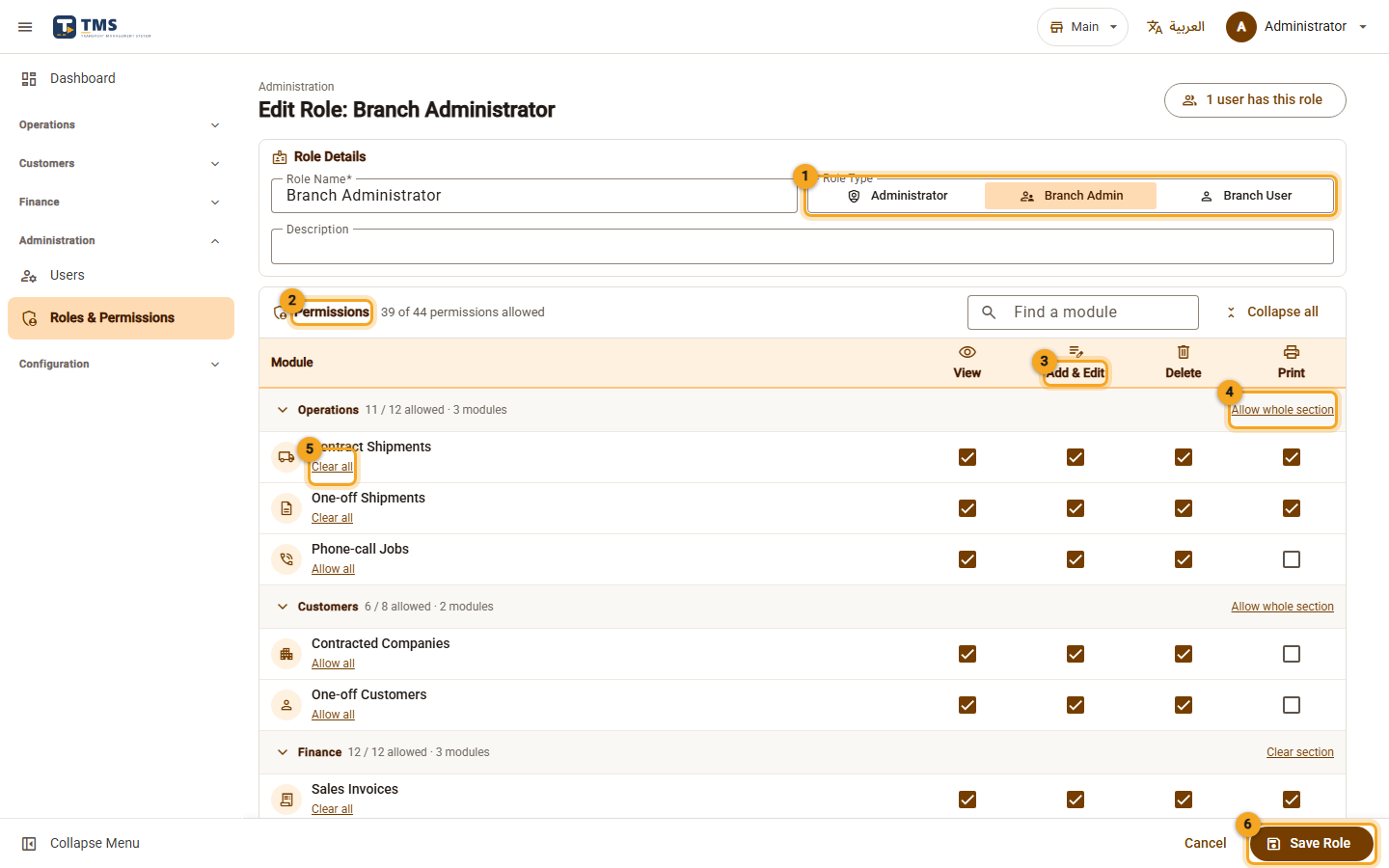
- 1Role type: Administrator (everything, all branches), Branch Administrator or Branch User (daily work in one branch).
- 2The permission table: one row per module.
- 3The four columns: View, Add & Edit, Delete and Print.
- 4Allow whole section: ticks everything in the section in one click.
- 5Clear all: removes every permission of one module.
- 6Save Role: applies at once. People with the role get the change the next time their page loads.
A role has a type and, for each module, four switches: View, Add & Edit, Delete and Print. Permission changes are checked on the server every time, so a person loses or gains access at once; their screen catches up when the page reloads. A role that still has users cannot be deleted.
The three roles a fresh install starts with
| Role | Works in | What it can do |
|---|---|---|
| Administrator | Every branch (can switch) | Everything, including Branches, Company Information, Branding, Customer Classification and the licence details. |
| Branch Administrator | Their own branch | Everything except managing Branches. |
| Branch User | Their own branch | Daily work only: contract and one-off shipments, phone-call jobs, contracted companies, one-off customers, sales invoices, receipt vouchers and vehicle types (view only). Add and edit, print, but not delete. No Users, Roles, Finance (accounts) or Branches. Sees only records they entered themselves. |
Companies may rename or add roles. For example a "Cashier" that only has Receipt Vouchers. The three above are only the starting point.
Two kinds of limits. Permissions (what you may do) come from the role. Scope (whose data you see) comes from the branch, and for a Branch User also from who created the record.
7.3 Branches
Menu Configuration > Branches (administrators)
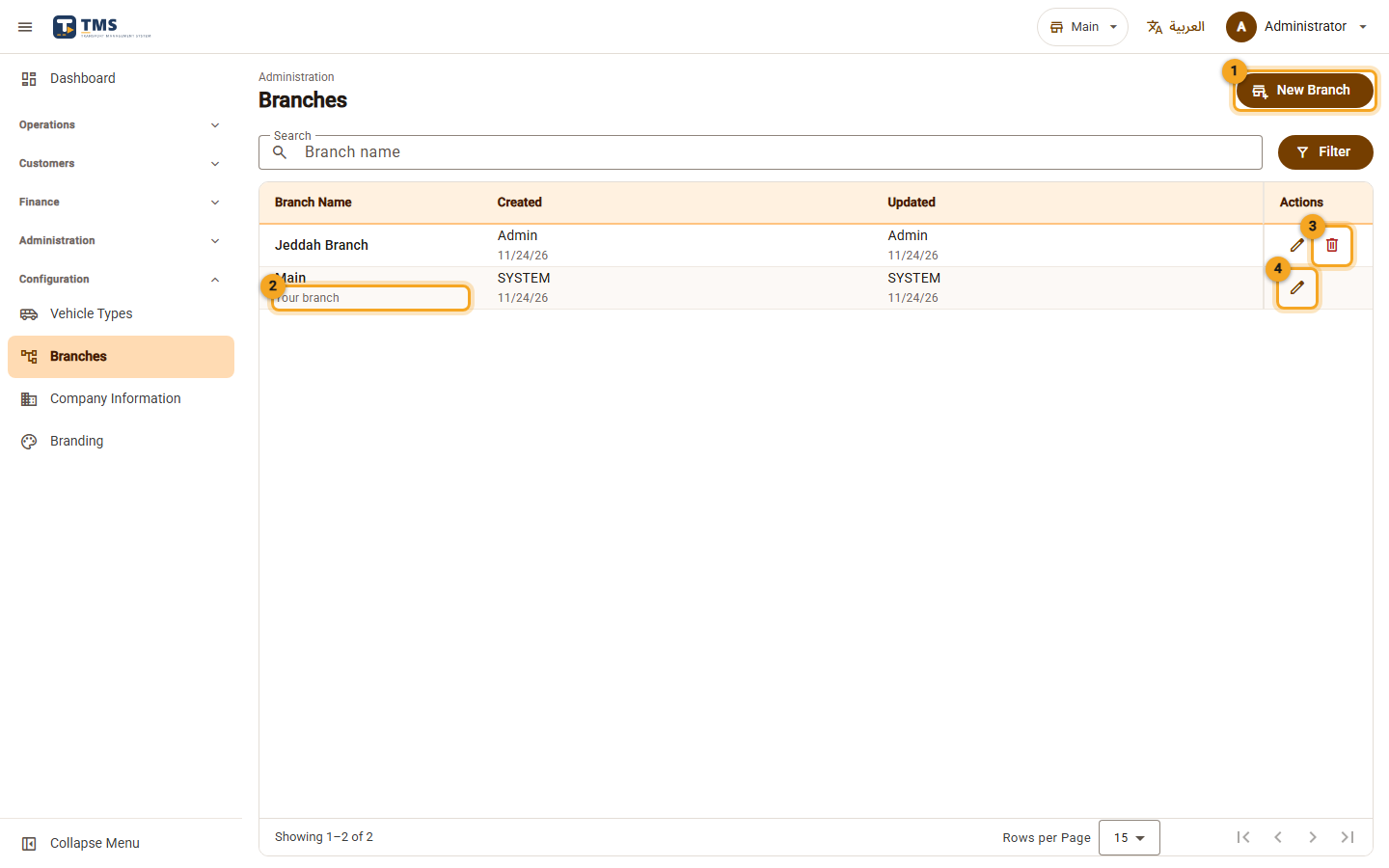
- 1New Branch: add a branch. Only an administrator can do this.
- 2The branch you are working in now.
- 3Delete is possible only for a branch you made yourself. Deleting a branch removes its shipments, invoices and receipts, so think twice.
- 4The first branch ("Main") is made by the system and cannot be deleted.
A branch is a division of the company, for example a city office. Data, users and numbers belong to a branch. Only an Administrator can create a branch or switch to one. The first branch ("Main") is made by the system and cannot be deleted.
Deleting a branch deletes its shipments, invoices and receipt vouchers. It is meant only for a branch made by mistake. If in doubt, do not delete.
8. Configuration: setup that rarely changes
8.1 Vehicle types
Menu Configuration > Vehicle Types
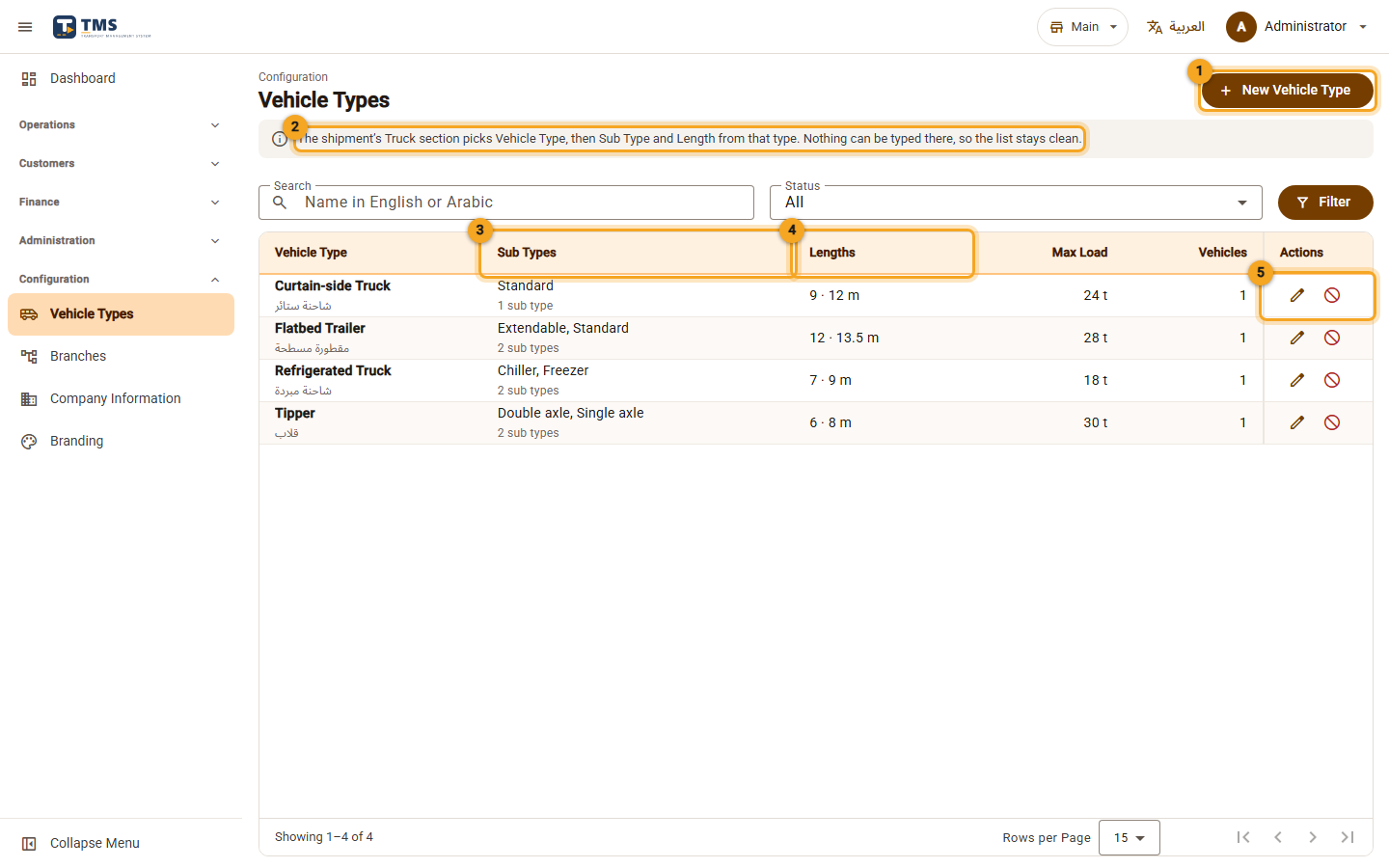
- 1New Vehicle Type.
- 2These lists feed the Truck section of the shipment form. Nothing can be typed there, so the data stays clean.
- 3Sub types, such as Chiller or Freezer.
- 4Lengths in metres.
- 5Actions: edit or deactivate.
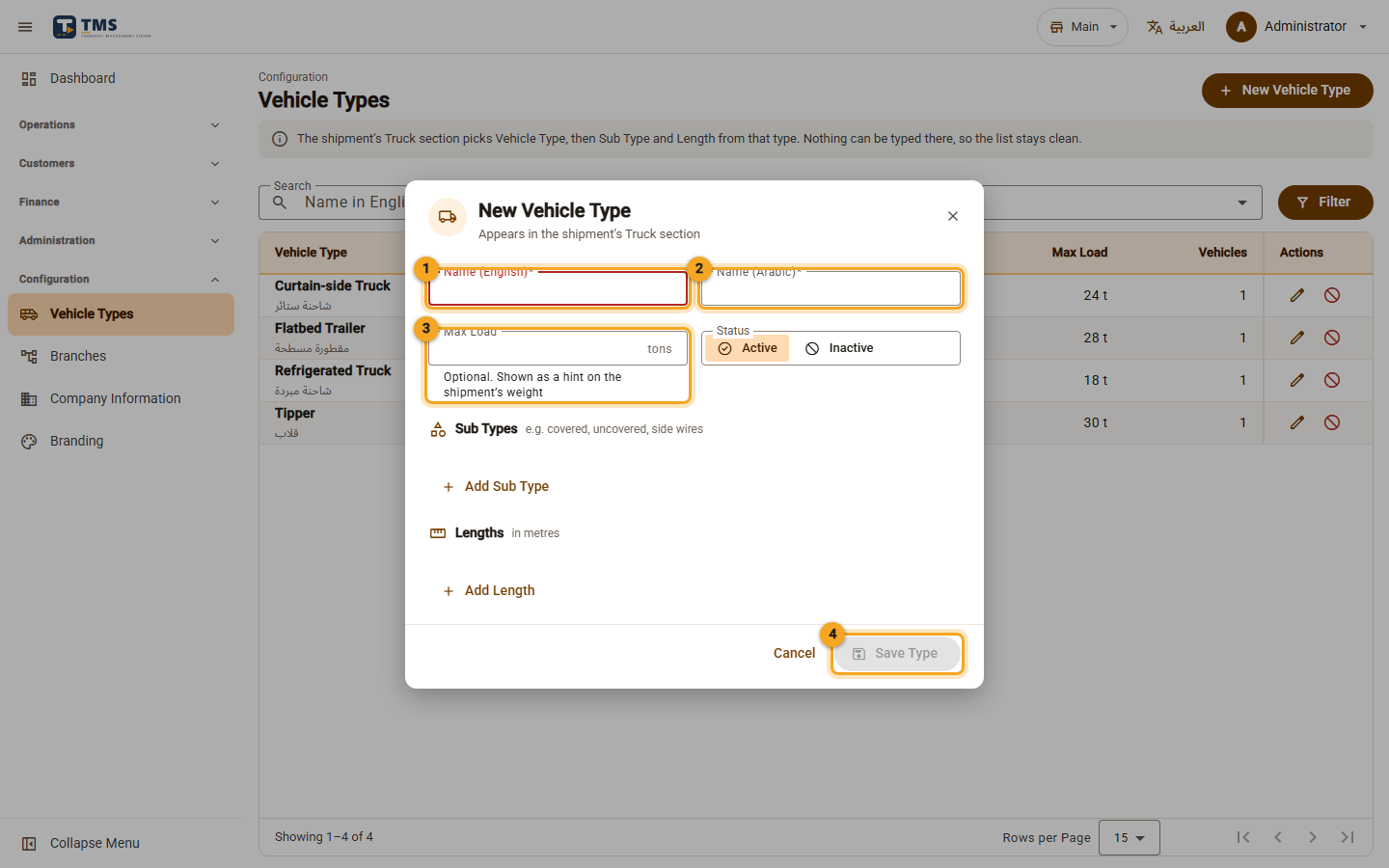
- 1Type name in English.
- 2Type name in Arabic (both are needed).
- 3Maximum load in tons. The shipment form warns when the weight is above this.
- 4Save: then add sub types and lengths in the same dialog.
The lists that the Truck section of the shipment form chooses from: a type (Flatbed Trailer), its sub types (Standard, Extendable), its lengths and its maximum load. Both English and Arabic names are required. A type that vehicles already use cannot be deleted: deactivate it instead.
8.2 Company information administrators
Menu Configuration > Company Information
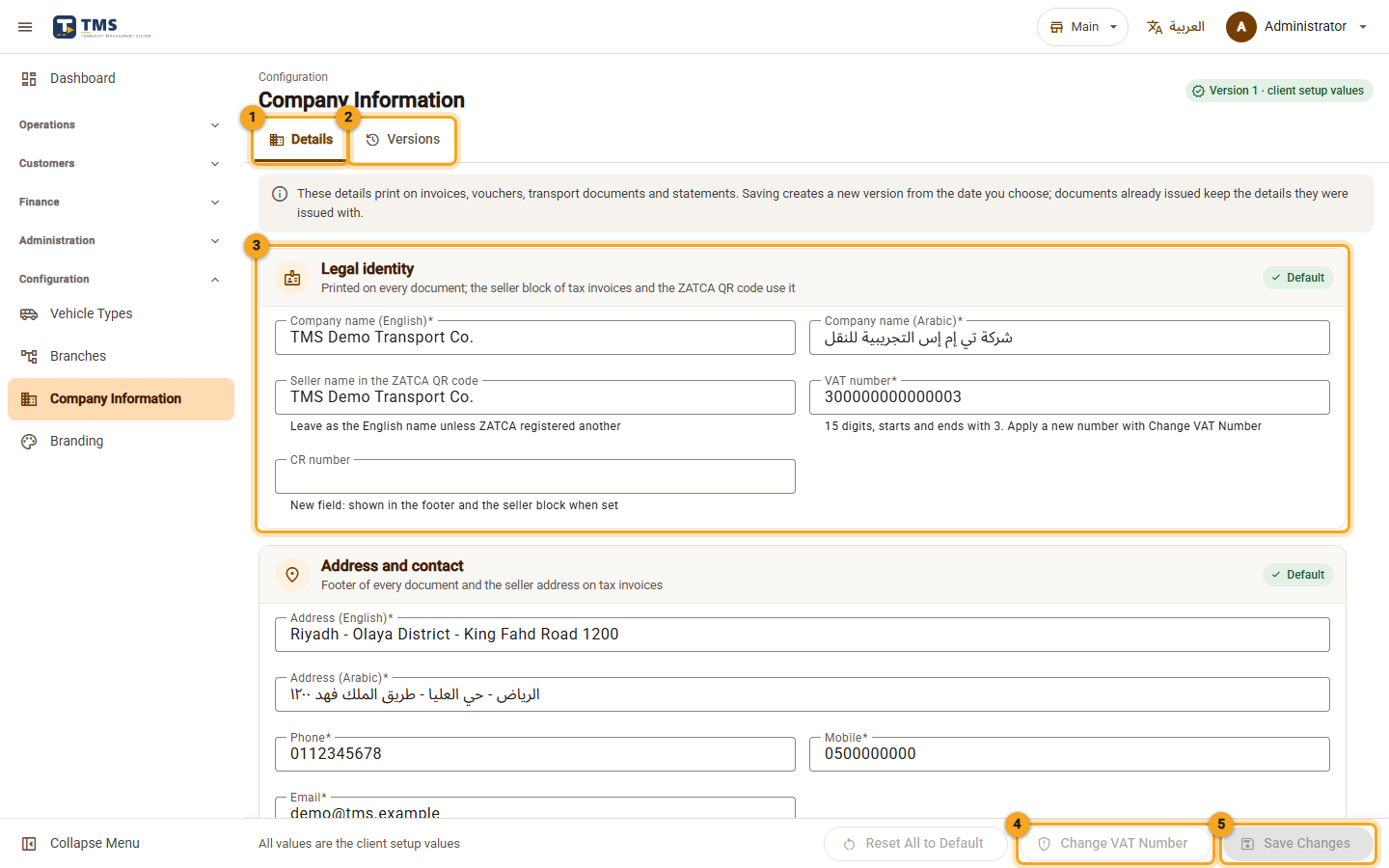
- 1Details: the company information in force now.
- 2Versions: the dated history. Every change is a new version with an effective date.
- 3Legal identity: names, the name in the ZATCA QR code, VAT number and CR number.
- 4Change VAT Number: needs an extra confirmation because the VAT number identifies the company to the tax authority.
- 5Save Changes: asks for the date the change takes effect. Documents already issued keep the details they were issued with.
The company's own details printed on every document: names in English and Arabic, VAT number, CR number, address, phone, email, bank details and the footer. They start as the values set up for the client, called version 1.
- Every save creates a new dated version. You choose the effective date: today or later, never in the past.
- Documents already issued keep the details they were issued with, even when reprinted. Their QR code does too. New documents use the version in force on their date.
- Statements are reports, so they print with the version in force on the print date.
- A version that has not taken effect yet can be cancelled from the Versions tab.
- The VAT number changes only through Change VAT Number, with a typed confirmation (
CHANGE VAT), and only when the tax authority has issued a new registration.
8.3 Branding administrators
Menu Configuration > Branding
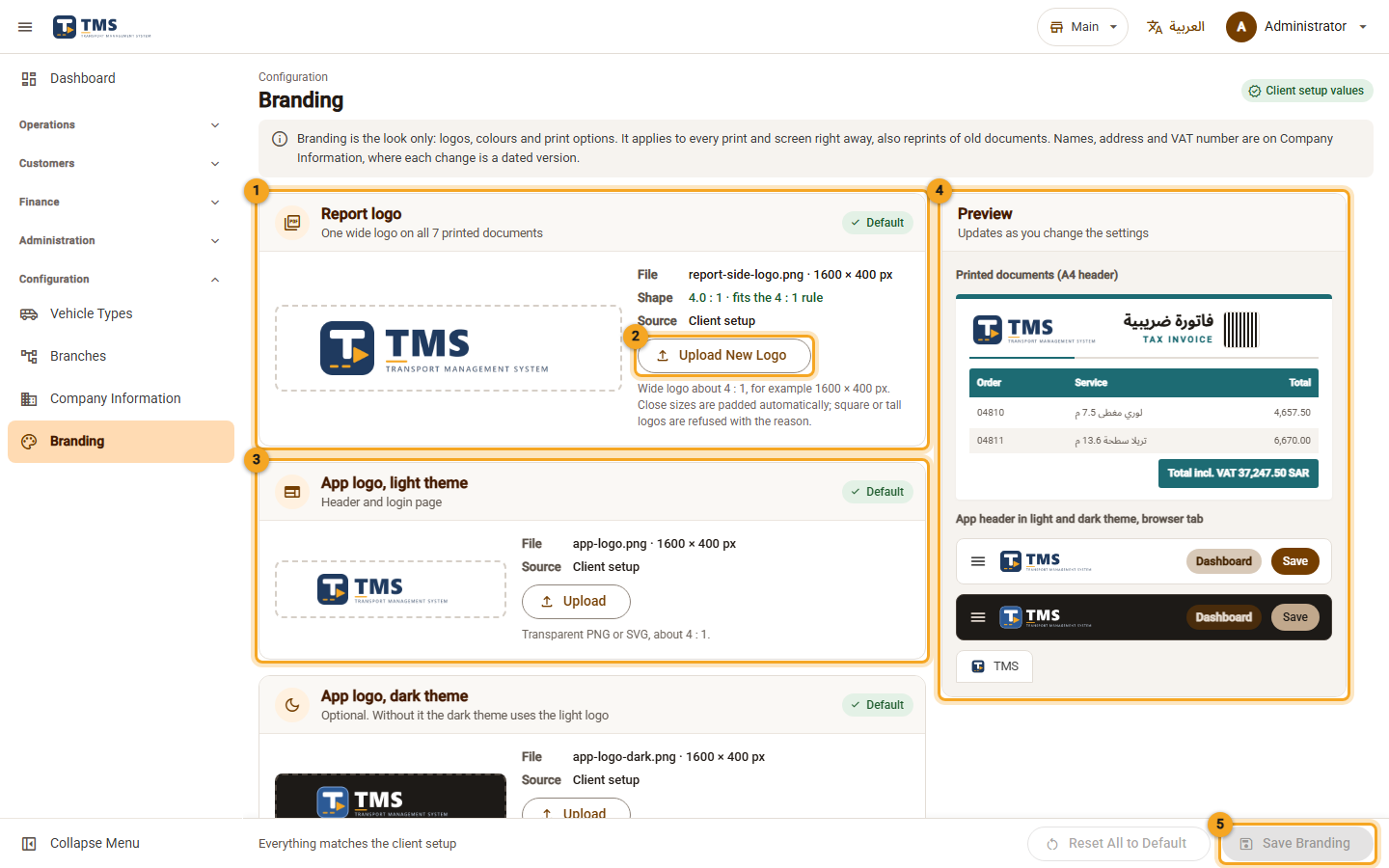
- 1Report logo: one wide logo (about 4:1, for example 1600 x 400 px) used on every printed document.
- 2Upload New Logo: close sizes are padded automatically; square or tall logos are refused with the reason.
- 3App logos: shown in the header and on the login page, one for the light theme and an optional one for the dark theme.
- 4Live preview: shows the printed header and the app header as you change settings.
- 5Save Branding: logos and colours apply at once, including reprints of old documents.
The look of the product: the report logo (printed documents), the app logos (light and dark theme), the browser tab icon, the theme colour, the colour of printed documents and a few print options. Branding changes apply at once to every screen and print, including reprints of old documents, because it is not a legal detail. Names, address and VAT number are on Company Information, not here.
9. Printed documents
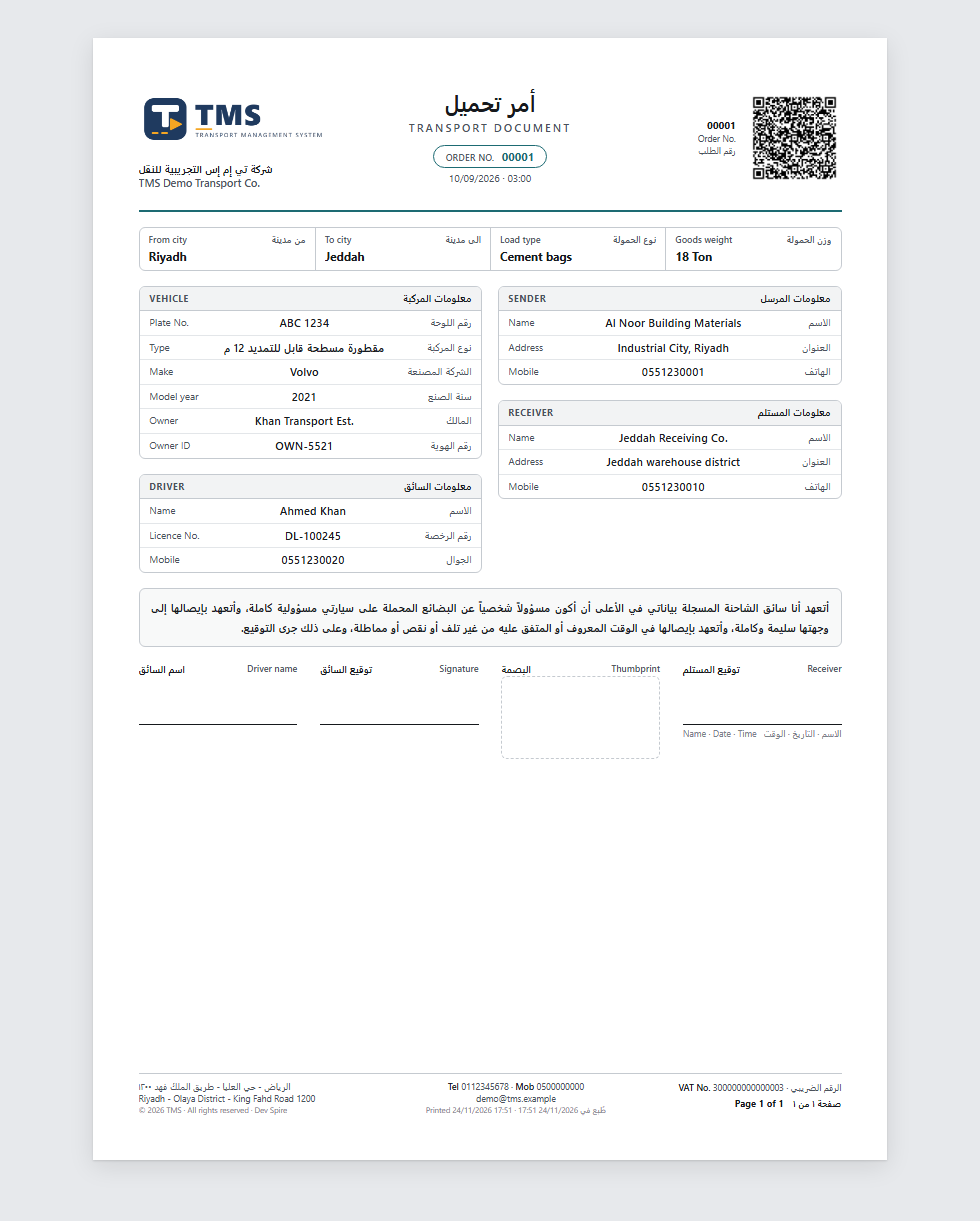
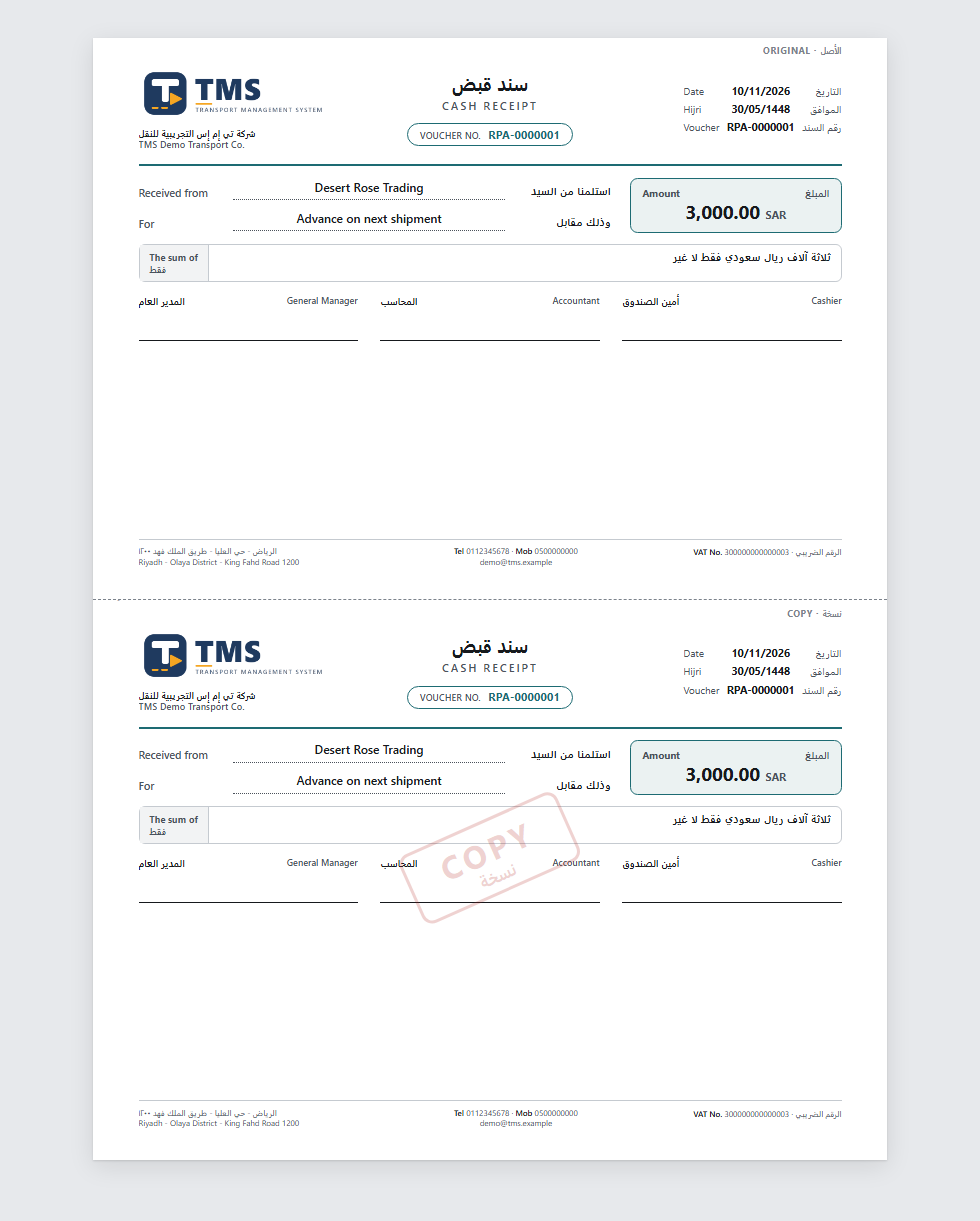
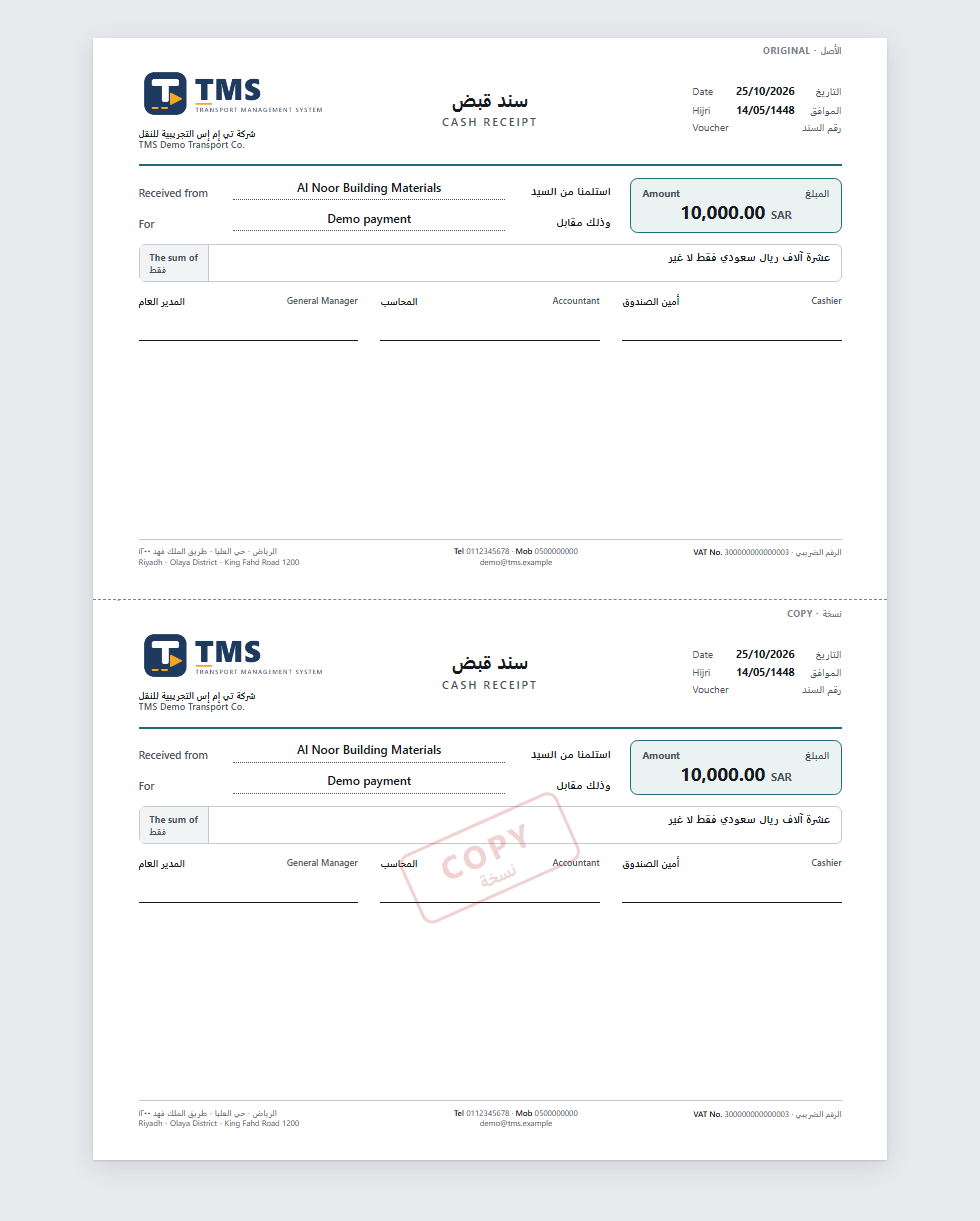
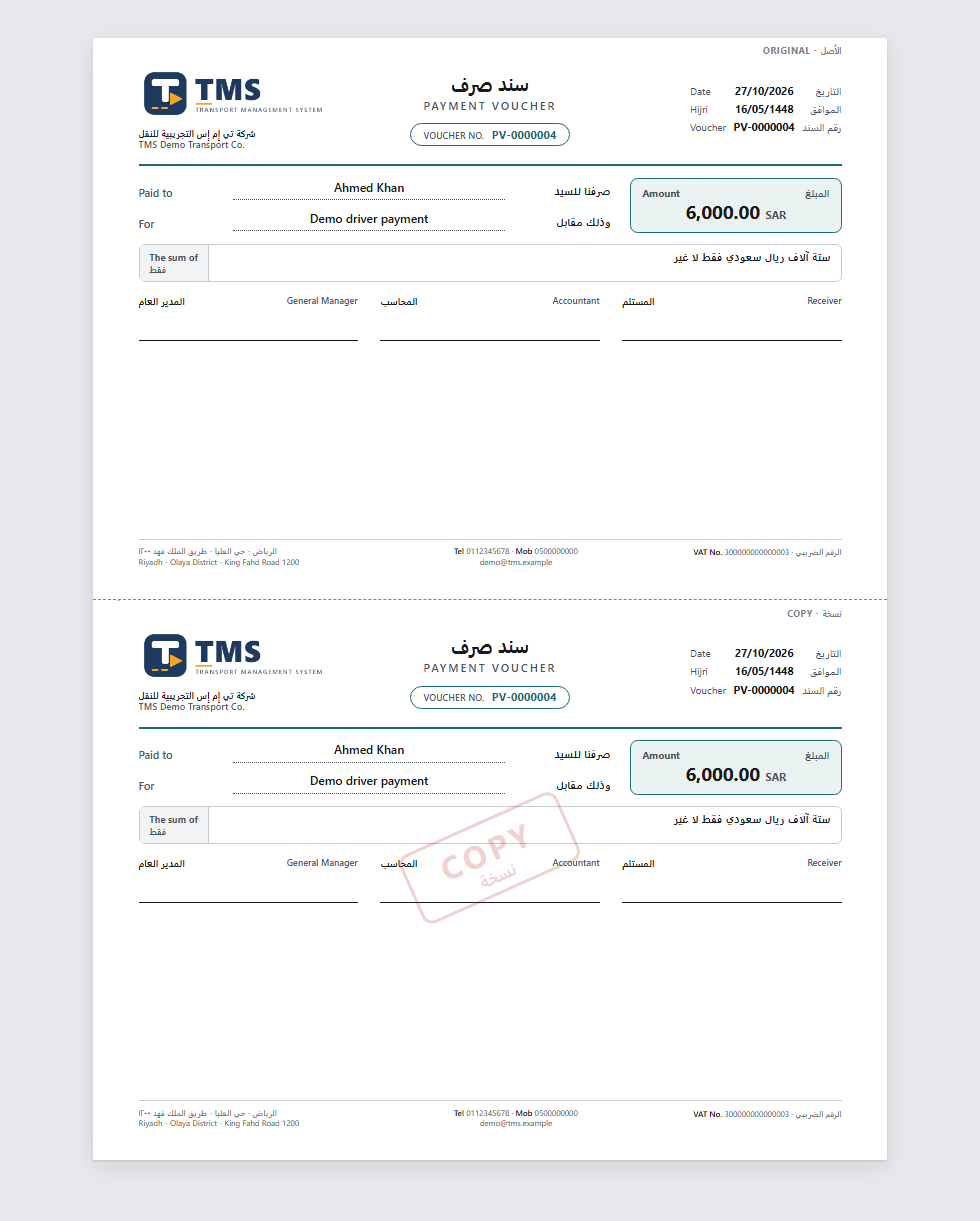
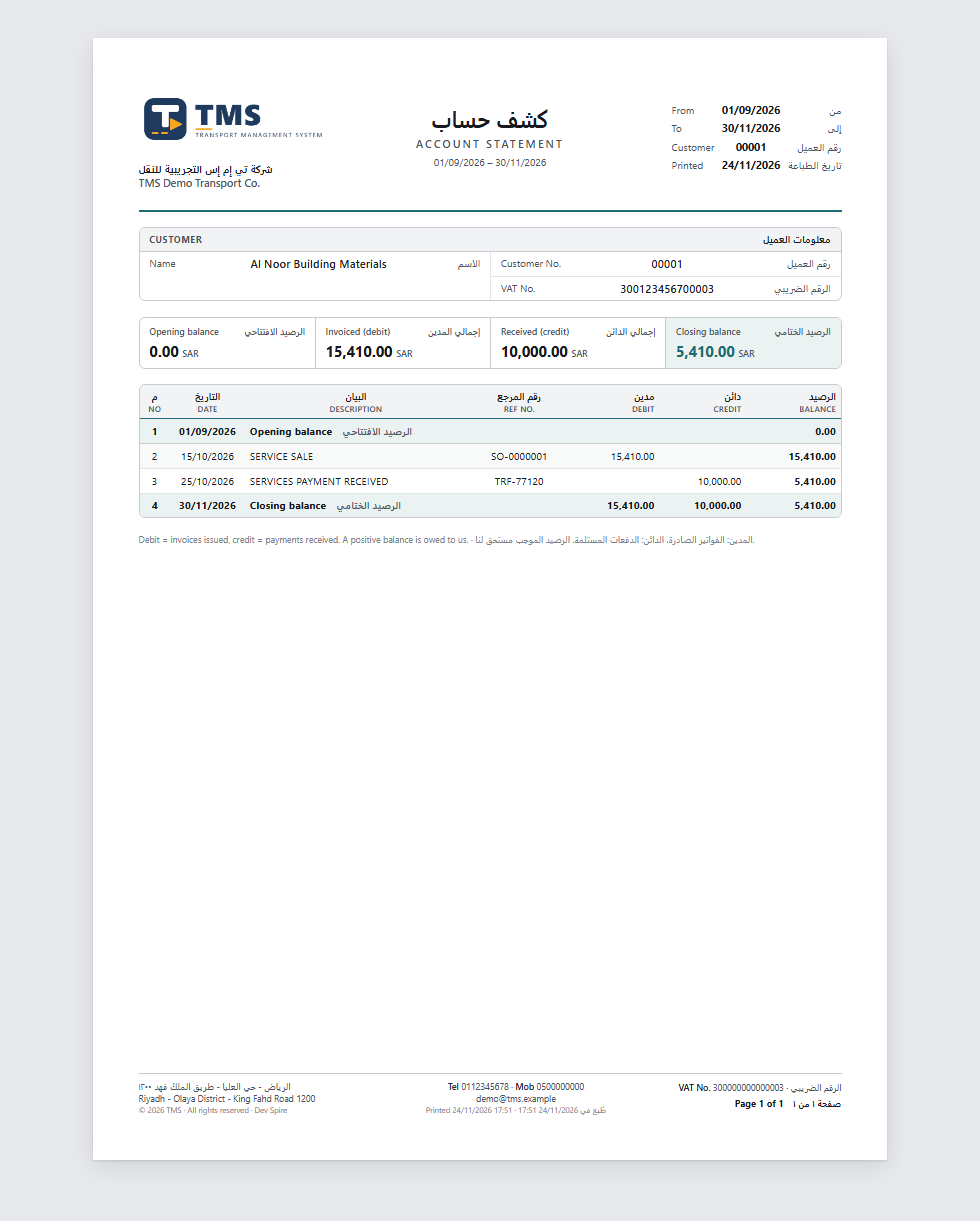
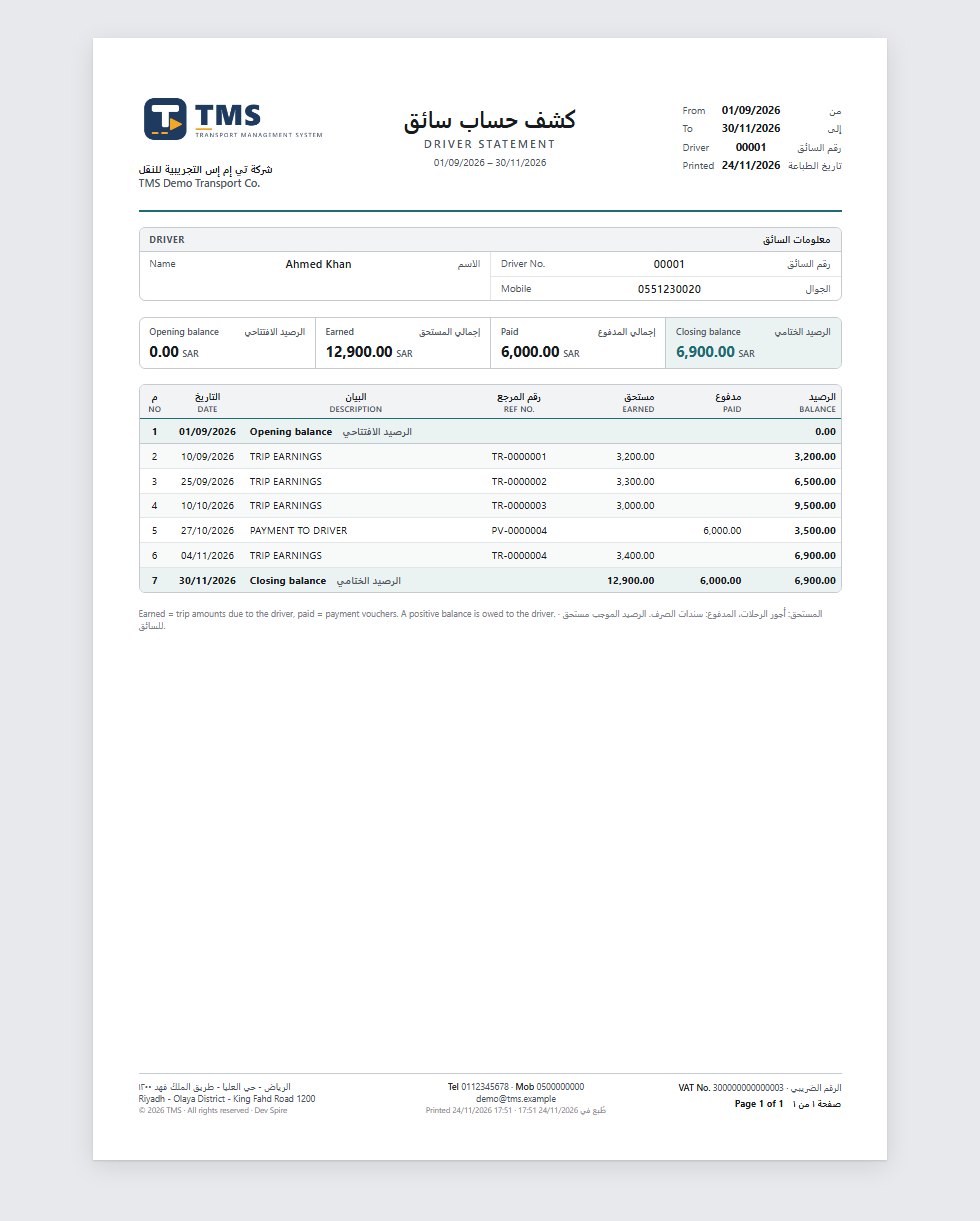
All documents are rendered by the server as a clean A4 page in Arabic and English together, with the company's logo, details and (on tax invoices) the ZATCA QR code. Pressing a print button opens the document in a preview that can be printed or saved as PDF from the browser.
| Document | Printed from | Number | For |
|---|---|---|---|
| Tax invoice (فاتورة ضريبية) | Invoice list, shipment screen | SO-… | The customer. One page lists all its shipments. |
| Transport document (أمر تحميل) | Shipment screen | Shipment number | The driver carries it. It has the driver's pledge and signature, thumbprint and receiver signature. |
| Receipt voucher (سند قبض) | Receipt Vouchers list | RPA-… | Money received that is not part of an invoice. Original and a stamped copy. |
| Payment receipt (سند قبض) | Company account > Payments | No voucher number is printed | Proof of a company payment: who paid, for what, the amount in figures and words. Original and a stamped copy. |
| Payment voucher (سند صرف) | Driver account > Payments | PV-… | Money paid to a driver. Original and a stamped copy. |
| Customer statement (كشف حساب) | Company account > Print Statement | Customer number | Opening balance, invoices, payments and closing balance for a date range. |
| Driver statement (كشف حساب سائق) | Driver account > Print Statement | Driver number | Trips earned and payments made for a date range. |
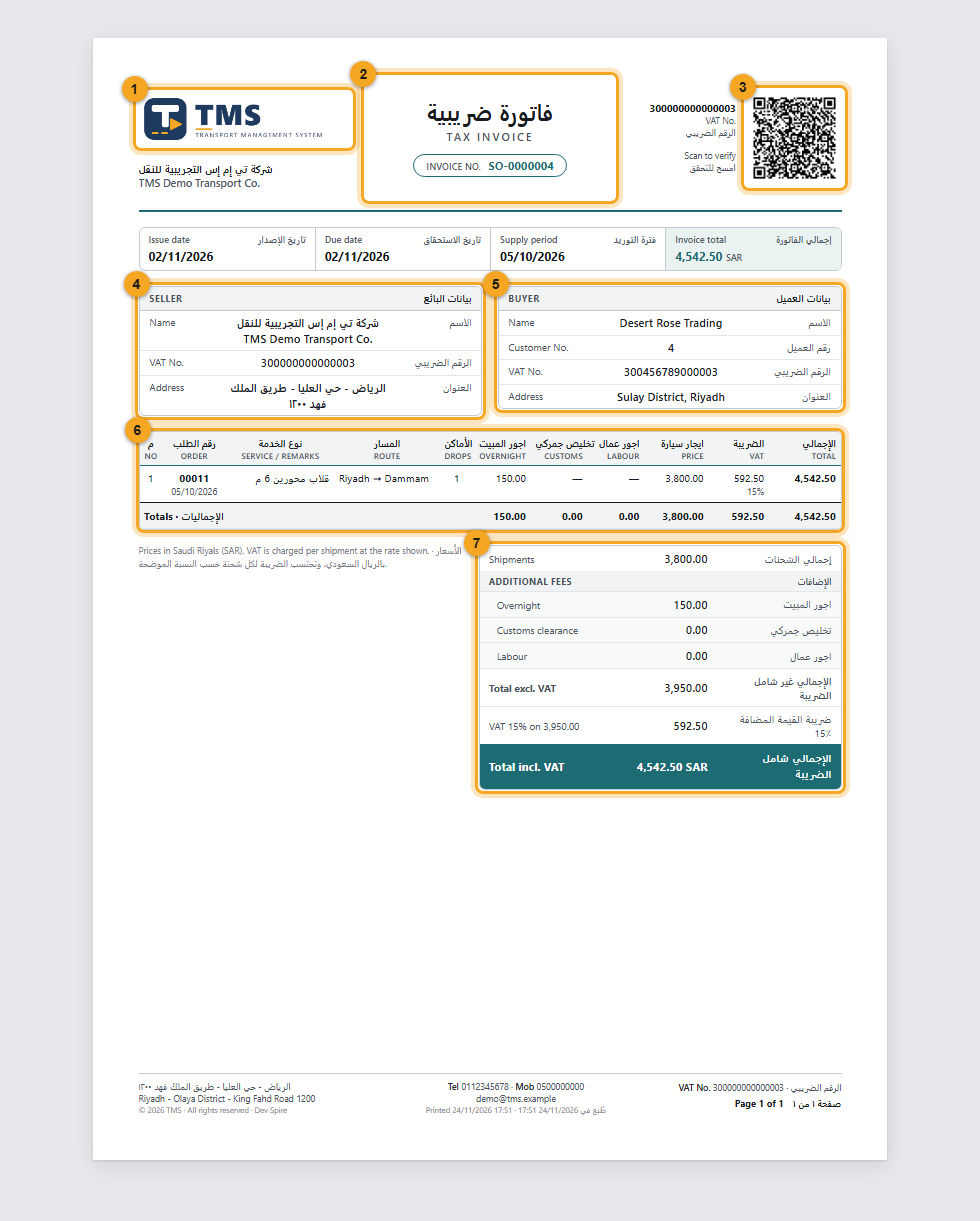
- 1Company logo and name, from Configuration > Branding and Company Information.
- 2Document title in Arabic and English, with the invoice number (SO-0000004).
- 3ZATCA QR code: scanning it shows the seller, VAT number, date, total and VAT. It is built from the company details in force on the invoice date.
- 4Seller: the company. Its VAT number comes from Company Information.
- 5Buyer: the contracted company, with its VAT number and address.
- 6One line per shipment: order number, route, drops, fees, price, VAT and total.
- 7Totals: fees, total without VAT, VAT 15 % and the total including VAT.
10. Rules and numbers on one page
| Topic | Rule |
|---|---|
| Numbers | Shipments TR-0000001, sales invoices SO-0000001, receipt vouchers RPA-0000001, payment vouchers PV-0000001, phone-call jobs PJ-0001. They count up and are never reused: a gap means something was deleted or cancelled. |
| VAT | 15 % or 0 %. VAT = subtotal × rate. Subtotal = customer price + labour + overnight + customs. VAT is payable to the tax authority, never profit. |
| Profit | Contract: customer price − driver payment. One-off: the commission. Phone-call: customer amount − driver amount. |
| Shipment is editable | Only while it is not on an invoice and has no payment. Same for deleting. |
| Invoice | One shipment on one invoice only. Cancelling needs a reason and no payments. Cancelled invoices keep their number and cannot be printed. |
| Customer payment | Amount above 0, two decimals at most, date not in the future. Spread over invoiced shipments, oldest invoice first. The rest stays as credit. |
| Not invoiced = not owed | A company owes money only for invoiced shipments. "Not invoiced yet" on its account is information, not debt. |
| Receipt voucher | Standalone paper. Does not change any invoice or account balance. |
| VAT number | 15 digits, starts and ends with 3 (customers and the company itself). |
| Phone numbers | Saudi mobile such as 0501234567, or an international number starting with +. |
| Contract status | Active, Ending soon (60 days or less), Expired. Expired companies can still be picked with a warning. |
| Deleting | Users, companies and vehicle types are switched off, not erased, when they have history. Shipments are hidden. Only branches are really deleted (with their data). |
| Scope | Everyone sees only their current branch. A Branch User sees only records they created. Only an Administrator can switch branch. |
| Session | Signs out after 30 minutes without use (with a 2-minute warning) and after 12 hours in total, by default. A site may set different limits. |
| Company details on documents | Issued documents keep the company information version they were issued with. Branding changes apply everywhere at once. |
11. The licence
TMS runs under a licence issued by the vendor. It is a signed file: the site can check it but cannot make one. The vendor renews it from the TMS Licence Manager and sends it to the site; nobody on site installs anything.
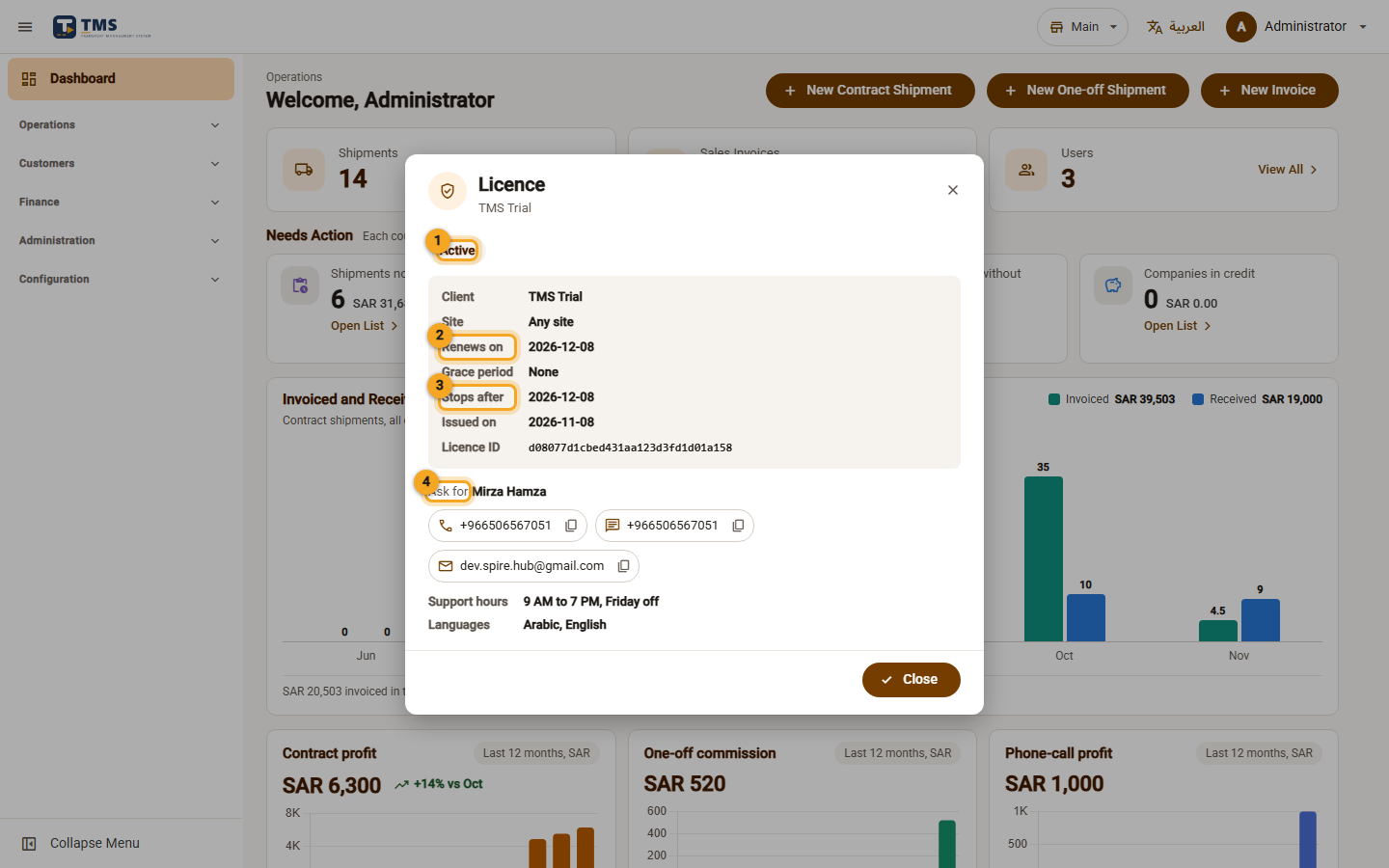
- 1Status: Active, in grace period or expired.
- 2Renews on: the date the licence period ends.
- 3Stops after: the last day the system works; after it the site is locked. A grace period may sit in between.
- 4Who to call at the vendor to renew. The vendor sends the new licence file to the site; nobody on site has to install anything.
- Active: everything works. The Renews on date is the end of the paid period.
- Grace period (if the licence has one): the site still works but warns. After the last day the site locks: every screen shows the licence lock page and the data is not lost.
- Any user can open
Account menu > Licenceto see the dates and the vendor's contact details (name, phone, WhatsApp, email and support hours). - Administrators see the full licence details.
12. How a site is set up (for support)
- One copy per client. Each client has its own site, its own SQL Server database and its own branding folder. The setting
Clientchooses the branding (name, logo, VAT number...). - Branding files live in
TMS/Branding/<CLIENT>/:branding.jsonand the logo files. Vendor support details (the contact shown in the licence box) are inBranding/support.json. - First start. The database is created and migrated automatically, and a fresh install gets one branch ("Main"), the three default roles and two administrator users.
- Settings (environment variables or hosting config, never in git): the database connection,
Client, session limits, andClassification__Enabledfor the classification cleanup tool. - Logs are written to the
logsfolder next to the site, one JSON file per day. Ask for the file and the time of the problem. - The step-by-step guide for a new client is in
docs/new-client.mdin the repository.
13. The support playbook
Questions you will get, and what to check
"I cannot edit or delete this shipment."
It is on an invoice or has a payment. The screen says View only: invoiced. To change it: return the payment, cancel the invoice with a reason, then edit. The exact message is "This shipment is on an invoice or has a payment, so it can no longer be changed."
"I cannot cancel the invoice."
A payment is recorded against it. Open the company account > Payments and return the payment first. Message: "This invoice has payments. Return the payments first."
"The company is not in the list when I make a shipment."
Check, in this order: is it a contracted company (one-off customers are not offered); is it active (deactivated companies disappear); are you in the right branch; does it have an address. Expired contracts still show, with a warning.
"A shipment is missing on the New Invoice screen."
It may already be on another invoice, it may have been deleted, or it is a one-off shipment (those are invoiced from the One-off list). Branch Users only see shipments they entered themselves.
"The customer says the balance is wrong."
Open their account: Invoiced minus Received is the balance. Check that (1) every payment was recorded as a customer payment and not as a receipt voucher, which does not count; (2) shipments that are not invoiced yet are not part of the balance; (3) a returned or cancelled item is in the history. Print the account statement for the period and walk through it line by line.
"I do not see a menu item or a button."
Your role does not allow it. Look at the role under Administration > Roles & Permissions. Company Information, Branding and Branches are for administrators. Customer Classification only shows when the site setting is on.
"My colleague's shipment is not in my list."
You are a Branch User, so you see only records you entered. Use a Branch Administrator or Administrator account to see everyone's.
"I cannot switch branch."
Only an Administrator can. A Branch User or Branch Administrator belongs to one branch.
"Wrong company name, address or VAT number on an old invoice."
Issued documents keep the Company Information version they were issued with, even when reprinted. That is intended: an invoice must not change after it was sent. A change in Company Information applies from its effective date to new documents only. To fix a wrong invoice, cancel it and issue a new one after the details are correct.
"I changed the logo but old prints look the same / new."
Branding (logo, colours) applies at once to everything, including reprints. Company details (names, VAT, address) are versioned and do not change old documents. Reload the page if the screen still shows the old logo.
"There is a gap in the invoice numbers."
Numbers are never reused. A gap is a cancelled invoice (it is still in the list with its reason) or, for shipments, a deleted one.
"I was signed out while working."
The session ends after a period without use or after a fixed number of hours. Unsaved changes are lost. Stay signed in when the Are you still there? box appears.
"The site says the licence is expired / locked."
The licence period ended. Open the licence box (or the lock page) for the vendor's contact details and ask the vendor to renew. Data is safe; the site unlocks as soon as the new licence arrives.
"The password does not work."
The message "The username or password is incorrect." means a wrong password or username. "This user is blocked" means the user was switched off by an administrator. An administrator can give a temporary password from Administration > Users.
Messages you will see, in plain words
| Message on screen | What it means and what to do |
|---|---|
| You do not have permission to do this. | The role lacks View, Add & Edit, Delete or Print for that module. Change the role or use another account. |
| This shipment is on an invoice or has a payment, so it can no longer be changed. | Return the payment and cancel the invoice first. |
| A shipment stays in the list it was entered in. Delete it and enter it again in the other list. | A Contract shipment cannot become a One-off one (or the other way round) by editing. |
| This customer is a contracted company. Enter the shipment in Contract Shipments. | On a one-off shipment the name or VAT number matches a contracted company. |
| One of these shipments is already on an invoice. Reload the list. | Someone invoiced it a moment ago. |
| This invoice has payments. Return the payments first. | Open the company account > Payments and return them. |
| Enter the reason for cancelling, up to 200 characters. | The cancel box needs a reason. |
| A customer with this name (or VAT number) already exists in this branch. | Use the existing company, or check for a typo. |
| Shipments use this address, so it cannot be removed. | Add the new address, keep the old one. |
| Shipments or payments use this customer, so it cannot be deleted. | Deactivate the company instead. |
| Shipments, phone-call jobs or payments use this driver, so it cannot be deleted. | A driver with history cannot be removed. |
| Choose an active vehicle type, then a sub type and length of that type. | The truck lists come from Configuration > Vehicle Types. The type may be deactivated, or the sub type belongs to another type. |
| The VAT number must be 15 digits that start and end with 3, or empty. | Correct the VAT number. |
| Enter a mobile number like 0501234567, or an international number that starts with +. | Phone numbers have a fixed format. |
| Choose today or a later day. | The effective date of a Company Information version cannot be in the past. |
| Type CHANGE VAT to confirm the new VAT number. | Extra confirmation for a VAT number change. |
| This username is already in use. | Pick another username. |
| Something went wrong on the server. Try again. | A real server error. Note the time and the page, and look at the log file of that day. |
A good first call checklist
- Which site (client) and which user and role? Is the person in the right branch?
- What exactly did they press, and what is the exact message? Ask for a screenshot.
- What is the document number (
TR-…,SO-…,PV-…)? Look it up in the list. - Is it a locking question (invoiced, paid) or a permission question (role) or a data question (wrong entry)? Most calls are one of these three.
- Is the licence active? Is it the same problem for everyone (then it is the site, not the user)?
14. Release log and keeping this guide current
| Release | Date | What this guide covers or what changed |
|---|---|---|
| 3.0.0 | 2026-11-24 | Base version of the guide, in English and Urdu. Covers: contract and one-off shipments, phone-call jobs, contracted companies and one-off customers, customer classification (optional), sales invoices, receipt vouchers, customer and driver accounts, financial summary, users, roles (with the three default roles), branches, vehicle types, company information with dated versions, branding, the printed documents (tax invoice, transport document, vouchers, statements), the collapsible side menu, Arabic and English, the licence, and the support playbook. |
When a release changes the product, add a row above (newest first) saying what changed on screen and in the rules, then rebuild the guide. Update the English and the Urdu text together.
How to rebuild it. Everything is in SystemGuide/ in the repository:
src/*.htmlhold the English text andsrc/ur/*.htmlthe Urdu text.flows.mjsholds the flow diagrams.capture/scenes*.mjsandcapture/annotations.mjshold the list of screenshots and what each numbered circle means; their Urdu translation is ini18n/ur/.- Start the demo site (see
README.mdthere) and runnode capture/shoot.mjsto retake the screenshots. Usenode capture/shoot.mjs scene-idfor just one. - Edit the text, then run
node build.mjs. It writesindex.html(English) andindex.ur.html(Urdu), and lists anything that is not translated yet. - Update
guide-version.jsonand the release log, then commitindex.html,index.ur.html,images/and the sources.